
Discover your first device with BB-Eco
This guide takes you from a freshly-installed BB-Eco to your first discovered Brainboxes device — typically under thirty seconds on a typical office or factory network.
Before you start
- BB-Eco is installed and the dashboard is open. (If not, see Install BB-Eco.)
- A Brainboxes ED, ES, or BB device is powered on and connected to the same network as your computer — ideally the same Layer 2 broadcast domain (same switch, no routers in the path).
- Your firewall allows BB-Eco to send and receive UDP broadcasts.
Auto-discovery (the easy path)
BB-Eco starts scanning for devices the moment the app opens. There is no button to press.
- Connect your Brainboxes device to the network and power it on.
- Switch focus back to BB-Eco.
- Within a few seconds, the device appears in the dashboard.
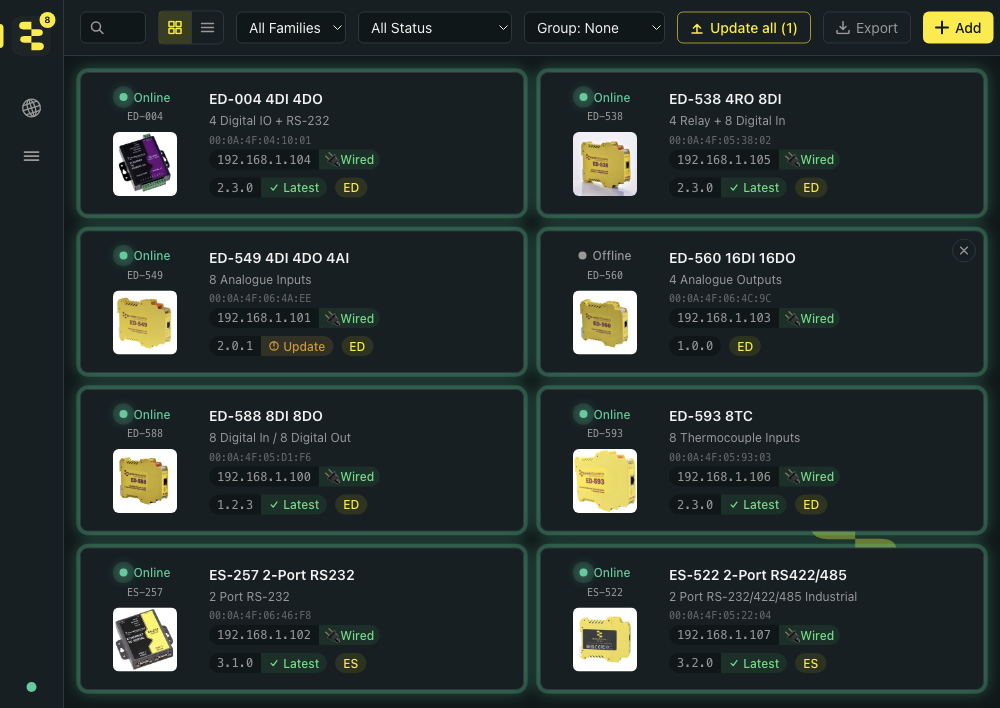
BB-Eco uses SSDP (UPnP) under the hood — the same protocol Smart TVs and printers use to advertise themselves. It actively searches on every network interface and passively listens for the announcements devices make on their own (at power-on and periodically), so a device you plug in appears without waiting for the next search round. BB-400 Industrial Edge Controllers also publish themselves over mDNS, which BB-Eco listens for in addition to SSDP — handy on networks where SSDP is filtered but mDNS isn't.
When a device announces it's going away or stops responding, its card flips to Offline rather than disappearing — devices you've seen stay on the dashboard so you notice the absence. To remove a decommissioned device's card for good, use the remove control on the offline card.
Each device card packs the essentials at a glance:
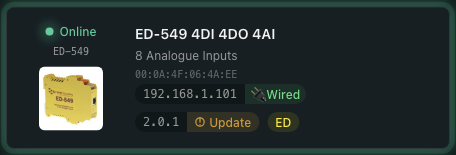
The orange Update pill is the cue that this device has firmware available — clicking the card opens its detail panel and the Firmware tab takes you straight to the upgrade flow.
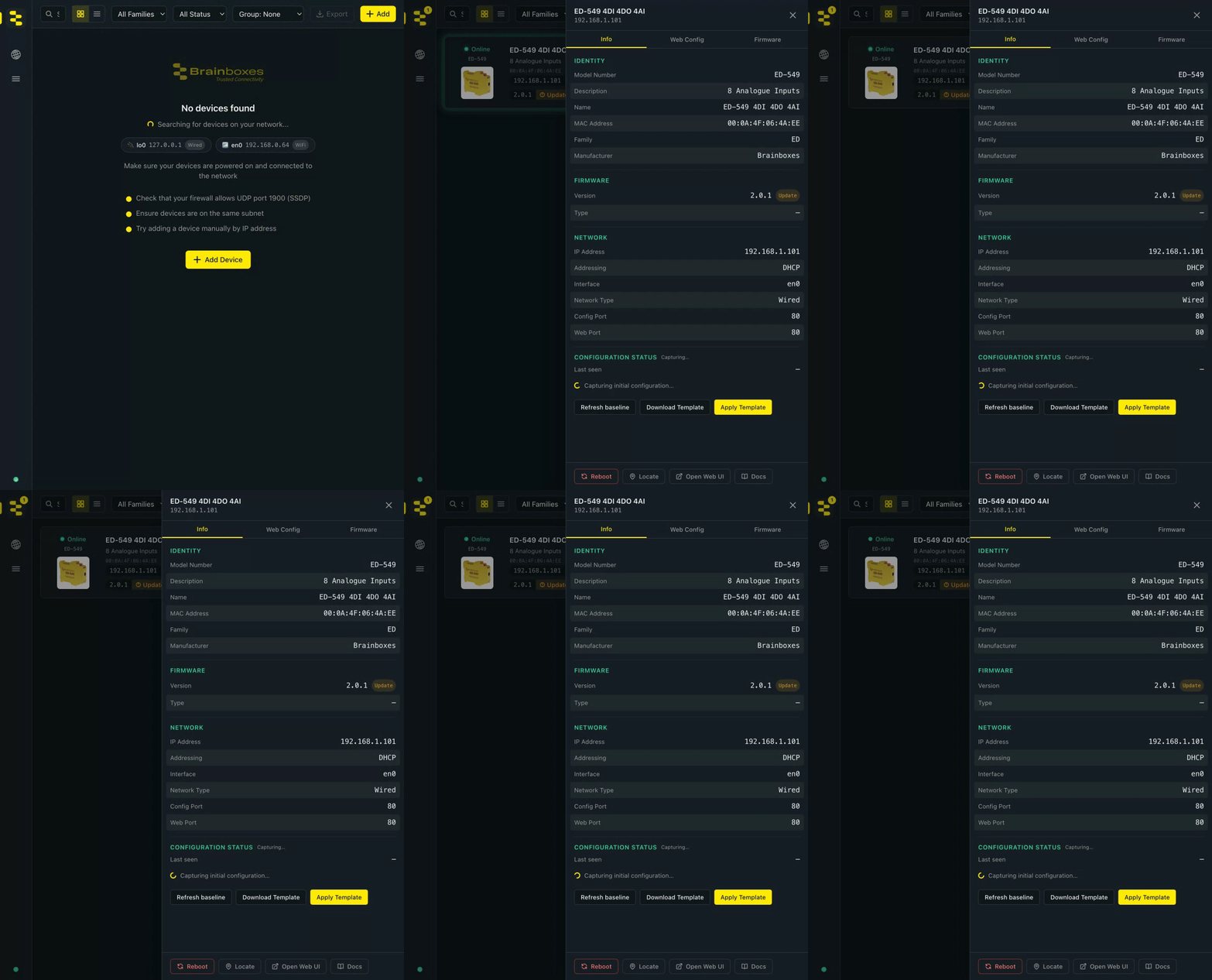
Click any device card to open its detail panel — model number, MAC address, firmware version, capabilities, and quick actions like Locate and Reboot. Hover any badge or chip on a card for a tooltip explaining what it means.
Locate is the answer to "which box is it?" — it flashes the device's status LED so you can pick it out of a rack:
What if no devices appear?
Auto-discovery breaks when broadcasts can't reach BB-Eco. The most common causes:
| Symptom | Likely cause | Fix |
|---|---|---|
| BB-Eco is on Wi-Fi, the device is on wired Ethernet | The Wi-Fi access point isn't bridging to the wired LAN | Connect your laptop to the wired network for discovery |
| You're on a corporate VPN | The VPN client blocks LAN broadcasts | Disable the VPN, or add the device manually (below) |
| The device is on a different subnet and/or VLAN | SSDP broadcasts don't cross routers or VLAN boundaries | Use Add device manually with the device IP |
| The device is plugged in but not powered | Confirm power LED is on | Power-cycle the device |
| Windows Defender Firewall is blocking | The firewall rule the installer offered was declined, or was removed later | Click Add firewall rule on the banner BB-Eco shows, or run bb-eco firewall status to see the effective state |
For a deeper, layered checklist see BB-Eco finds no devices on my network; on IT-managed Windows machines, see the firewall rules guide.
Adding a device manually
When auto-discovery isn't an option — cross-subnet, VPN, or restricted firewall — enter the device IP directly.
- Click Add in the dashboard top bar.
- Enter the device's IP address.
- Click Add.
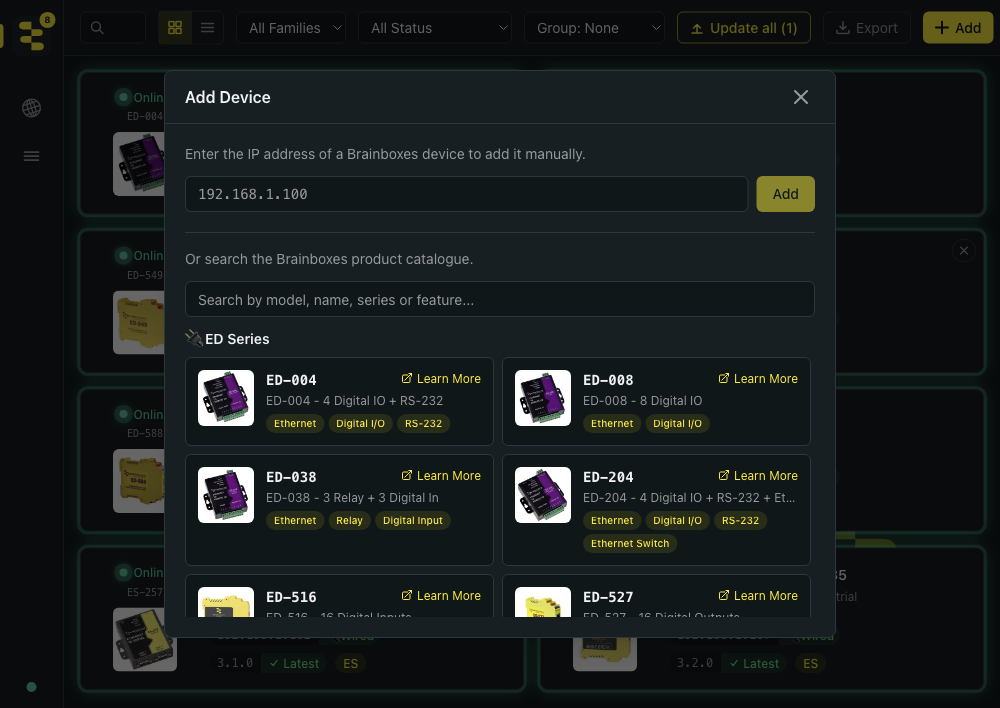
BB-Eco fetches the device's description.xml and devinfo.xml over HTTP, populates the dashboard card with model and capability information, and continues to monitor the device alongside auto-discovered ones.
The same dialog doubles as a product browser: search the Brainboxes catalogue by model number, name, series, or feature (try "temperature" or "RS-485"), and Learn More opens the product page in your browser — useful when you're deciding what to order for the next cabinet.
If you don't know the device IP, plug the device into your Layer 2 LAN (a desk-side switch is enough) and use auto-discovery to read the address, then move it back to its production network.
Filtering and grouping

Once you have several devices visible, the dashboard provides three useful controls:
- Search — by device name, model number, product description ("analogue", "RS-232"), IP, MAC, or firmware version. Matches partial strings.
- Filter — by family (ED / ES / BB / SW) or status (online / offline / all).
- View — switch between grid and list. Grid is friendlier for site walkthroughs; list is faster to scan when you have dozens of devices.
Discover from the CLI
If you've installed the BB-Eco CLI, the same auto-discovery is one command:
bb-eco discover
Output is a table of every Brainboxes device found, with model, IP, MAC, firmware version, and last-seen timestamp. Append --json or --csv for scriptable output:
Show only the devices with a firmware update available:
bb-eco discover --json | jq '.[] | select(.firmwareUpdateAvailable) | {modelNumber, ipAddress, firmwareVersion}'
Save the live inventory to disk:
bb-eco discover --csv > inventory-$(date +%F).csv
For cross-subnet, VPN, or any other case auto-discovery can't reach, add a device manually:
bb-eco discover add 192.168.1.50
The CLI persists discovered devices to the same on-disk cache the desktop app uses, so a subsequent bb-eco list shows everything from both sources.
See the bb-eco discover CLI reference for every flag.
Next step
Now that BB-Eco can see your device, upgrade its firmware safely — then save its configuration as a template.
More resources
- BB-Eco overview — feature summary and supported families
- Use BB-Eco as a network discovery tool — the Network Neighborhood view and CIDR subnet scanning
- Discovery, the device cache, and VPN sessions — how remote sites over VPN work
- Brainboxes ED Range — Ethernet Remote I/O products
- Brainboxes ES Range — Ethernet-to-Serial gateways
- Brainboxes BB Range — Industrial Edge Controllers