
Upgrade your first device's firmware with BB-Eco
A firmware upgrade puts the device into bootloader mode and writes flash memory. Pulling the power, network cable, or killing BB-Eco mid-transfer may brick your Brainboxes device. Set aside ten uninterrupted minutes per device before you start — and if anything does go wrong, Brainboxes support is always at hand.
This guide walks you through a single-device firmware upgrade end-to-end, with the safety checks that prevent the most common ways an upgrade goes wrong.
Before you start
- The device is online in BB-Eco (see Discover your first device).
- Wired Ethernet is preferred. Most upgrades over Wi-Fi finish without trouble, but a flaky wireless link can occasionally stall the BOOTP/TFTP transfer — wired removes that variable.
- You're on the same Layer 2 broadcast domain as the device. BOOTP cannot cross routers.
- On Linux, you have sudo access: the transfer binds UDP ports 67 and 69, which are privileged there. Windows and macOS need no administrator prompt — on Windows the firewall rule the installer added is all that's required.
- You've reviewed the device's release notes (linked in BB-Eco when an update is available).
Step 1 — Open the device's Firmware tab
The orange Update pill on the firmware version line is the call to action — every device with available firmware shows it both on the dashboard card and on the Info tab:

- In the BB-Eco dashboard, click the device card to open its detail panel.
- Click the Firmware tab.
- If a newer firmware version is available, BB-Eco displays an Update available banner with the current version, the latest version, and the release notes.
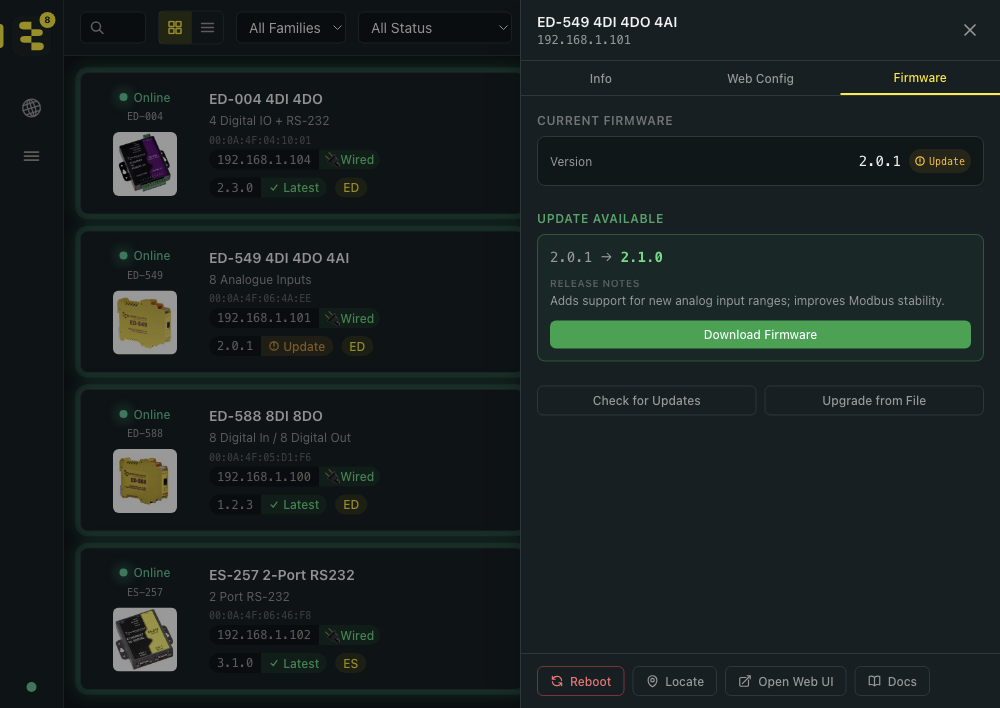
If the banner doesn't appear, click Check for Updates. BB-Eco contacts the Brainboxes manifest service (or uses its local cache if you're offline) and reports back within a few seconds.
Step 2 — Read the pre-flight result
Click Install Update. BB-Eco does not start writing firmware yet — it runs a pre-flight check first:
- Cross-checks the firmware image against the device's reported model, microcontroller class and firmware type.
- Binds UDP ports 67 (BOOTP) and 69 (TFTP) in its transfer process. On Linux this is where the one password prompt appears; Windows and macOS bind them without a prompt.
- Runs a short UDP connectivity test to the device to confirm a firewall isn't silently dropping packets.
The result appears in a dialog with one of three outcomes:
| Verdict | Meaning | What to do |
|---|---|---|
| Compatible (green) | Safe to upgrade | Click Proceed with Upgrade. |
| Compatible (with warnings) (amber) | Upgrade will work, but BB-Eco found something worth flagging — typically a Wi-Fi or VPN interface, or a much-older firmware version | Read every warning. Resolve the ones you can (move to wired Ethernet, disable VPN). Proceed only when you understand each. |
| Incompatible (red) | The firmware doesn't match this device | Click Cancel. Do not override. |
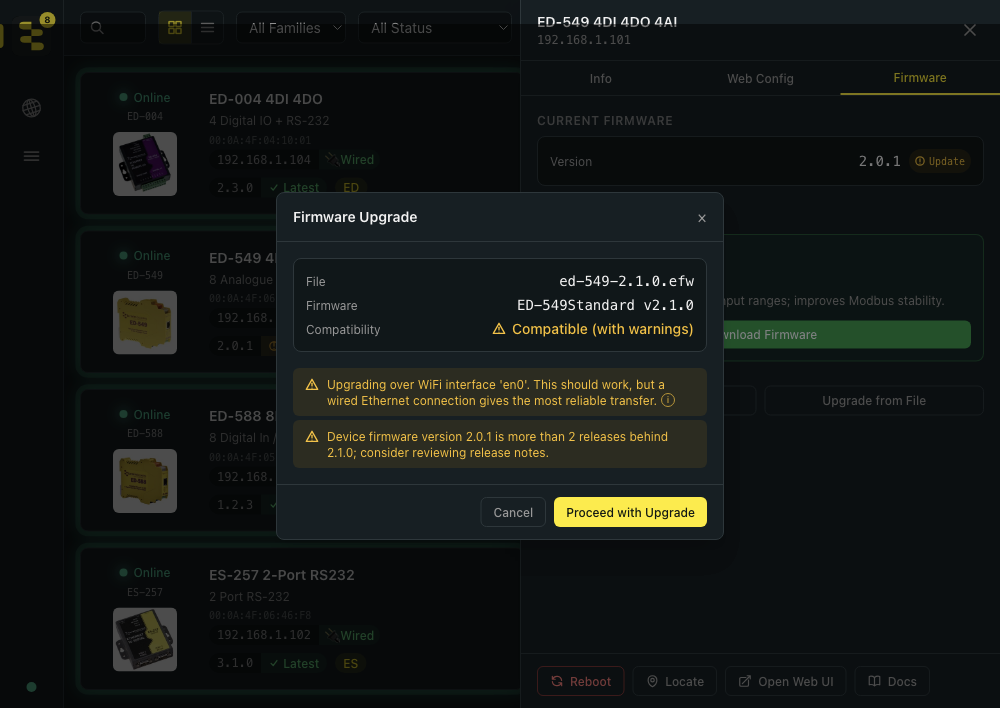
The two amber warning rows are the heart of the pre-flight — read each one and decide whether to address it (move to wired Ethernet, disable VPN) or proceed with eyes open:
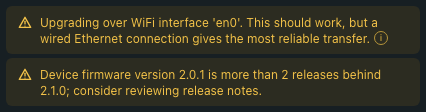
Wi-Fi upgrades usually go fine in our testing. Occasionally a flaky wireless link drops a TFTP packet at the wrong moment and stalls the transfer. If you're on Wi-Fi and the pre-flight flags it, you can proceed; switching to wired Ethernet just removes one variable from the equation.
Step 3 — Watch the upgrade progress
After you proceed, BB-Eco transfers the firmware to the device using BOOTP and TFTP. Progress is reported in real time:
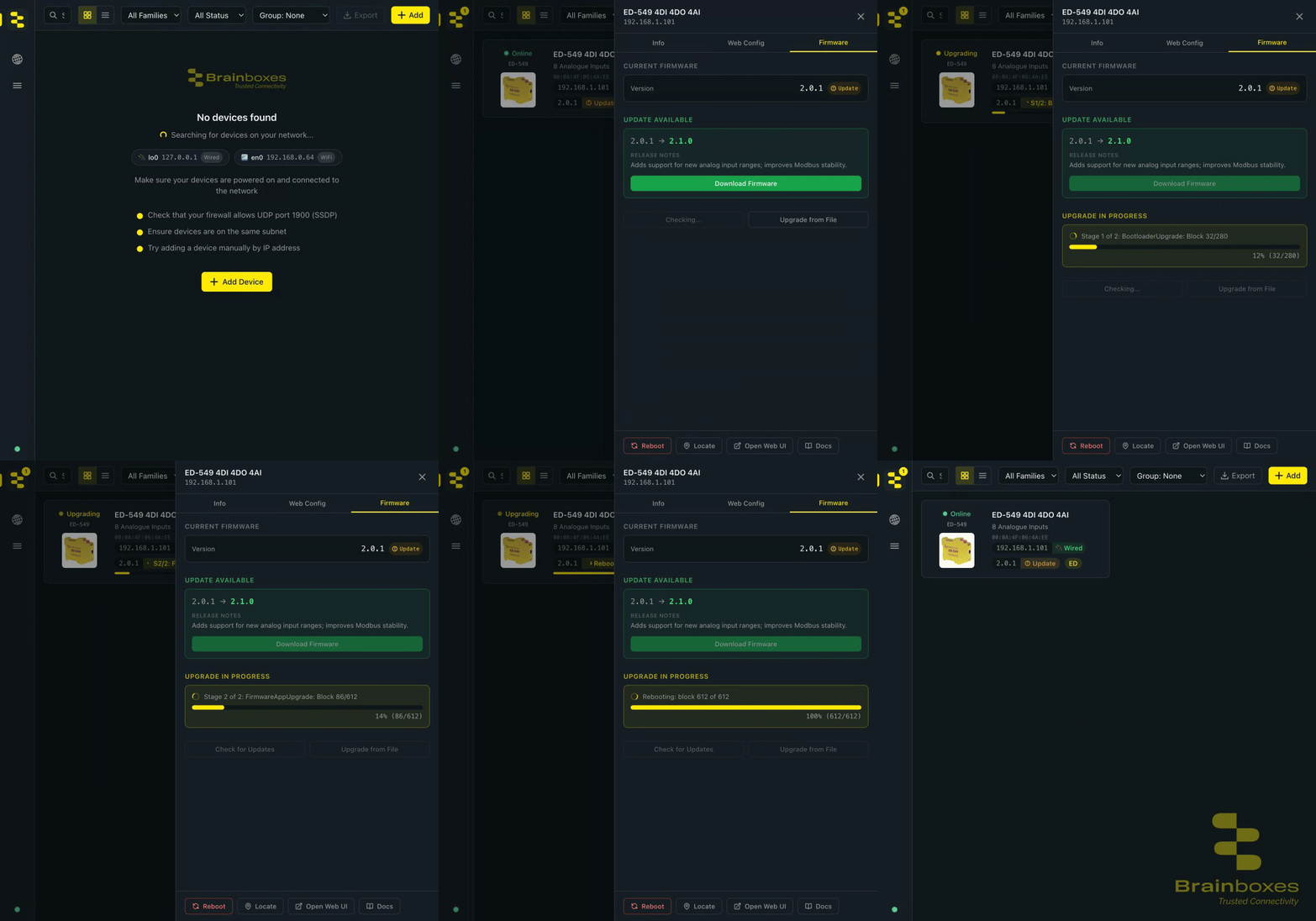
Typical timings:
- ED devices complete in about 1–3 minutes (two stages: Bootloader, FirmwareApp).
- ES devices complete in about 2–5 minutes (two or three stages: optional Flash, Bootloader, FirmwareApp).
- BB devices — coming soon. BB-Eco will use the on-device Linux package manager once that integration ships.
- SW devices — coming soon. Managed-switch firmware upgrades will run over Secure Shell (SSH) once that integration ships.
You'll see brief gaps between stages — that's the device rebooting into the next stage. This is expected. Don't panic if the progress bar pauses for up to thirty seconds between stages.
When the upgrade completes, the device reboots and BB-Eco re-discovers it on the network with the new firmware version showing on its card.
What to do if something goes wrong
| Symptom | What it usually means | Recovery |
|---|---|---|
| Pre-flight reports a port conflict | Another program holds UDP port 67 or 69 — the message names the exact port and the process that owns it | Stop or reconfigure the named program (on Windows this is often Internet Connection Sharing), then retry |
| Pre-flight warns "BOOTP/TFTP packets could not reach this application" | Firewall is blocking ports 67/69 | Allow BB-Eco through your firewall; retry pre-flight |
| Progress bar stalls at 0% during BOOTP stage | Device didn't see your BOOTP reply | Check cable, confirm same subnet, retry |
| Progress bar stalls mid-transfer for over 60 seconds | TFTP packet loss or firewall interference | Wait two minutes — TFTP retries are slow. If still stalled, see below |
| BB-Eco reports "Stage timed out" | Final ACK never arrived | Stage may have completed anyway — wait for the device to reboot, then check the firmware version |
| Device card shows an amber Stuck badge | Device is in its bootloader, broadcasting for firmware | Follow Recover a stuck ED or ES device — BB-Eco detects the broadcast and offers recovery with matching firmware pre-selected |
Upgrade from the CLI
Same flow as the desktop app — pre-flight check, then the sequential stages — without the GUI. Useful on a headless server, in a maintenance script, or whenever you'd rather not click through a dialog. On Linux, prefix the commands that transfer firmware with sudo; Windows and macOS need no elevation.
See which discovered devices have an update available (the Update column names the version):
bb-eco discover
Check one device without applying anything:
bb-eco upgrade 192.168.1.50 --check
Pre-cache the latest firmware for every model in the catalogue:
bb-eco upgrade --download-all
Apply the latest cached firmware to one device. The command holds the transfer for its whole duration; do not interrupt it:
bb-eco upgrade 192.168.1.50 --latest
Apply a specific .efw file (an air-gapped site, or a particular version):
bb-eco upgrade 192.168.1.50 firmware/ED-549-2.1.0.efw
The same brick-risk rule applies: once bb-eco upgrade starts the BOOTP/TFTP transfer, do not kill the process, unplug the cable, or sleep the host. Set aside a few minutes per device. To bring every out-of-date device on the network up to date in one run, use bb-eco upgrade all — see Update firmware on every device at once.
See the bb-eco upgrade CLI reference for every flag.
Going further
- Bulk-upgrade firmware across many devices — one workflow, dozens of devices
- Recover a stuck ED or ES device — for devices that didn't complete an upgrade
- Run BB-Eco without internet access — air-gapped factory floors and Cyber Essentials admin accounts
Next step
With the firmware current, save the device's configuration as a template — the starting point for config as code and drift detection.
More resources
- BB-Eco overview
- Discover your first device
- Legacy ED firmware upgrade with Boost.IO Manager — if you're not yet ready to switch to BB-Eco
- Legacy ES firmware upgrade with Boost.LAN — same, for ES gateways