
Run BB-Eco without internet access — air-gapped and Cyber Essentials deployments
BB-Eco is designed to work on machines and networks that have no path to the public internet. Two deployment patterns drive this:
- Factory floors and OT networks that are physically or logically isolated from the corporate network
- UK Cyber Essentials (and equivalent regimes) that require administrator accounts to have no direct internet access as a hardening measure
This guide covers both, with concrete step-by-step instructions for each.
What BB-Eco needs the internet for
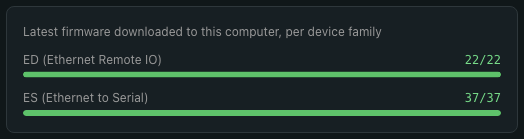
The firmware cache panel in Settings → General (under the automatic firmware update switch) is the at-a-glance view of what's currently cached on disk — populated once after a bb-eco upgrade --download-all, then untouched until the next refresh:
Two things, both optional:
- Downloading the BB-Eco installer from
update.brainboxes.com - Downloading firmware images from the Brainboxes manifest, used during firmware upgrades
Everything else — discovery, configuration, monitoring, applying templates, even firmware upgrades themselves — runs over your local network without ever talking to the internet.
The two scenarios below differ only in when the machine has internet access. Once the installer and firmware are on disk, BB-Eco is fully offline-capable.
Scenario A — Factory floor with no internet
Story: an industrial control engineer needs to provision Brainboxes hardware on a production line. The factory network is air-gapped from corporate IT. The engineer's laptop has internet at the office, but not on the factory floor.
Steps
-
At the office (with internet):
Install BB-Eco from the install page and launch it once so it downloads the firmware manifest. Then pre-cache firmware for every supported model:
bb-eco upgrade --download-allThe
--download-allflag pulls every firmware image listed in the manifest into the local cache. It runs unprivileged — no sudo password prompt. Expect ~50 MB of downloads depending on how many models are in the catalogue. -
Verify the cache. Settings → General shows how many of each family's images are on disk (the panel pictured above). For one device,
bb-eco firmware status <ip>reports the available version and aCachedline with the file path. -
Travel to the factory floor. Bring the laptop. The cache lives in:
OS Cache path macOS ~/Library/Caches/bb-eco/firmware/Linux ~/.cache/bb-eco/firmware/Windows %LOCALAPPDATA%\bb-eco\firmware\ -
At the factory floor (no internet):
- Plug into the factory network
- Launch BB-Eco — discovery, configuration, and firmware upgrades all work using the cached firmware
- The "firmware update available" badges in the dashboard reflect the cache as it was at your last office sync
-
When you next have internet, re-run
bb-eco upgrade --download-allto refresh the cache.
That's it. No special offline mode, no separate config — BB-Eco just uses what's on disk and never blocks waiting for the internet.
Scenario B — Cyber Essentials admin account
Story: a UK government supplier needs to run BB-Eco from an administrator account on a Cyber Essentials-certified workstation. Cyber Essentials requires that "administrative accounts must not be used for general activities such as web browsing or email" — in practice this is implemented by removing internet access from admin accounts at the network or proxy layer.
The challenge: the account that runs the upgrades has no internet access to download firmware. On Linux that account also has to be able to elevate, because BOOTP/TFTP bind privileged ports there; on Windows and macOS BB-Eco needs no elevation, but site policy often still puts device maintenance on the administrator account.
Solution
Split the workflow between two accounts on the same machine, using the shared firmware cache:
-
Sign in as a standard (non-admin) user with internet access.
-
Run the manifest refresh and firmware download as that standard user:
bb-eco upgrade --download-allThis is intentionally an unprivileged operation in BB-Eco. The cache lives in the user's home directory; no admin rights needed.
Why the cache is per-user, not system-wideBB-Eco deliberately keeps the firmware cache in each user's home directory rather than a shared system path. That means each user account that runs BB-Eco has its own cache. For Cyber Essentials, this is a problem — see the next step.
-
Make the cache available to the admin account. A few options, in order of preference:
-
Symlink the admin account's cache directory at the standard user's cache. On macOS:
ln -s "/Users/standarduser/Library/Caches/bb-eco/firmware" \
      "/Users/admin/Library/Caches/bb-eco/firmware"
On Linux:
ln -s "/home/standarduser/.cache/bb-eco/firmware" \
      "/home/admin/.cache/bb-eco/firmware"
Run either as the admin account.
-
Copy the cache directory between accounts. Simple but has to be repeated each time the standard user refreshes the cache.
-
Mount a shared partition at both accounts' cache paths. Cleanest in environments where you can't symlink between user homes for permission reasons.
-
-
Sign out, sign in as the admin account. The admin account now has no internet access and a populated firmware cache. Launch BB-Eco — firmware upgrades succeed against the cached images, the manifest refresh fails silently (BB-Eco falls back to the cache), and the Cyber Essentials separation is preserved.
-
Refresh cycle. When new firmware ships, sign back in as the standard user, run
bb-eco upgrade --download-all, sign out, sign back in as admin. Quarterly or monthly is typical.
Cyber Essentials compliance note
This pattern keeps the admin account fully offline at all times. Internet-dependent operations (manifest fetch, firmware download) only ever happen under the standard user account. The shared cache is the bridge.
If your Cyber Essentials interpretation prohibits even file-level sharing between standard and admin accounts, fall back to Scenario C below.
Scenario C — Fully air-gapped admin (USB sneakernet)
The most restrictive deployment: the admin account runs on a machine that has never been connected to the internet, on a network that has never been connected to the internet. The standard-user-on-the-same-box trick from Scenario B isn't allowed.
Treat the firmware cache directory as a portable artefact:
-
On any machine with internet access, install BB-Eco and run
bb-eco upgrade --download-all. -
Copy the firmware cache directory onto a USB stick:
cp -r ~/.cache/bb-eco/firmware /Volumes/USB-STICK/bb-eco-firmware-cache(Linux path shown; on macOS the cache is
~/Library/Caches/bb-eco/firmware, on Windows%LOCALAPPDATA%\bb-eco\firmware.) -
Plug the USB stick into the air-gapped machine. Copy the directory into the admin account's cache path:
cp -r /Volumes/USB-STICK/bb-eco-firmware-cache ~/.cache/bb-eco/firmware -
BB-Eco on the air-gapped machine now has the same cache as the internet-connected one. Firmware upgrades work.
-
Each time new firmware ships, repeat steps 1–3. Bring the USB stick back to the internet-connected machine for a refresh.
Every image in the cache is verified against its SHA-256 checksum before it is used, so a copy that arrived incomplete is refused rather than flashed.
Headless servers — CLI without the desktop app
For machines without a display (a CI runner, a jump-host, a Raspberry Pi running Linux), the BB-Eco CLI is a self-contained binary you can install without the desktop app. From the office (with internet), download once:
Invoke-WebRequest https://update.brainboxes.com/bb-eco/beta/cli/win-x64/bb-eco.zip -OutFile bb-eco.zip
Expand-Archive bb-eco.zip
move bb-eco\bb-eco.exe C:\path\in\PATH\
bb-eco upgrade --download-all
The last line pre-caches firmware, exactly as the desktop flow does.
Then the same USB sneakernet recipe in Scenario C applies — copy bb-eco.exe plus the firmware cache directory together onto the air-gapped host.
When the macOS and Linux CLI builds ship, the same archive will be available at:
- macOS:
https://update.brainboxes.com/bb-eco/beta/cli/osx-arm64/bb-eco.tar.gz - Linux:
https://update.brainboxes.com/bb-eco/beta/cli/linux-x64/bb-eco.tar.gz
See Install the BB-Eco CLI for the per-platform instructions.
Common gotchas
- First launch is the only time BB-Eco strictly needs the manifest. After the cache is populated, every subsequent launch can run with no internet. The "Update available" badges become snapshots of the manifest at last refresh.
- Configuration templates are local files. They don't need internet access at all — export, edit, apply, and diff all run over your LAN.
- The desktop app's "Check for updates" button in the Firmware tab tries the network first and falls back to the cache. The fallback is silent — you don't get an error, you just get the cached information.
- Discovery doesn't need the internet. SSDP and mDNS are LAN-local. Devices appear in the dashboard as soon as they're on the same broadcast domain, regardless of whether your laptop has WAN connectivity.
More resources
- Install BB-Eco — getting BB-Eco onto an internet-connected machine in the first place
- Upgrade your first device with BB-Eco — the upgrade flow that uses the cached firmware
bb-eco upgradeCLI reference — for--download-alland related flagsbb-eco firmware statusCLI reference — for verifying what's cached- UK Cyber Essentials scheme — the certification context for Scenario B