US Windows 8 Installation
-
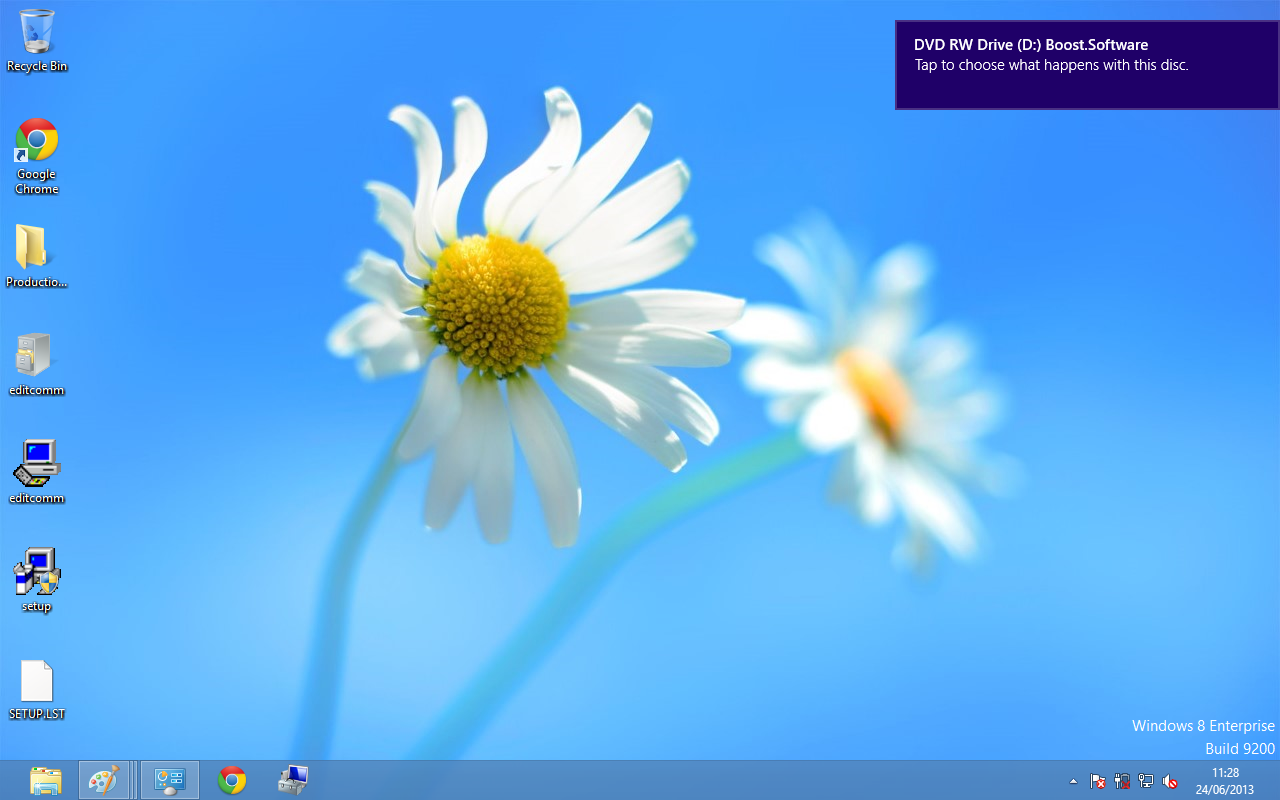
With the laptop turned on, insert the CD and you will now see this window appear in the top right-hand corner of the screen.
If the CD does not autorun, Go to Start, then My Computer, then Right Click the CD and select Explore. This will open the CD in Windows Explorer for browsing the contents of the CD.
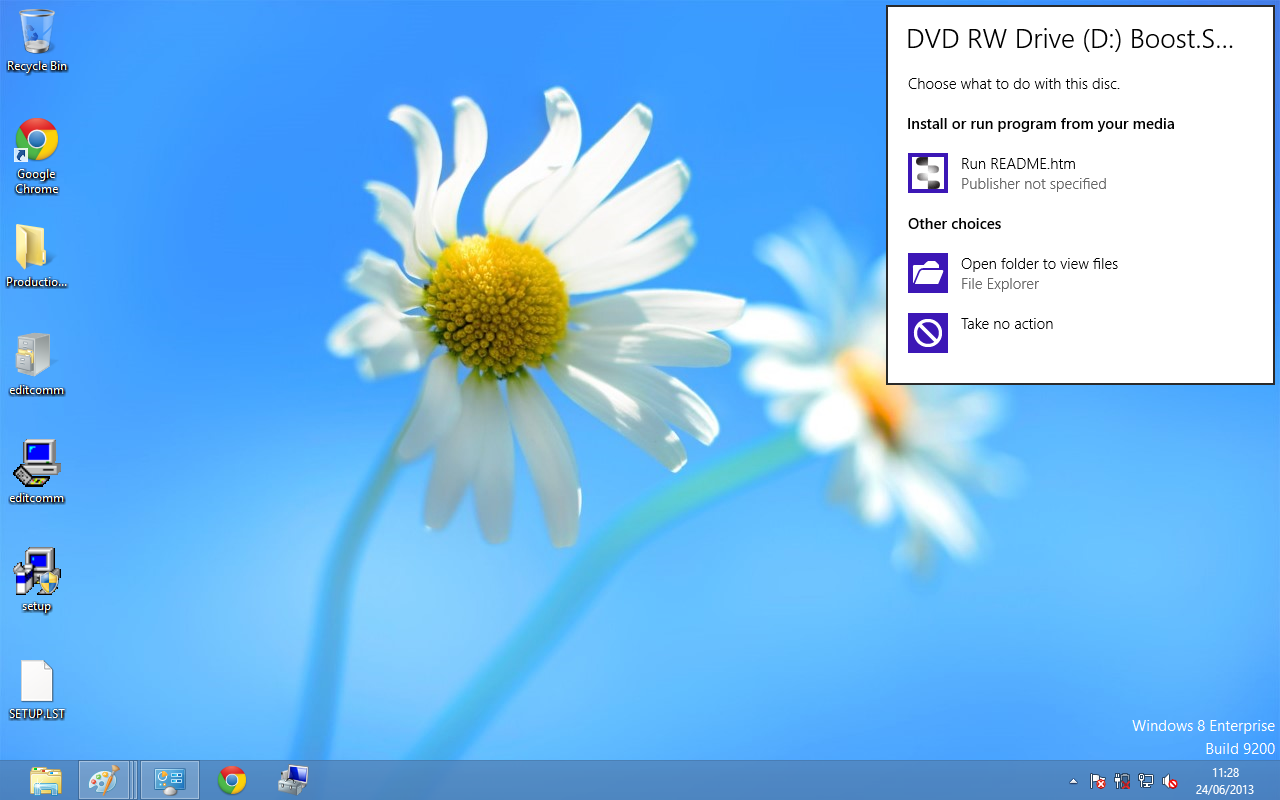
- When you have clicked on the pop-up screen as shown above, you will then see an option to view the folders on the disc. Please click on this to view the driver files.
- Locate the "Setup.exe" program on the CD and double click to launch.
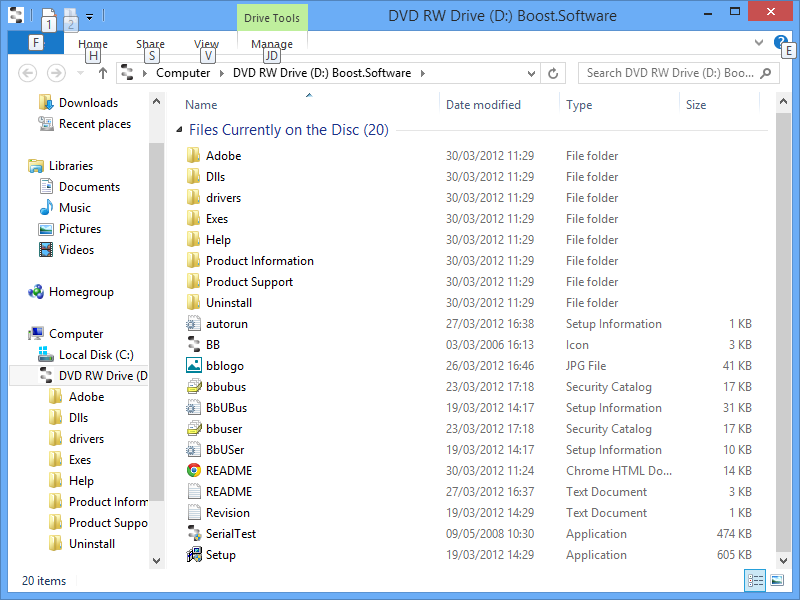
- Click on the Setup.exe file (bottom of the picture above). This will begin the installation of the drivers. When you click on this file, you will then see this picture.
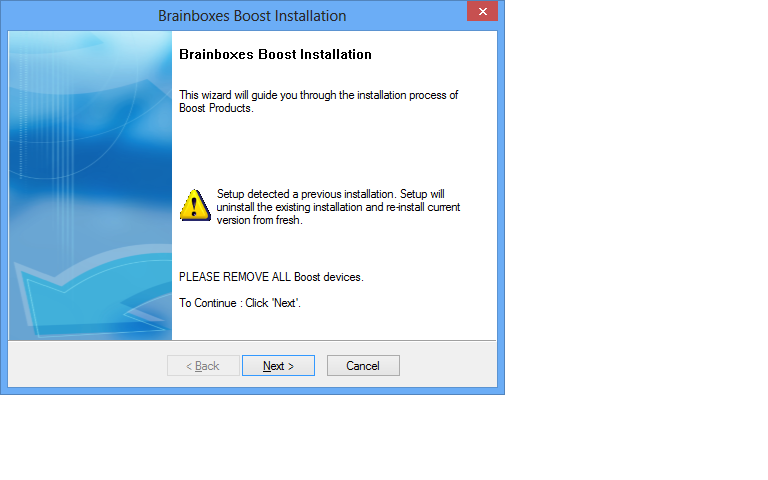
- When you have clicked on the Next button, you will then see the drivers start to install and when they have finished installing, you will see a window like this.
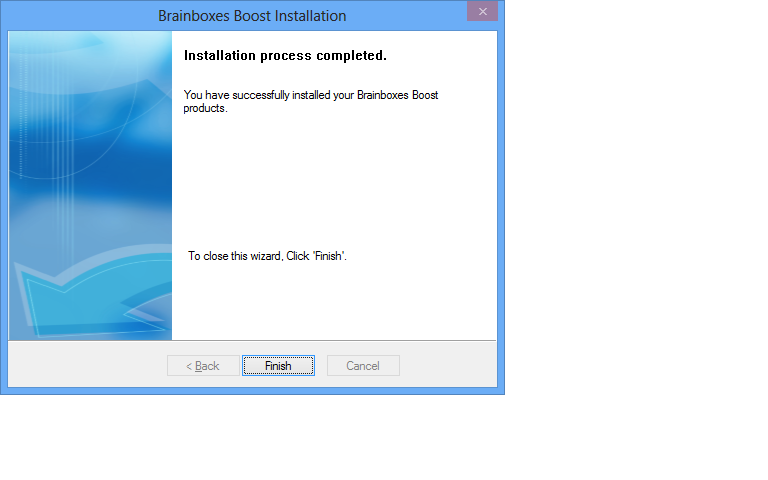
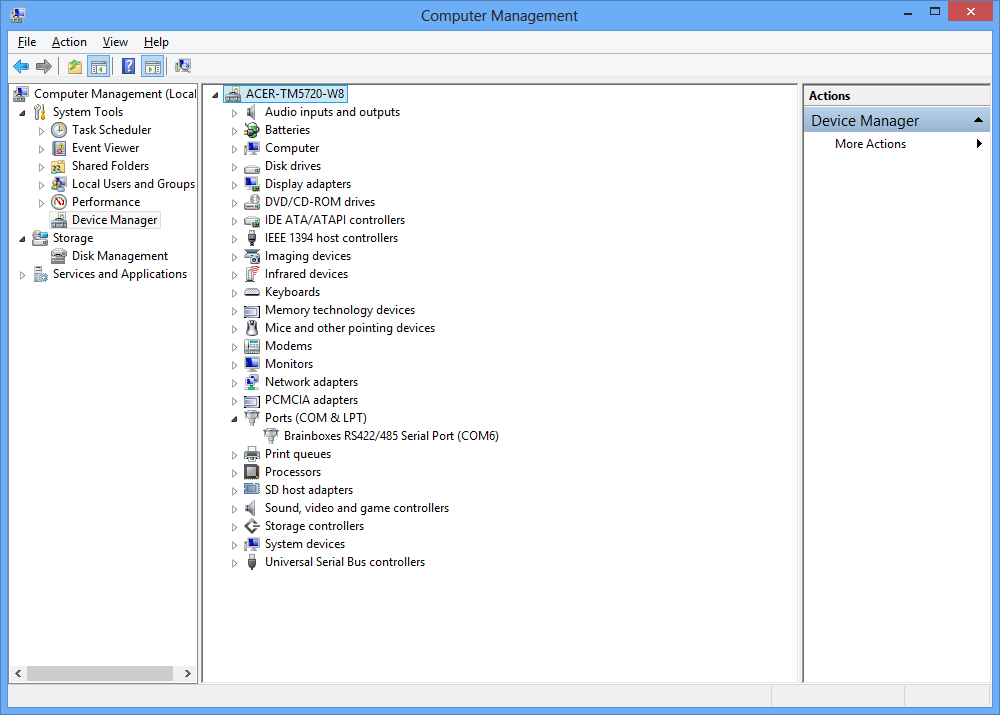
- Now that the drivers have installed, go to Device Manager and find your Brainboxes USB2Serial device in there. It should have a COM port number next to it for you to select in your application.