
UC Windows 7 / Server 2008 R2 Installation
Follow these steps to install your Brainboxes Serial Solutions card on Windows 7 or Windows Server 2008 R2.
Automatic Installation via Windows Update
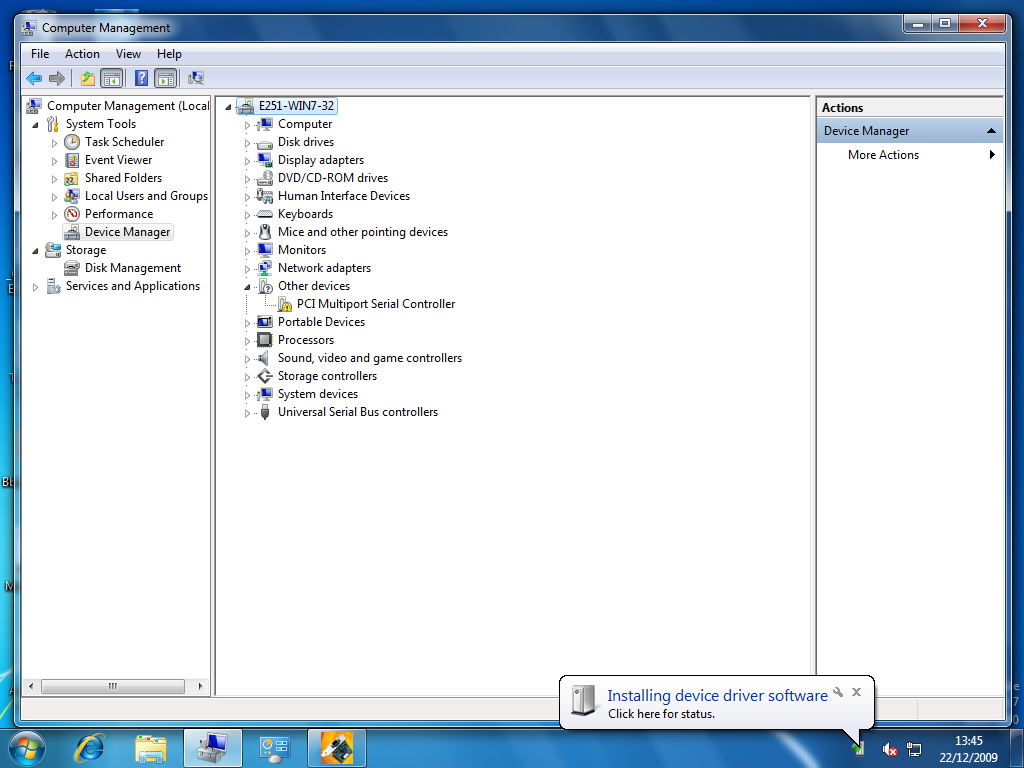
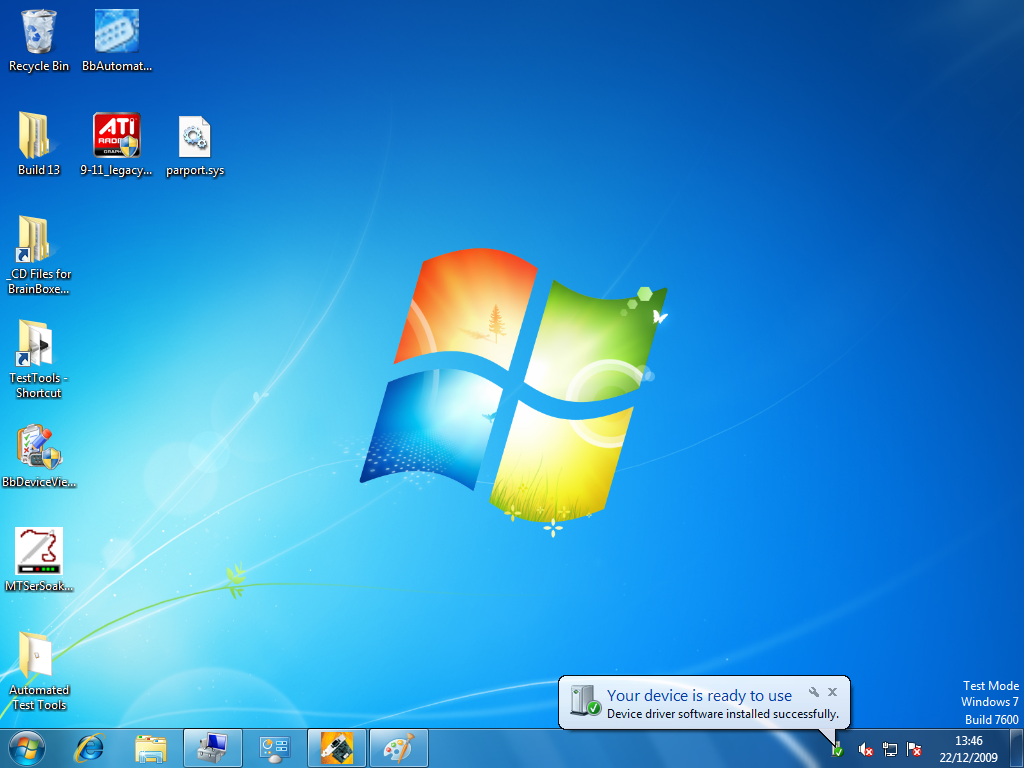
- When you boot into Windows 7, Windows Update will automatically search for the latest drivers. If you have a connection to the internet, the drivers will be installed and the device will be ready to use.
Manual Installation (No Internet Connection)
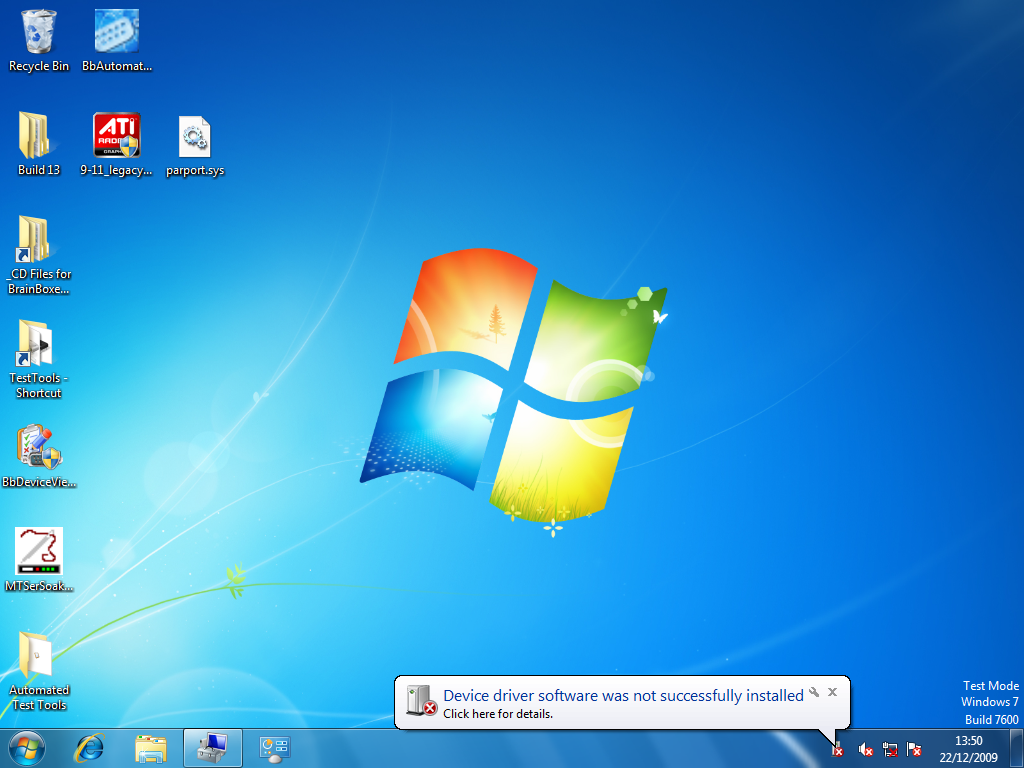
- If there is no connection to the internet available, a message will appear saying that the drivers were not installed successfully.
-
To install the drivers, Device Manager will need to be opened. To open Device Manager:
- Go to the Control Panel
- Select System
- Click the Hardware tab
- Click the Device Manager button
-
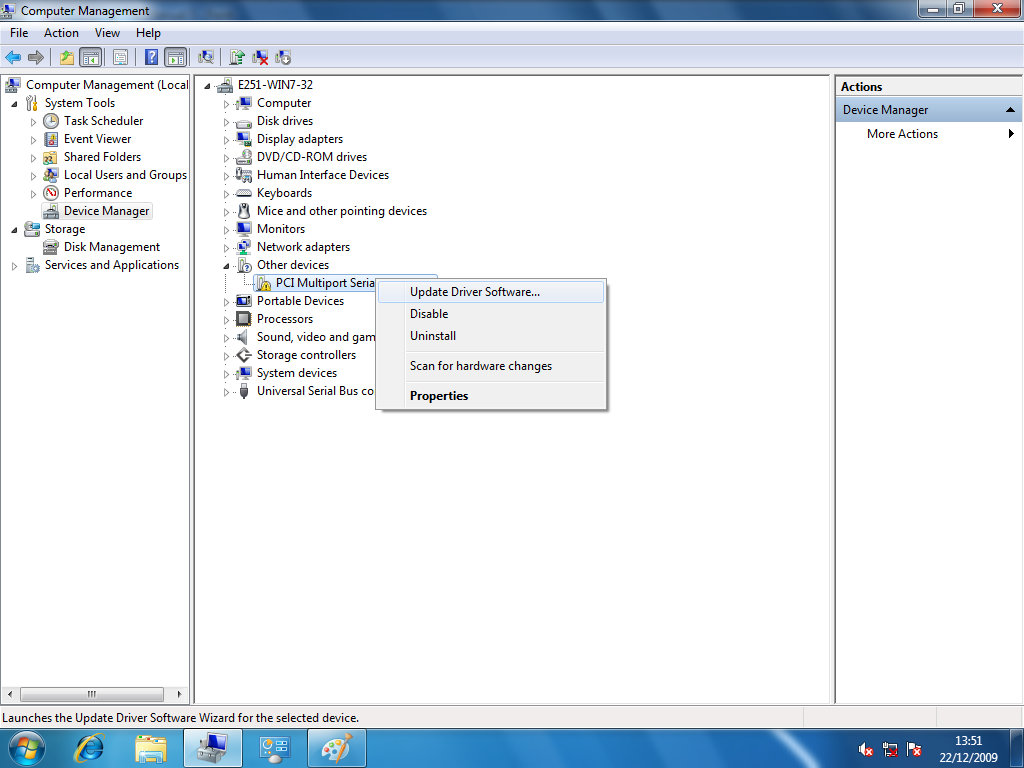
Once this is open, you will see the yellow ! icon in the other devices node. Right-click on the device and select Update Driver Software.
- If your Brainboxes card came with a CD, insert it now and select to search automatically and the driver software will be found and installed. If not, and you have a folder with the drivers, select to browse your computer for the drivers.
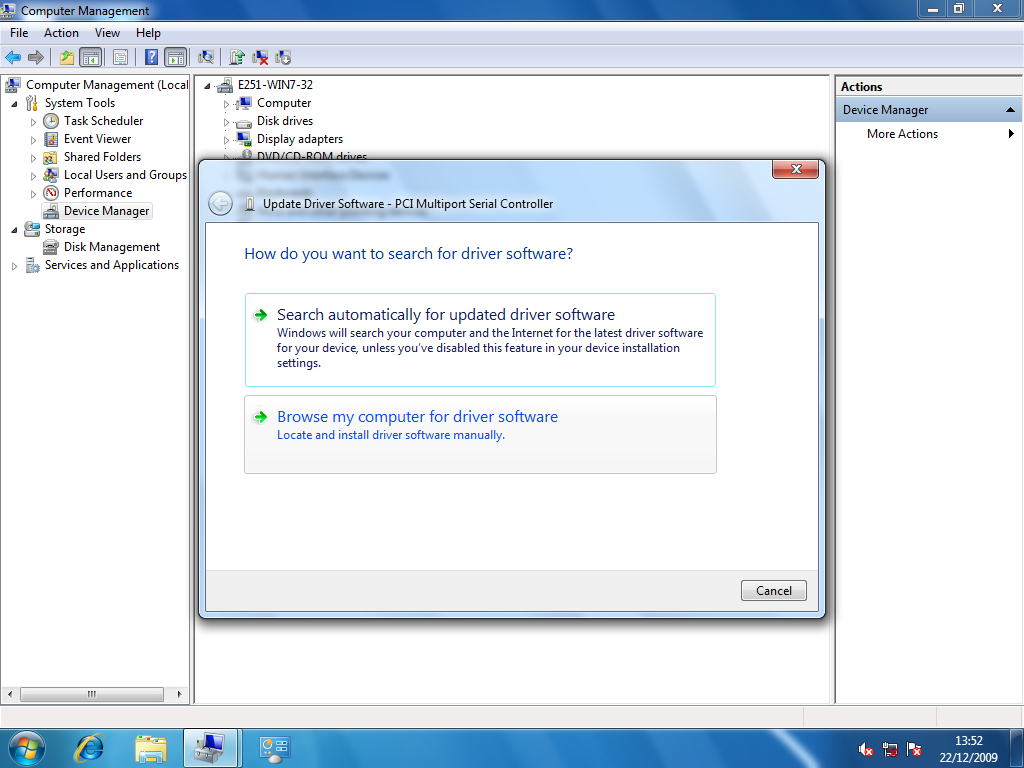
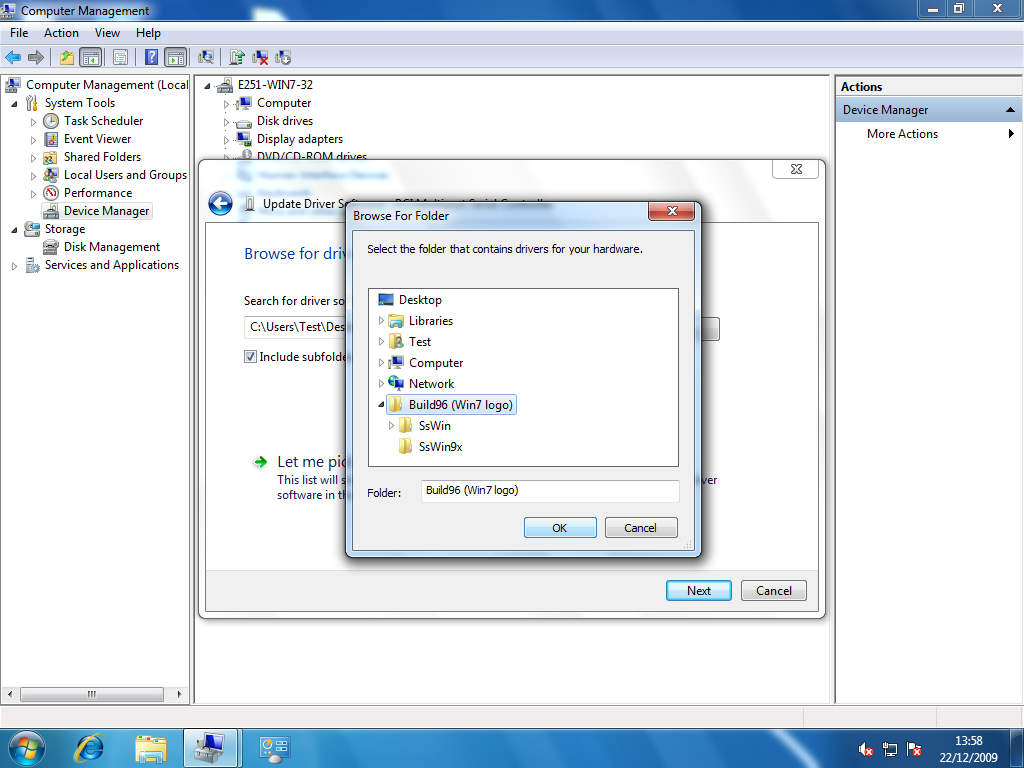
- Select the folder which contains the driver files and then the folder will be searched and the drivers found. The drivers will then be installed and you will get a message saying that the drivers have been installed successfully.
Next Steps
Once installation is complete, proceed to Product Configuration to configure your COM ports.