
UC Product Configuration
This section covers how to configure your Brainboxes Serial Solutions card on Windows XP, Server 2003, Vista, Server 2008, Windows 7 and Windows 8.
Finding your Brainboxes COM Port
-
Open Device Manager (Found by right-clicking on My Computer or Computer in Windows 8 and clicking Manage. Then select Device Manager from the list.)
-
Find the Brainboxes Serial Port entry in Device Manager. (Found under the Ports section)
-
The Brainboxes Serial Port entry displays the current COM number in brackets after the name. (This is usually COM3 following install, but may be different if other serial devices have been installed in the past)
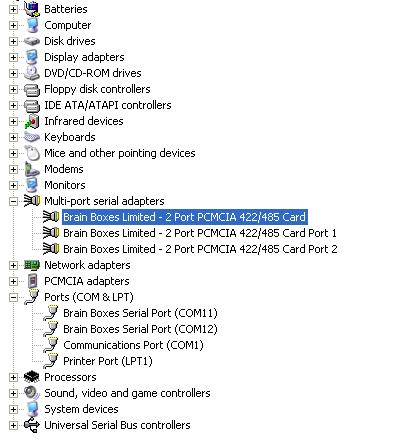
To change your COM label, see the Changing the COM Labels section below.
Port Settings
The port settings allow you to set Default or Override Settings for the Serial Communication and how to deal with incoming hardware handshaking events.
-
To open Port Settings, open Device Manager and Double-Click on the Brainboxes COM port entry under the Ports section.
-
Then click on the Port Settings tab.
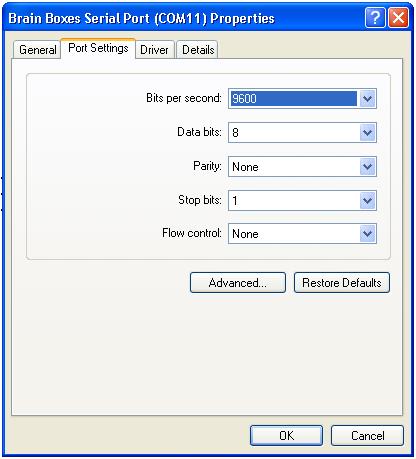
- All options can be selected from the dropdown menus.
Once the desired settings have been achieved, you must click OK to activate them. At any time click the Restore Defaults button to return to the original setup.
Changing the COM Labels
-
If you need to change the COM label, Double-Click on the Brainboxes COM port entry under the Ports Section.
-
Click on the Port Settings tab and click Advanced.
- A new COM port number can then be selected from the drop-down box.
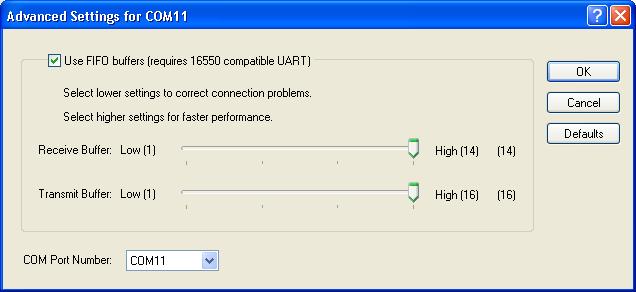
If the COM port number is labelled In Use, it is either currently used by a COM port present on the system, or is reserved for a device which is not currently present. It is possible to select this COM number and force the change, if you are sure it is not required by another device.
RS-422/485 Settings
This section applies to RS-422/485 products only.
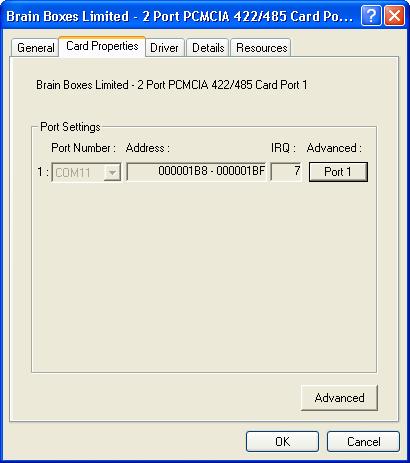
- In the Multi-port Serial Adaptors section in Device Manager, double-click on the Brainboxes card port number then click on the Card Properties tab.
-
Click Port 1 advanced button to open up the Ports settings window.
-
The drop-down list for Duplex operation allows users to choose the desired RS-422/485 operations mode.
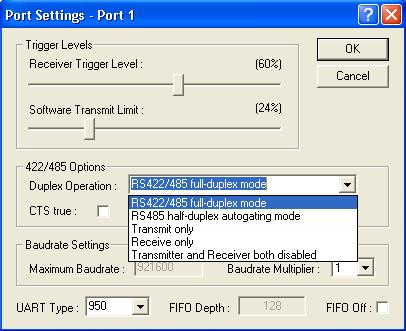
Available Duplex Modes
| Mode | Description |
|---|---|
| RS-422/485 full-duplex mode | For full duplex communications |
| RS-485 half-duplex autogating mode | For half duplex communications |
| Transmit only | To just transmit communications |
| Receive only | To just receive communications |
| Transmitter and Receiver both disabled | For no communications |
For further details on wiring, see Technical Specifications - Device Pin-out and RS-422/485 Operation.