
ES Light-Industrial Web Page Interface
The ES device can be accessed from any PC within your network as it does not require Boost.LAN Manager.
Accessing the ES Device Web Page
-
Obtain the IP Address of the ES device via the Boost.LAN Manager
-
Type the IP address in your internet browser and hit Enter
-
The ES device webpage interface should appear allowing you to view and configure the ES device settings.
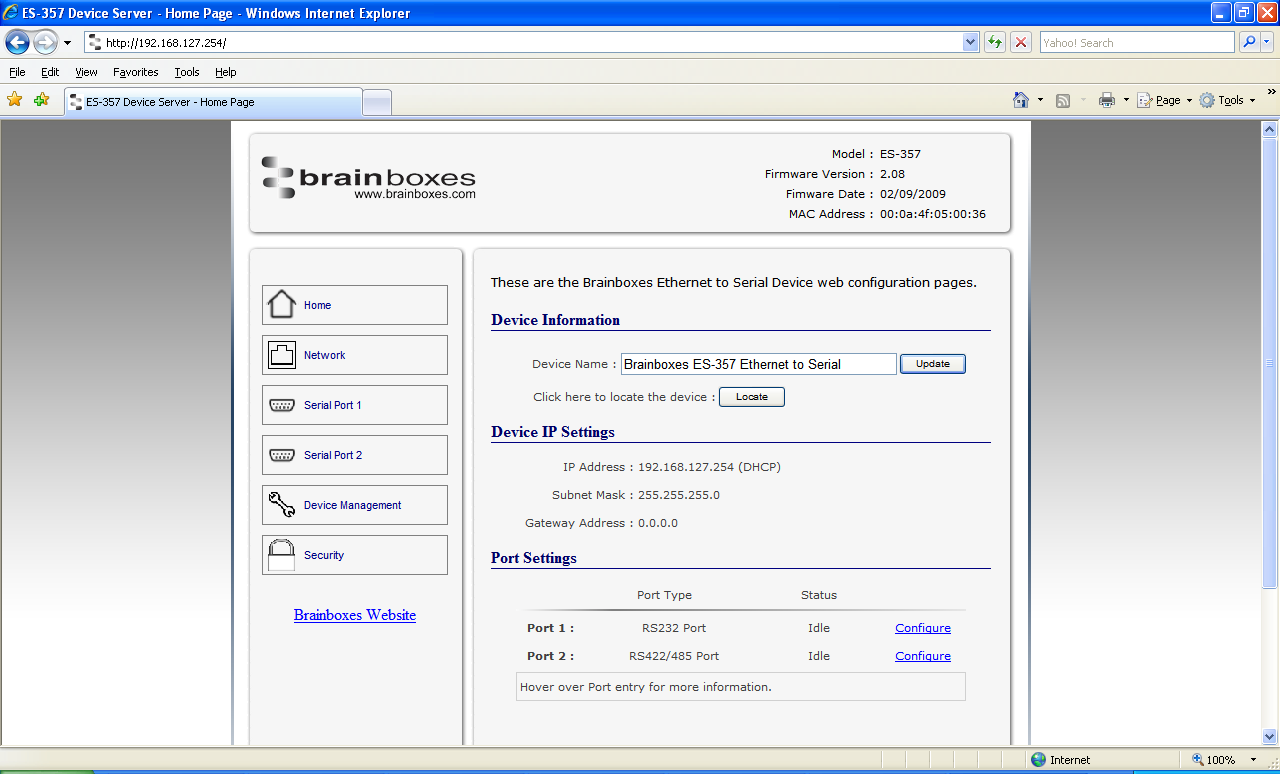
Please bear in mind, if you are using the Brainboxes Windows driver to create a COM port then port settings detailed on the web page are overridden in the driver. The settings available through the web page only apply to socket based applications.
Web Page Features
The webpage provides:
-
Summary of current IP and Serial Port Settings (available on Home Page)
-
Separate pages to configure each serial port.
Serial Port Settings
| Setting | Options |
|---|---|
| Baudrate | Maximum 1M baud |
| Databits | 8, 7, 6, 5 |
| Stopbits | 1, 2 |
| Parity | None, Even, Odd, Mark, Space |
| Handshaking | RTS/CTS, DTR/DSR, Xon/Xoff |
| Duplex Mode | Full Duplex, Half Duplex |
For details of Full Duplex and Half Duplex communications, see the RS-422/485 Settings section.
Networking Protocol Settings
If you are using the Brainboxes Windows driver to create a COM port then the driver will use Telnet + COM port Control Mode (Server) regardless of the protocol setting set on the webpage.
| Protocol | Description |
|---|---|
| RAW TCP | Data sent over the network is the same as the data sent over the serial link. Any configuration of the serial port settings will need to be set via the web page. You can also establish 2 RAW TCP connections per port independently of one another. |
| Telnet + COM port Control Mode (Server) | This is based on the RFC2217 standard which lets the serial ports settings be configured dynamically. Data is then encapsulated over serial link. You can establish 1 Telnet connection per port independently. |
| Telnet | Standard Telnet protocol |
Additional Features
- IP Settings
- Device Tunnelling Setup
- Device Management to:
- Restart ES device
- Restore factory settings
- Security settings:
- Enable Administrator account
- MAC Address restriction
- Enable user account