
ES Light-Industrial Device Management
Exporting & Importing Device Settings
It is possible to export the devices current settings to a file, and then import these settings at a later date. This feature is available in the Boost.LAN Manager. At the time of going to print, the export feature exported the following settings:
- Firmware Network Settings.
- Firmware Serial Port Settings.
This feature does not currently back up driver port settings. This is because the driver serial port settings and firmware serial port settings are not linked.
Exporting Device Settings
-
Open Boost.LAN Manager
-
Find and select your installed ES Device.
-
On the left hand panel of the window, scroll down to the "Other Tasks" section.
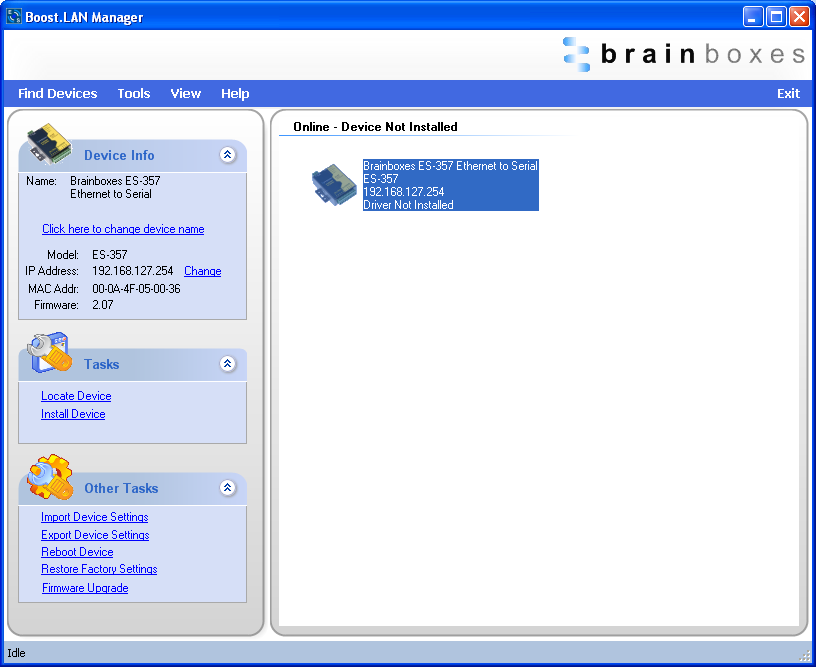

- Select "Export Settings"
-
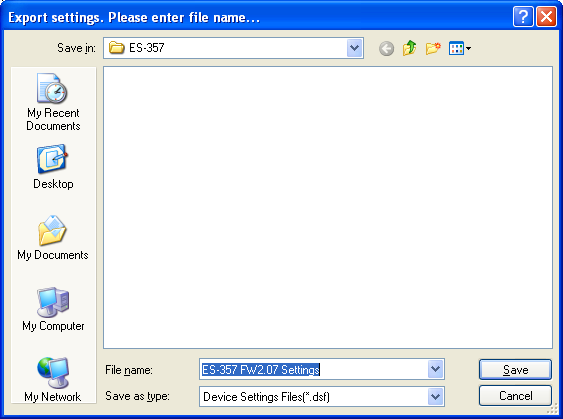
Browse to a location where you wish to save the settings file to.
-
Enter a file name in the "File name" box. E.g. "Device Model, Firmware Version XX" etc)
-
Press Save.
Importing Device Settings
-
Open Boost.LAN Manager
-
Find and select your installed ES Device
-
On the left hand panel of the window, scroll down to the "Other Tasks" section
-
Select "Import Settings"
-
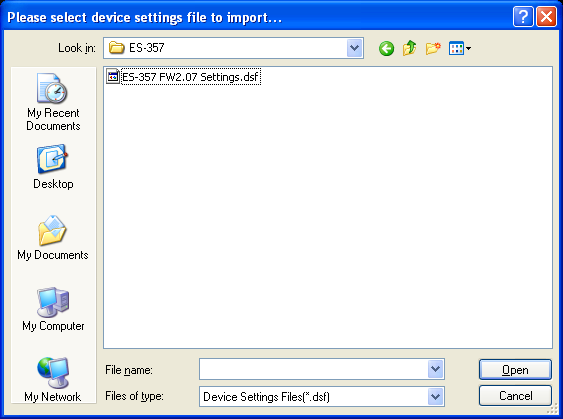
Browse to the location where you saved the settings file.
-
Select the file and press Open
-
The device will then import the settings.
Rebooting Device
We strongly recommend that you check that the device is NOT in operation before doing this to prevent data loss.
Rebooting in Boost.LAN Manager
If for any reason you wish to reboot your device, whilst still retaining the existing settings:
-
Open Boost.LAN Manager
-
Find and select the ES device you wish to reboot.
-
On the left hand panel of the window, scroll down to the "Other Tasks" section
-
Select "Reboot Device"
-
Any connections you may have had to the COM port may need to be reopened.
Manual Reboot (power cycle)
-
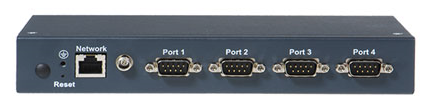
Press the reset button once and after 5 seconds the device will reboot.
-
The device will restart and any connections you have had to the COM ports will need to be re-established.
Restoring to Factory Default
Restoring back to Factory Default Settings
We strongly recommend that you check that the device is NOT in operation before doing this to prevent data loss.
If for any reason you wish to restore the ES device back to factory default settings:
-
Open Boost.LAN Manager
-
Find and select the ES device.
-
On the left hand side of the window, scroll down to the "Other Tasks" section
-
Select "Restore Factory Settings"
See the Hardware Features section for factory default settings.
Manual Hard Restore
-
Press and hold the reset button on the ES device for 15 seconds.
-
The device will then be restored to factory settings.
Firmware Upgrade
To upgrade your firmware to the latest release by Brainboxes follow the instructions below:
If you have firmware 3.12 or older we recommend running the firmware upgrade with the ES device connected directly into the PC using an Ethernet cable.
-
Open Boost.LAN Manager
-
Select your device from the Boost.LAN window.
-
Make a note of the current firmware version on the left hand panel.
-
Close Boost.LAN Manager.
-
Visit Brainboxes website, www.brainboxes.com/support and locate the latest firmware version for your device. Alternatively, contact Brainboxes Technical Support via [email protected] and request the latest firmware version be sent to you.
-
If the firmware online or received by Brainboxes Technical Support is a later version, download and save the file to a location you will remember
- If the firmware is NOT a later version, do not proceed with the upgrade.
-
Open the Boost.LAN Manager
-
Select your device
-
Go to the left hand panel and select "Firmware Upgrade"
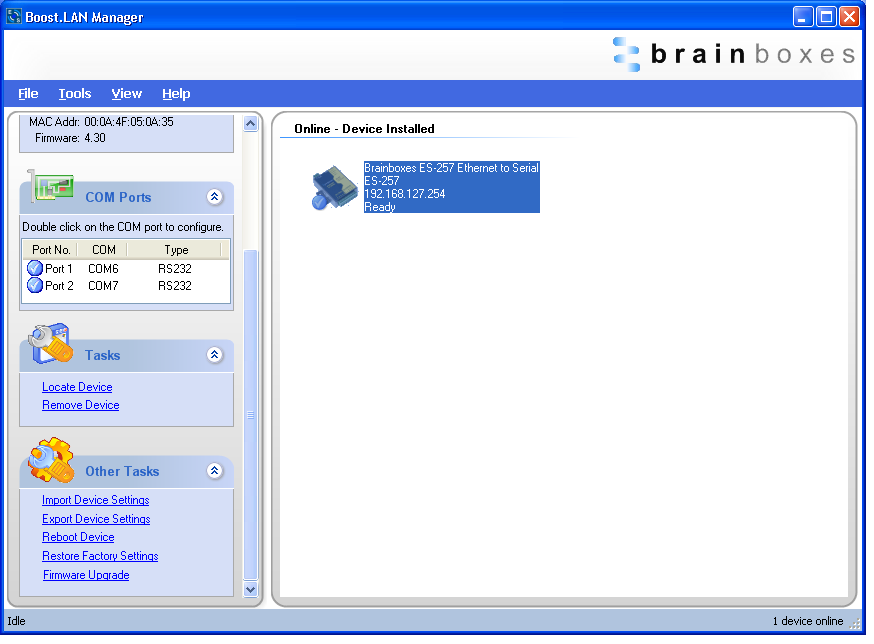
- A message box will appear asking you to confirm you wish to upgrade the firmware.
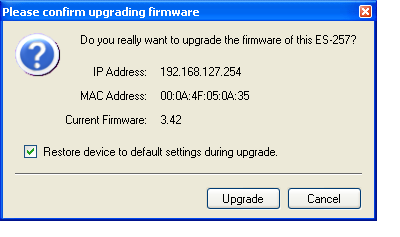
-
Press OK
-
Browse to the directory where you saved the latest firmware.
-
Select the firmware (the file extension will be .efw)
-
Press Open
-
Do not disconnect the ES Device from the network or power during the upgrade process.
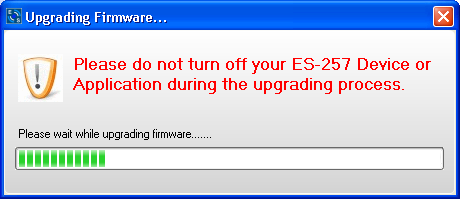
- Once the upgrade process is complete, select the device and check the firmware version shown in the left hand panel is now the later version.
Uninstallation
It is possible to uninstall individual ES devices from your computer or remove the complete Boost.LAN Suite.
Complete Boost.LAN Suite Uninstallation
This will remove all Brainboxes Boost.LAN related software, including the Boost.LAN Manager and device driver.
This can be done at any time, with or without the device connected. The uninstallation steps below are applicable to all devices in the ES Ethernet to Serial range.
-
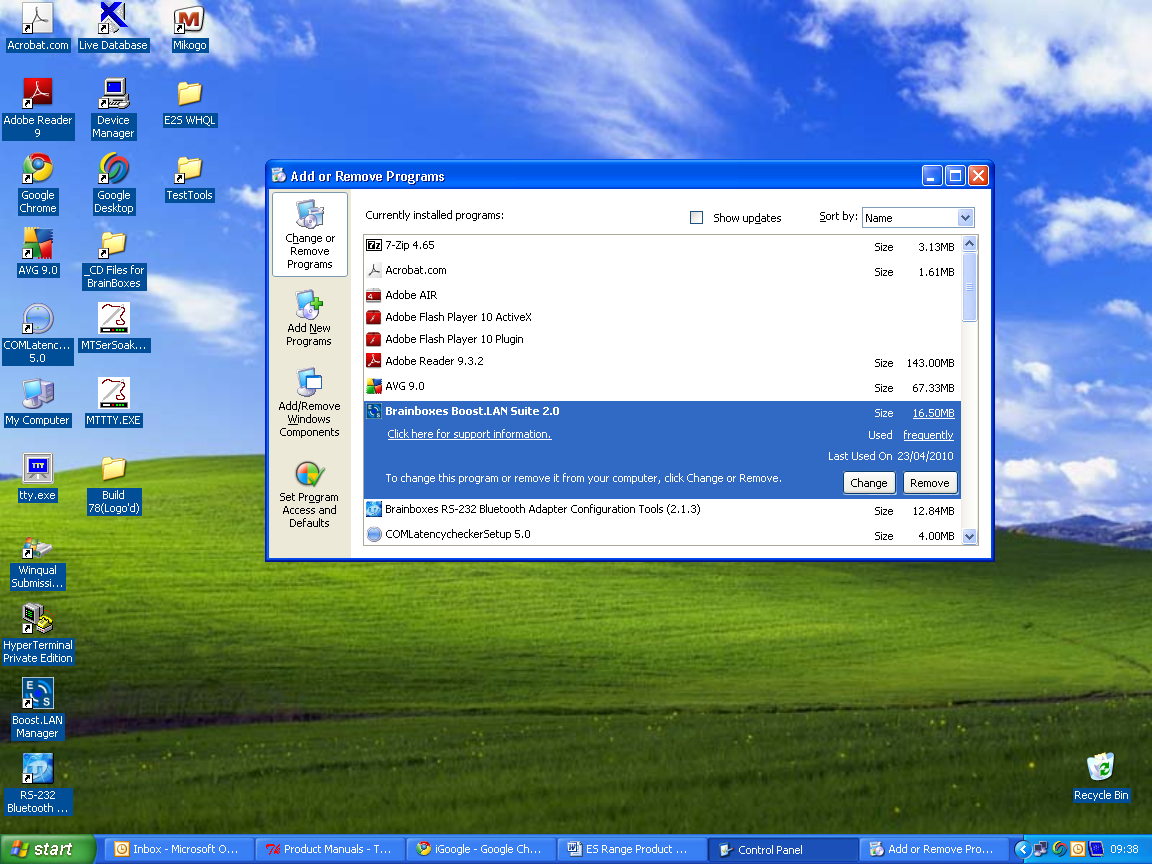
Open Control Panel, and then open "Add or Remove Programs"
-
Click on the "Brainboxes Boost.LAN Device Driver Suite" and then click Remove
-
The Brainboxes Boost.LAN Suite will then be uninstalled.
Individual Device Uninstallation
This can be done at any time, with or without the device connected. The un-installation steps below are applicable to all devices in the ES Ethernet to Serial range.
-
Open the Boost.LAN Manager
-
Find and select your ES device
-
Click "Remove Device" on the left hand panel
-
Once the device is removed, it will be listed in the "Online - Driver not installed" section.
When finished, you may disconnect your ES device. To reinstall, simply follow the installation instructions in the Installation section.