
Advanced USB Settings
Advanced Settings - USB Settings
This guide applies to both US (USB to Serial) and VX (ExpressCard Serial) devices.
The Advanced USB Settings for the Brainboxes COM Port allow you to get the best performance from your device and system. There are two choices, dependant on whether minimal CPU usage or Data Latency (delay) is the main concern.
The default settings have been carefully selected and should provide great performance for the majority of users. The USB Settings will help if you need to lower the CPU usage, or your application is timing critical and requires a lower Data Latency.
Accessing USB Settings
To open Advanced Settings, open the Port Settings and click the Advanced button, then select the USB Settings tab.
- US devices: See US Product Configuration
- VX devices: See VX Product Configuration
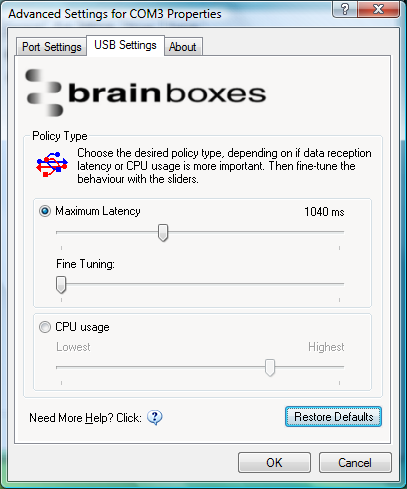
Once the desired settings have been achieved, you must click OK to activate them. At any time click the Restore Default button to return to the original setup.
Maximum Latency
Maximum Latency will allow you to choose the maximum time taken for received data at the 9 Pin connector of the port to be processed and passed to the Application.
- The slider is non-linear, which allows settings for small latencies to be adjusted more accurately than those for larger latency values, where accuracy is less important.
The maximum latency value cannot be guaranteed on all systems. Only drivers on Real-Time Operating Systems can guarantee latency times. Due to technical limitations, for baud rates below 1200 baud and maximum latency settings below 45ms, the actual latency will be higher than expected.
Fine Tuning
The Fine tuning slider may be useful to obtain the best performance whether your application is sending small bursts of information, or is continuously streaming the data.
-
This slider will allow tuning the behaviour to suit the needs of the specific application. While maintaining the Maximum Latency value chosen above, smoothness of data reception and CPU usage can be improved by choosing the best fine tuning option.
-
Data reception behaviour is very different when comparing reception of continuous streaming data without gaps to the reception of 'occasional' data - data with gaps in the data stream.
There is no quantitative value attached to this slider. To find the optimum value, trial and error is required.
CPU Usage
Selecting the CPU Usage radio button and moving the slider to the left-most position will give the lowest CPU Usage behaviour, saving your CPU clock cycles for other processing. Nevertheless, the impact on latency and smooth data flow might be too severe.
- To lessen the impact, change this slider until optimum system behaviour is achieved. CPU Usage will increase the further the slider is moved to the right.
There is no quantitative value attached to this slider. To find the optimum value, trial and error is required.