
ES Industrial Advanced Network Configuration
Proxy Server Settings
If you have a proxy server enabled on your PC this will restrict access to the web page interface. You may need to add the ES device to the Proxy Server's exceptions list. If you need help doing this contact your network administrator.
Remote Access
The Remote access feature of the ES devices allows access to the device over the internet or through one or more routers. The device can be accessed remotely through either the webpage interface, or through Boost.LAN Manager. To access the ES device remotely, you will need the IP address of the router and have port forwarding set up on your router for the device and the ports on your device. If you need assistance setting up port forwarding on your network, contact your network administrator.
Once you have the IP address and port forwarding numbers of the device and ports, you can either access the device through the webpage or through Boost.LAN.
Remote Access Using Web Browser
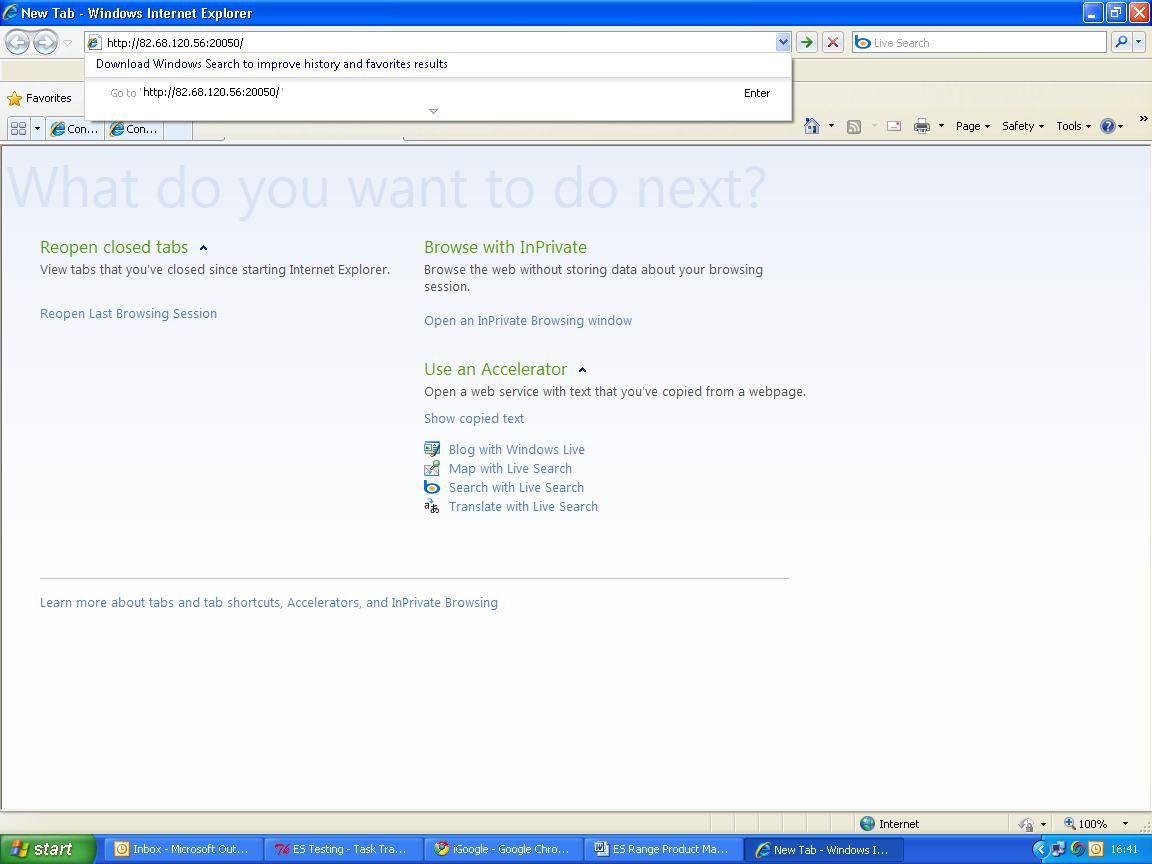
To access the ES device through the webpage you will need the IP address of your router and the ES device's port forwarding number. Type this address into the navigation bar with a colon then the port forwarding number. For example http://82.68.120.56:20050/
Firewall Exceptions and Port Numbers
When using the ES devices with a firewall you may need to manually add the exception entries and port numbers to the firewall list. Listed below are the default port numbers and the firewall exceptions.
| Program Name | Default port number |
|---|---|
| Device Web Server | 80 |
| Serial Port 1 | 9001 |
| Serial Port 2 | 9002 |
| Firmware Upgrade | 67 (BOOTP Server), 68 (BOOTP Client), 69 (TFTP Port) |
Default Windows Firewall Exception entries
- Brainboxes Boost.LAN Suite
- Brainboxes Boost.LAN Suite (Device discovery) (except Windows XP 32 & 64 bits)
- UPnP Framework (Windows XP 32 & 64 bits)
- Network Discovery (Windows 7 or later)