
ED Boost.IO Manager
Introduction
Boost.IO Manager is a graphical user interface application which will allow you to find your Brainboxes ED device on a network and then configure some of the settings in Windows. As part of the Boost.IO application a COM port can be installed which allows communication with the device using the ASCII protocol.
Boost.IO Manager is not required if you want to communicate with the device using just the IP address or if you want to configure the device only using the web configuration pages.
Boost.IO Manager can be found on the CD that was packaged with your device.
Installing Boost.IO Manager
- Insert the CD into your PC
- Browse the contents of the CD and locate the "Setup" program on the CD and double click to launch
- Click 'Install' to launch the Boost.IO setup program
- Follow the on screen instructions to install the Boost.IO application
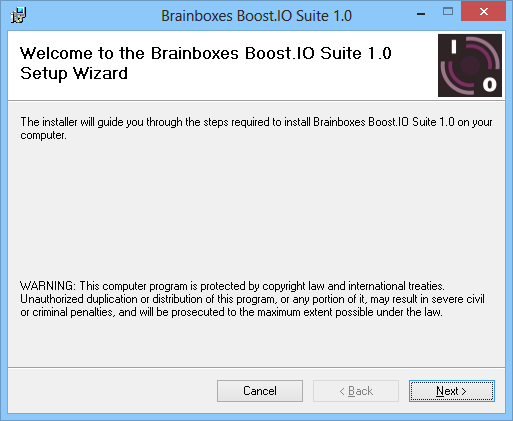
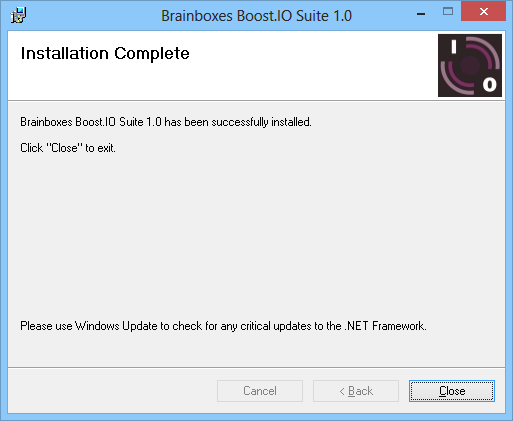
- Once the installation process is complete you will see the setup wizard now says "Installation Complete" and there will be a Boost.IO Manager icon on your desktop.
Finding and Installing an ED Device
When using the ED device with Boost.IO Manager a COM port can be installed which allows the user to send ASCII commands to the device using a COM port connection.
-
Open Boost.IO Manager by double clicking the Boost.IO Manager icon on your desktop
-
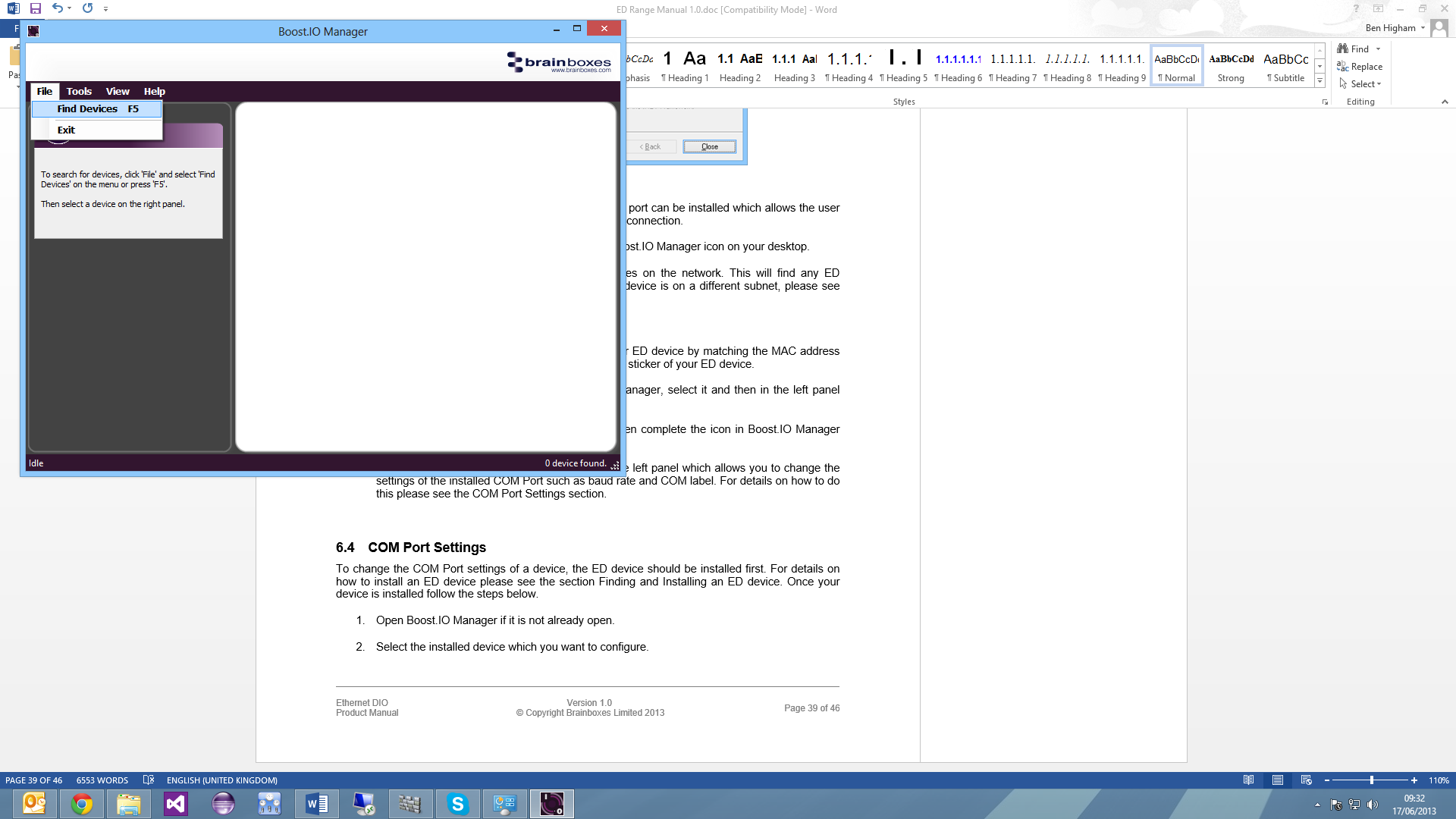
Click 'File' > 'Find Devices' to search for devices on the network (or press F5). This will find any ED devices on the same subnet as your PC.
If your device is on a different subnet, see Adding a Device by IP Address.
-
Once the search is complete, all the devices that have been found on the network will be displayed in the main window. When you select a device, the information and settings options for that device will appear in the left column.
-
You can identify your ED device by matching the MAC address in the left panel of Boost.IO Manager with the MAC address on the sticker of your ED device's case.
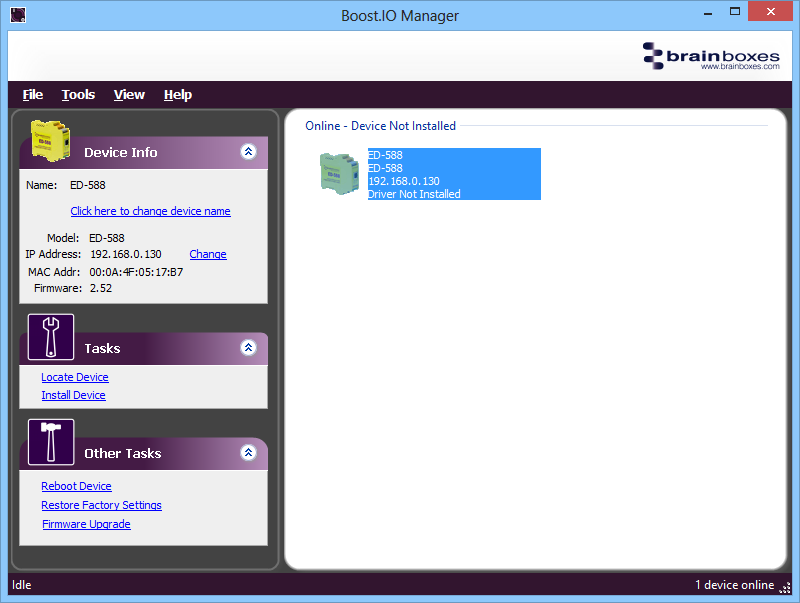
- When you have found your device in Boost.IO Manager, in the left panel under 'Tasks' click 'Install Device'.
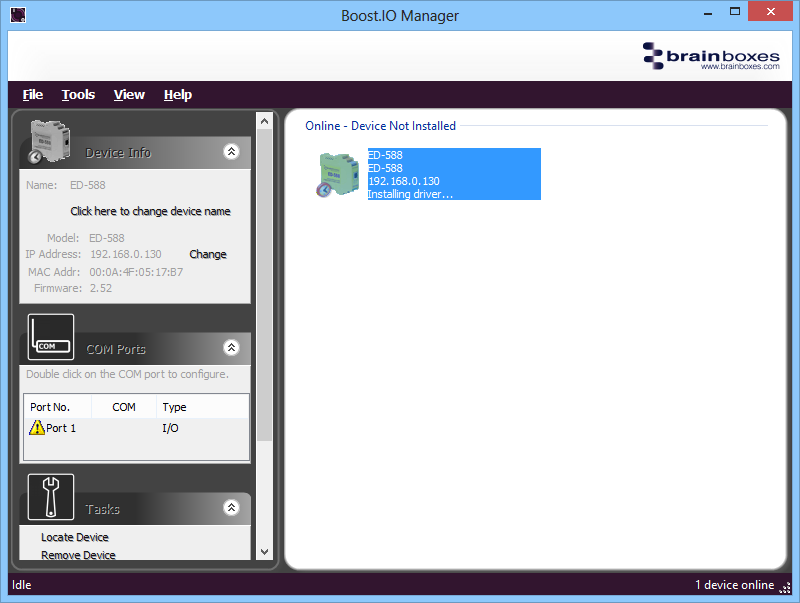
- The driver for the device will be installed and, when complete, the icon in Boost.IO Manager will have a blue tick next to it and the status will be 'Ready'.
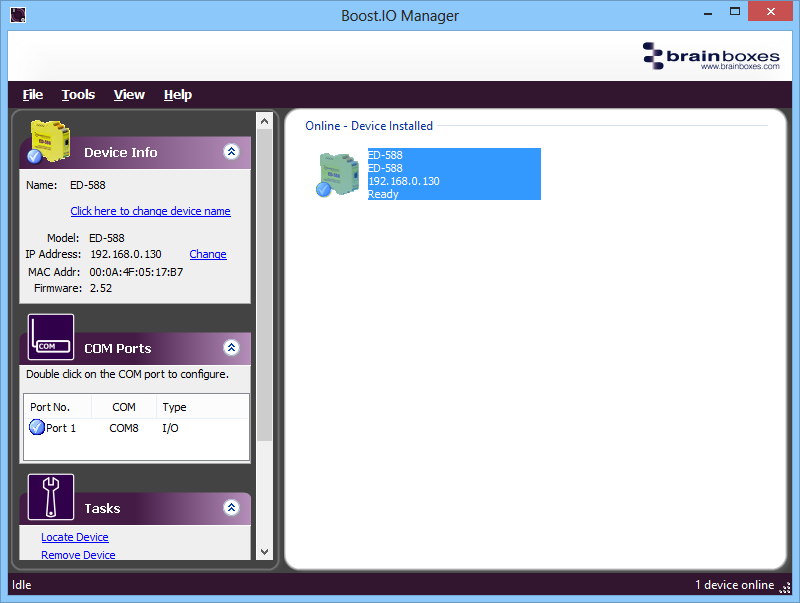
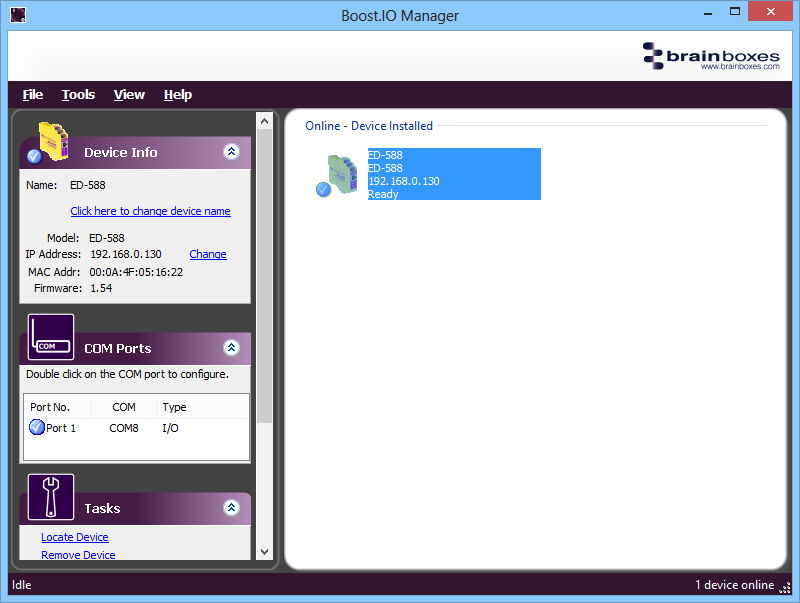
- There will now be a COM Ports section in the left panel which allows you to change the settings of the installed COM Port.
COM Port Settings
To change the COM Port settings of an installed ED device:
-
Open Boost.IO Manager by clicking the Boost.IO icon on your desktop
-
Select the installed device which you want to configure
-
In the left panel find the 'COM Ports' section and double click on the port to configure
- You will see the port properties dialog box. Click on the 'Port Settings' tab, then click 'Configure Settings'
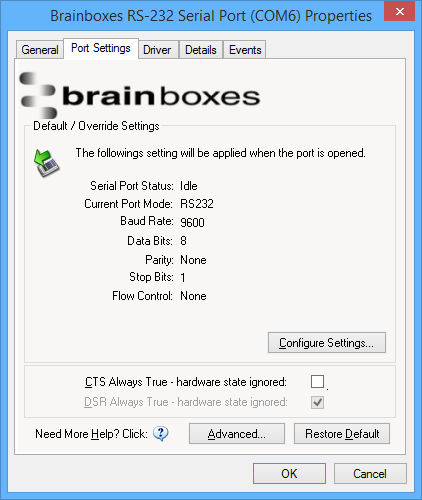
- A webpage will be opened which allows you to configure all of the device's settings
CTS Always True
CTS is an incoming hardware handshaking line. This means it receives a signal from the connected device which tells the ED device when it is and isn't OK to send data out the RS232 port.
- Sometimes these signals may want to be ignored. By forcing CTS True, the ED device will ignore those signals and always send data.
- These settings are especially helpful when CTS is not physically connected (such as in a 3 wire setup) and it is not acceptable for the data flow to stop and start due to arbitrary variances on the unconnected signal lines.
Advanced COM Port Settings
From the Port Settings tab, click the 'Advanced...' button to access advanced settings.
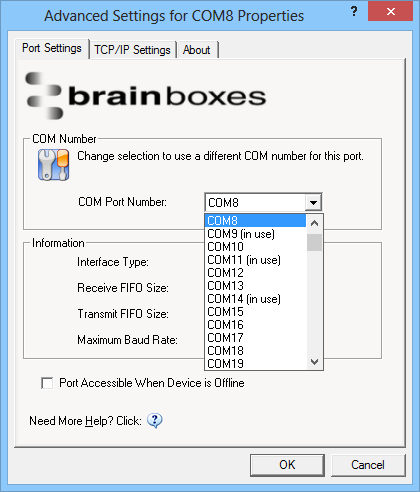
COM Number
The COM Port Number is changed using the drop down box on this page. If the COM Port number is labelled "in use", it is either currently used by a COM Port present on the system, or is reserved for a device which is not currently present.
Port Accessible When Device is Offline
With ED devices being connected through a network, whenever a device is unplugged the device will go offline in Boost.IO Manager and any COM ports that are installed will become unavailable. By ticking this checkbox, it will keep the COM port available to use the port, even if the ED device is offline.
TCP/IP Settings
Under the 'TCP/IP Settings' tab is information about the ED device and a connection attempt timeout field. This value is the time that the driver will attempt to connect to the device COM port before giving up.
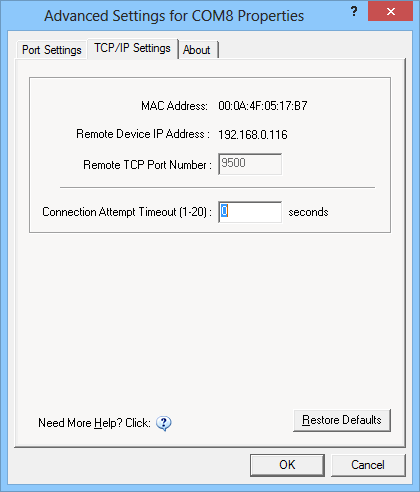
If this value is set to 0, the driver will attempt to connect without ever giving up.
Alternate Access Methods
There are three methods to view and configure your Ethernet Device once it's installed:
| Method | Description | Best For |
|---|---|---|
| Boost.IO Manager | Application for finding and configuring devices | General use, centralized management |
| Windows Device Manager | Standard Windows Control Panel for hardware | Viewing port properties |
| Web Page Interface | Browser-based configuration | Socket-based applications, full settings access |
Adding a Device by IP Address
If you already know the IP address of the device:
- Open Boost.IO Manager
- Select 'Tools' > 'Add Device Manually'
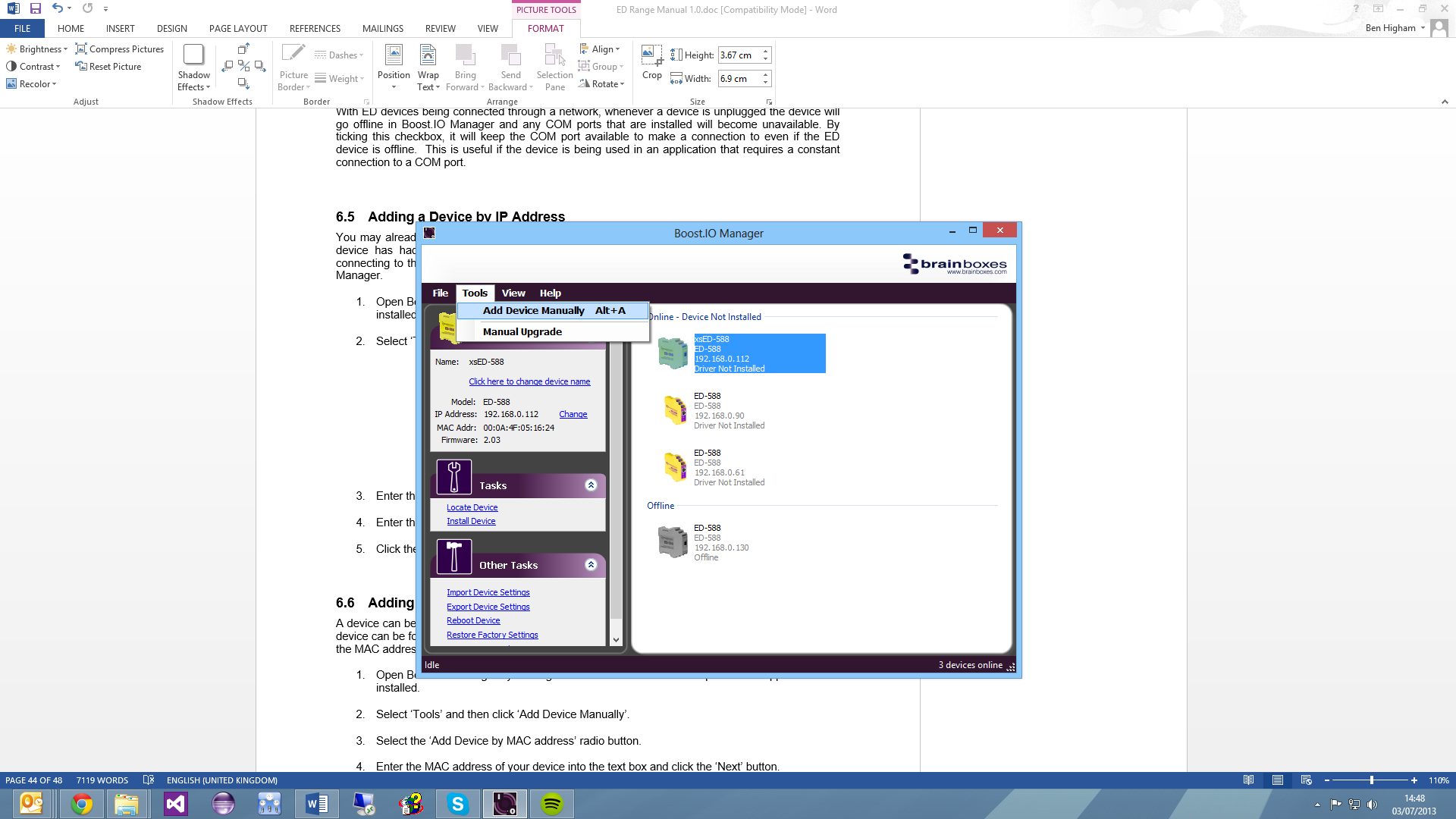
- Enter the IP address and port number, then click 'Next'
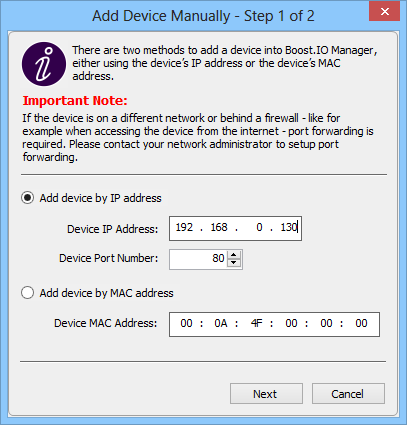
- Enter the ASCII Protocol Port number (default is 9500)
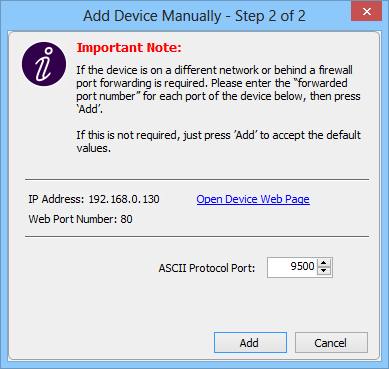
- Click 'Add' and the device will be added to the Boost.IO Manager window
Adding a Device by MAC Address
- Open Boost.IO Manager
- Select 'Tools' > 'Add Device Manually'
- Select the 'Add device by MAC address' radio button
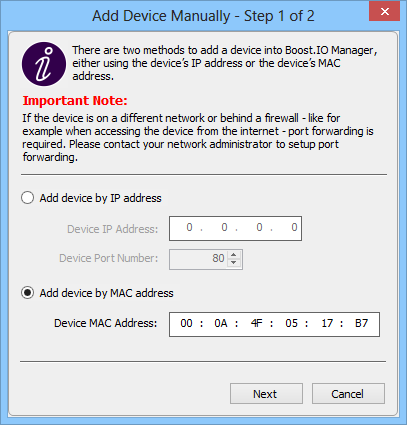
- Enter the MAC address of your device and click 'Next'
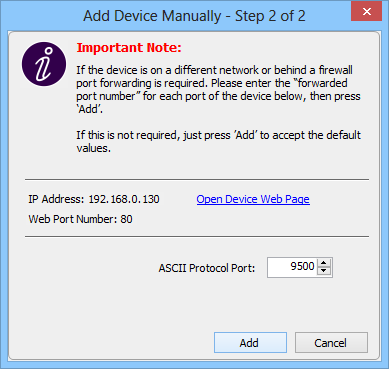
IP Addressing
To change the IP address settings:
- Click on the device in Boost.IO Manager
- In the 'Device Info' section, click the 'Change' link next to the current IP address
- Click 'OK' to confirm

- Select 'Assign Static IP Address' radio button and enter the IP Address, Subnet Mask and Gateway Address, then click 'Apply'
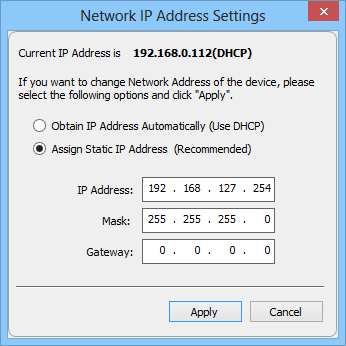
- The ED device will reboot itself with the new IP address
Rebooting Device
Please ensure your device is not in operation before rebooting it to prevent data loss.
- Open Boost.IO Manager and select the device you wish to reboot
- Under 'Other Tasks' section, click 'Reboot Device'
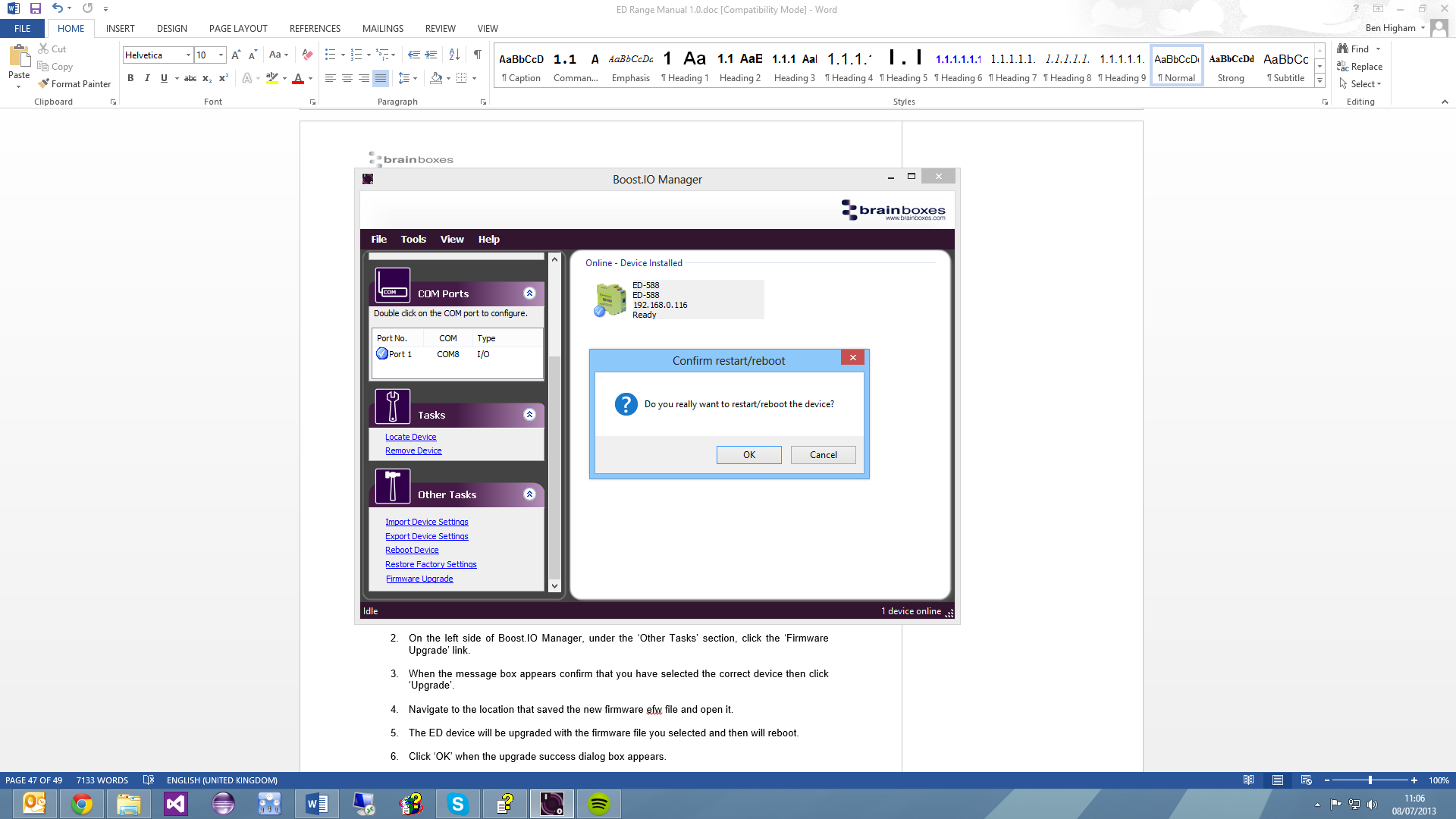
- Confirm that you want to reboot your device
- The device will reboot. Once the LEDs are green, it is ready to use again
Restoring Factory Settings
Restoring the Factory Settings will erase any current settings on your ED device. Please ensure your device is not in operation before rebooting it to prevent data loss.
- Open Boost.IO Manager and select the device to restore
- Under 'Other Tasks' section, click 'Restore Factory Settings'
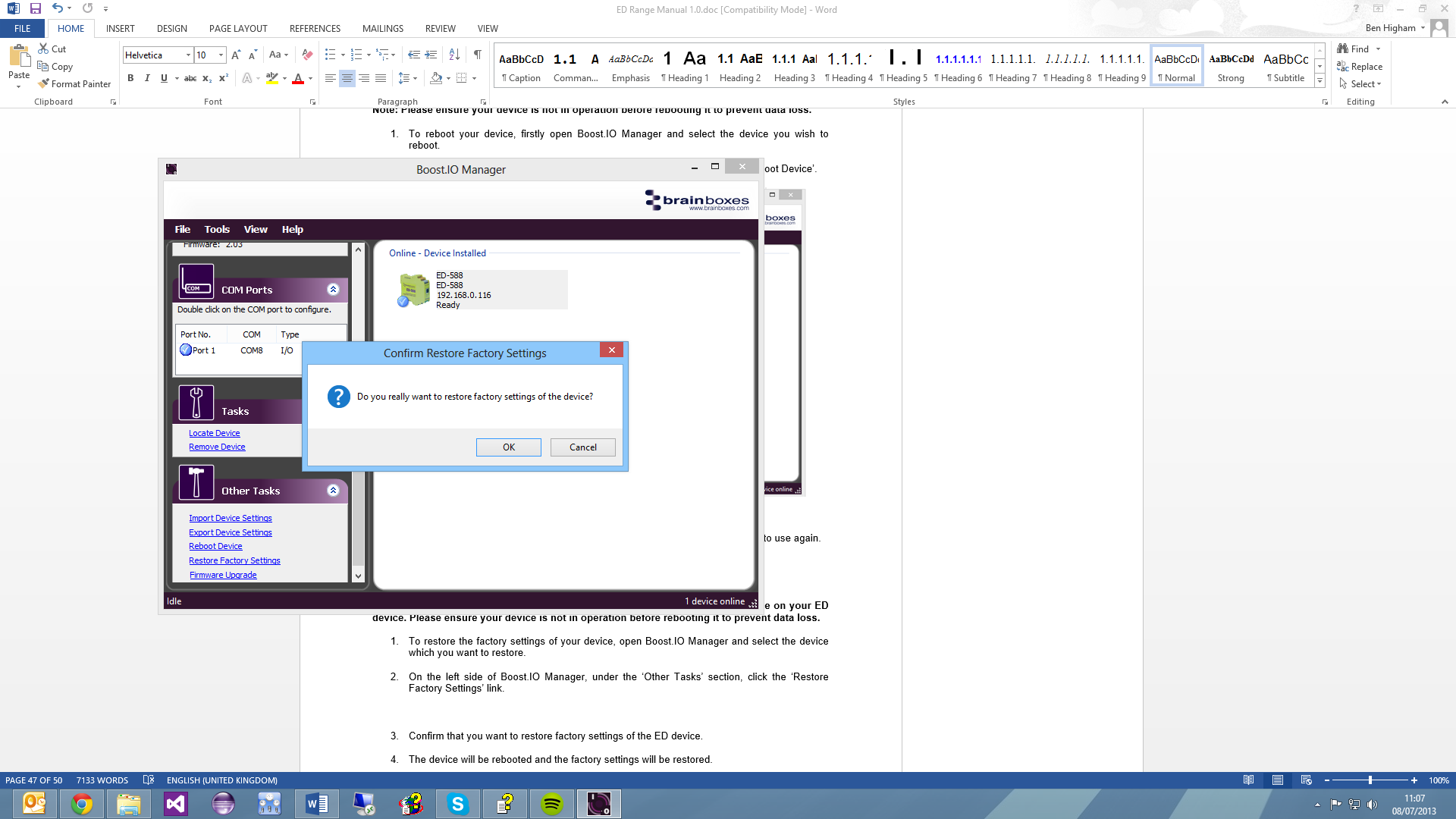
- Confirm that you want to restore factory settings
- The device will be rebooted and factory settings restored
Firmware Upgrade
Before upgrading your firmware, please ensure your device is not in operation.
- Open Boost.IO Manager and select your device
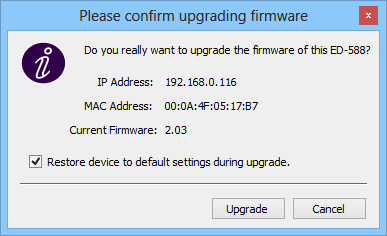
- Under 'Other Tasks' section, click 'Firmware Upgrade'
- Confirm the correct device is selected. If you wish to restore to default settings, tick the option
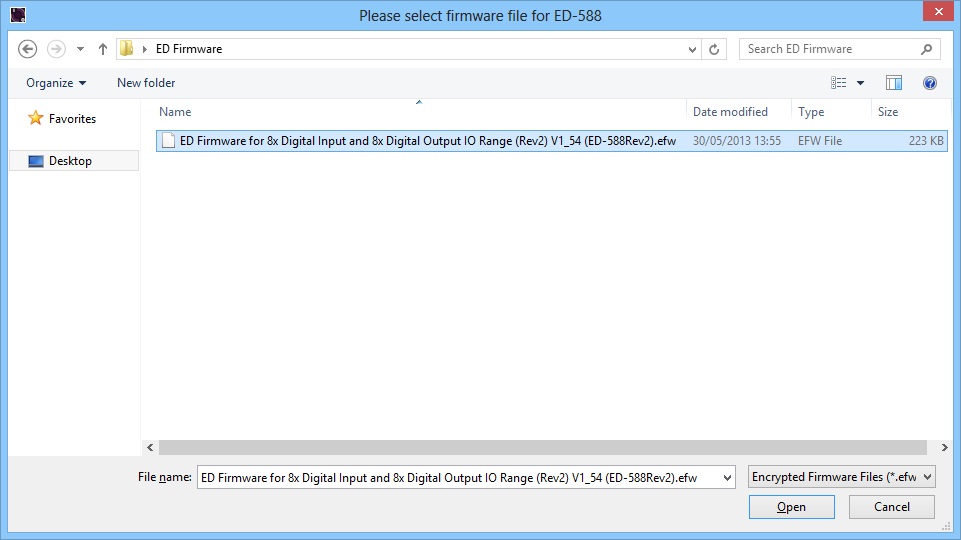
- Navigate to the location of the new firmware
.efwfile and open it
- The ED device will be upgraded and then reboot
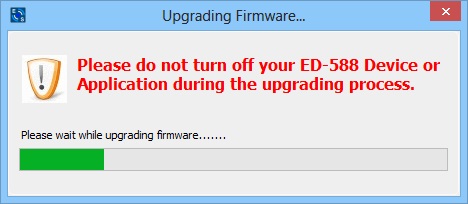
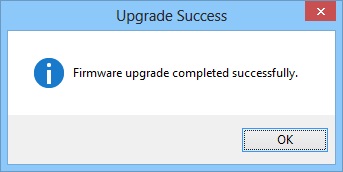
- Click 'OK' when the upgrade success dialog appears
Proxy Server Settings
If you have a proxy server enabled on your PC this will restrict access to the web page interface. You may need to add the ED device to the Proxy Server's exceptions list. Contact your network administrator for assistance.
Device Swapping
In the unlikely event of a device failing, it can be easily replaced by swapping it with a device which has the same IP address. This is particularly useful when using a large number of ED devices together which have already been installed and setup.
To set the device to the same IP address use the web page interface or Boost.IO to set the IP address to the static address of the device you are replacing.
Adding a Remote Device
- Go to Tools > 'Add Device Manually'
- Enter the public IP address of your router into the Device IP Address field
- Enter the port forwarding number into the Device Port Number field
- Click 'Next'
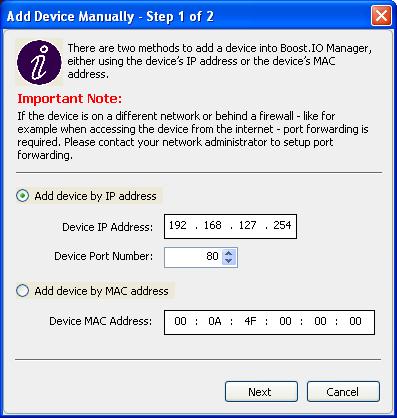
- Enter the port forwarding number for Port 1 and click 'Add'
The device will appear in the Boost.IO manager window and can be installed and used as if it were on a local network.
Remote Access
The Remote access feature allows access to the device over the internet or from a different network. The device can be accessed either through the webpage interface, or through Boost.IO Manager.
Requirements:
- IP address of the router
- Port forwarding set up on your router for the device and the ports
The ED devices store their settings in one place, inside the device. When accessing the device either from the web configuration pages or using Boost.IO Manager, it will get and set the settings inside the device itself.