
UC Windows Vista / Server 2008 Installation
Windows Vista / Server 2008 32 & 64 bit Installation
Follow these steps to install your Brainboxes Serial Solutions card on Windows Vista or Windows Server 2008.
Installation Steps
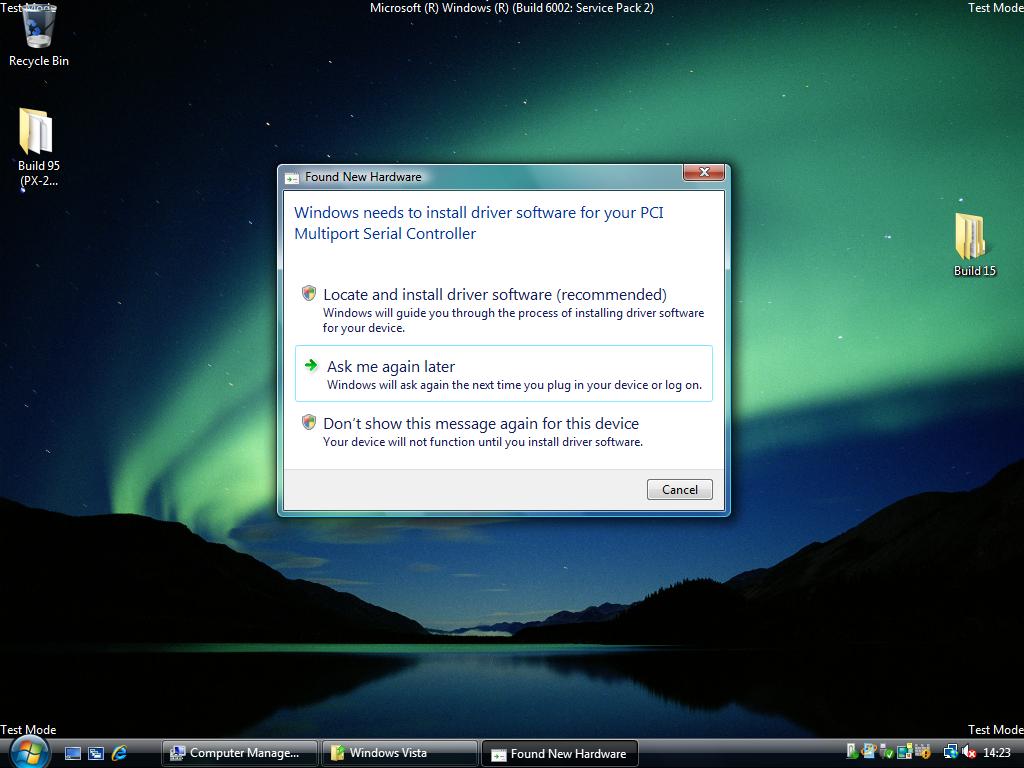
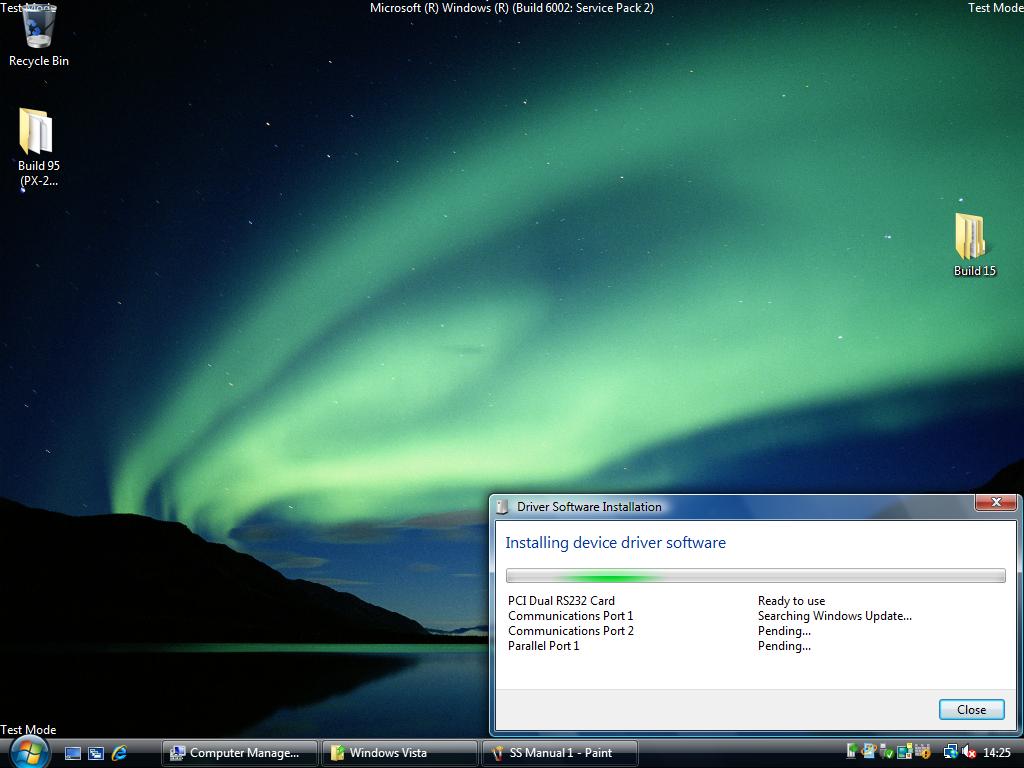
- Once you have booted up the computer, the Found New Hardware wizard will appear and give you options to install the driver software for the Serial Solutions card. Click on the Locate and install driver software option and Windows Update will be searched to install the drivers for the card and ports.
-
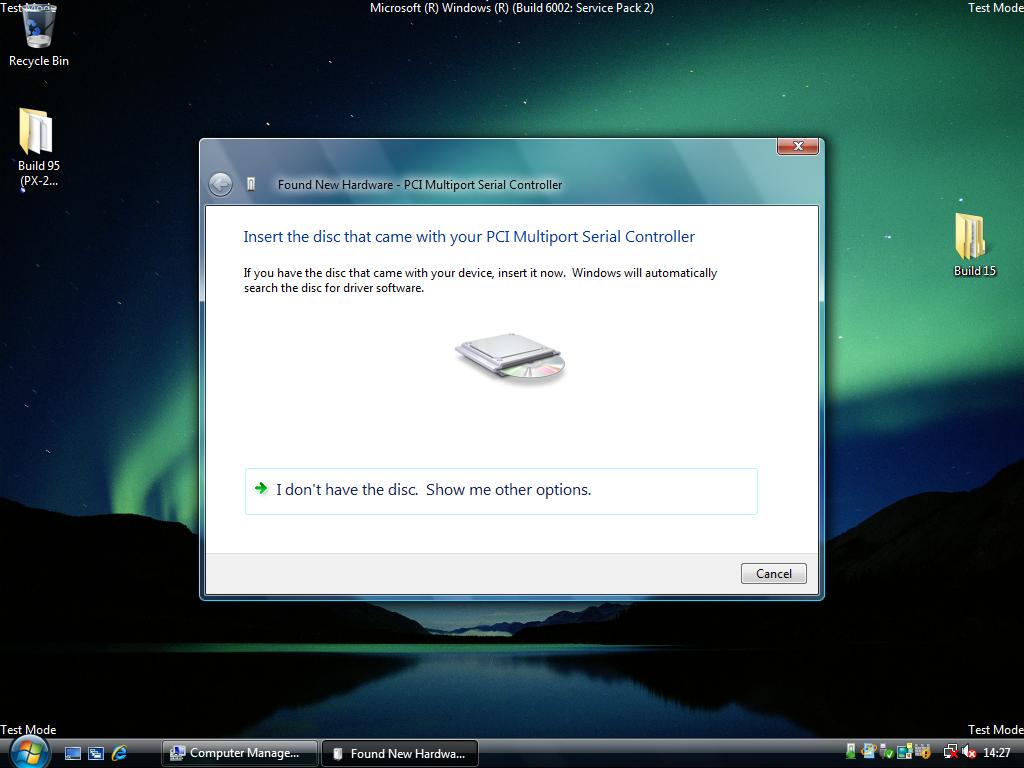
If the search on Windows Update fails, or you are not connected to the internet, you will be asked to insert the CD that came with the Brainboxes card. The CD will then be searched for the drivers and installed automatically. Please move on to step 6 if the drivers install automatically.
-
If you don't have a disc, or have downloaded the latest drivers from our website, click on the option at the bottom of the page to show other options.
- You will then be presented with two options. Click on the second one to browse your computer for the driver software.
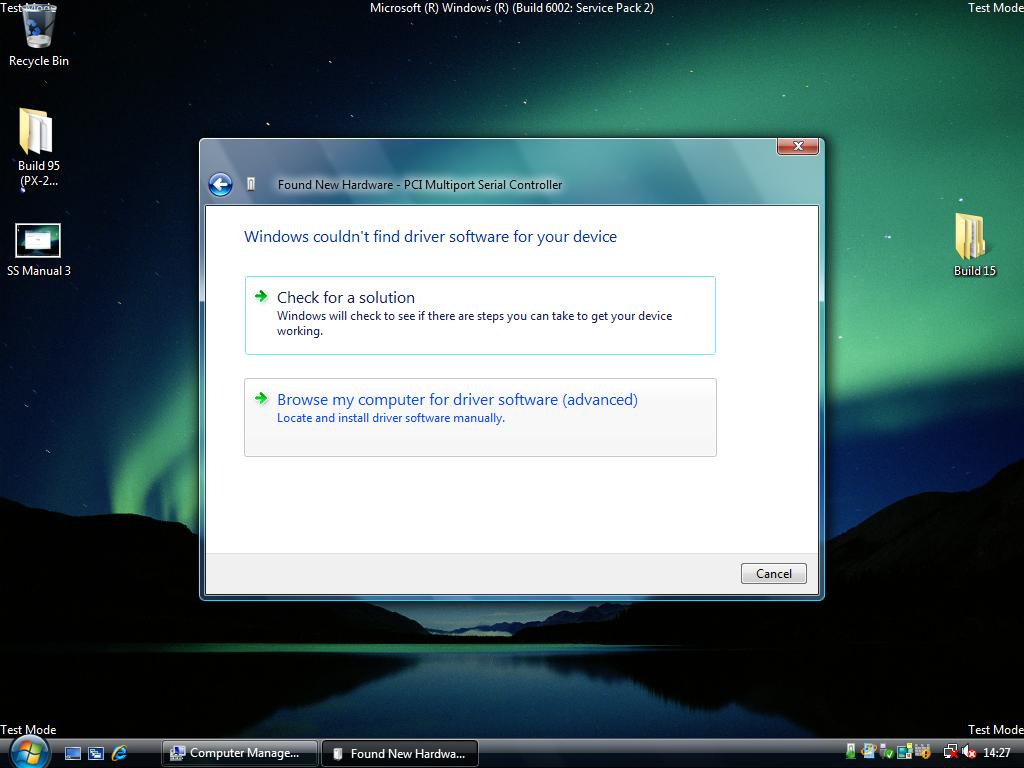
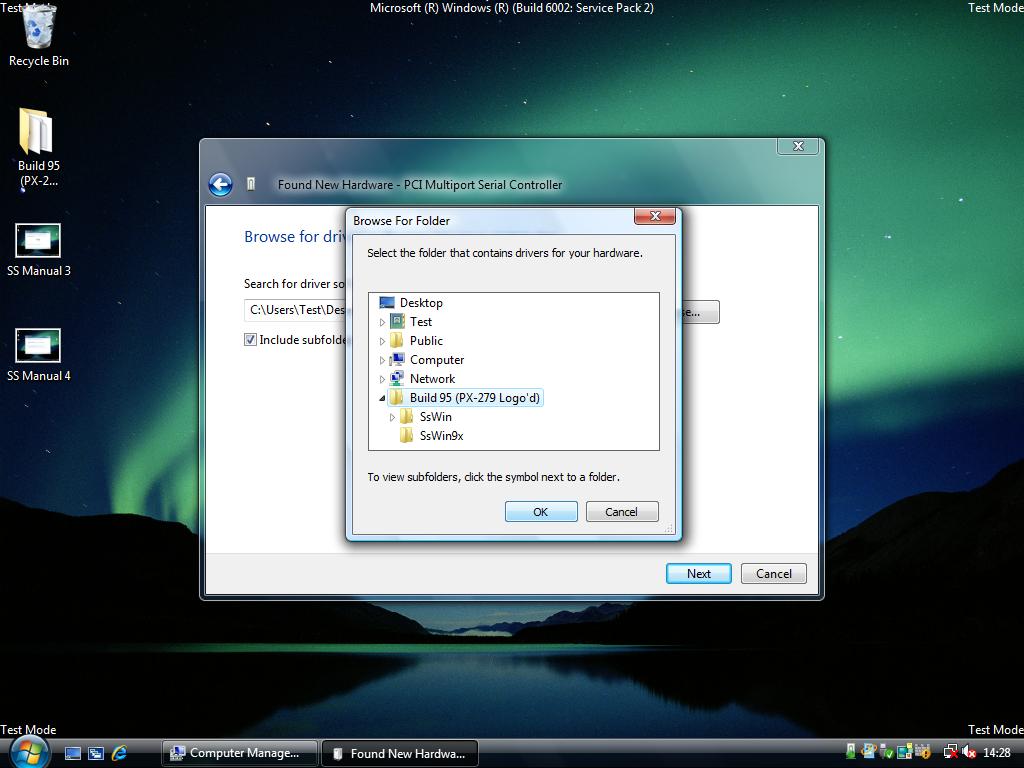
- You will then be asked to browse your computer for the folders with the drivers in. Select the file that has the drivers you want to install and click OK. Click Next and the drivers will be automatically installed for the card.
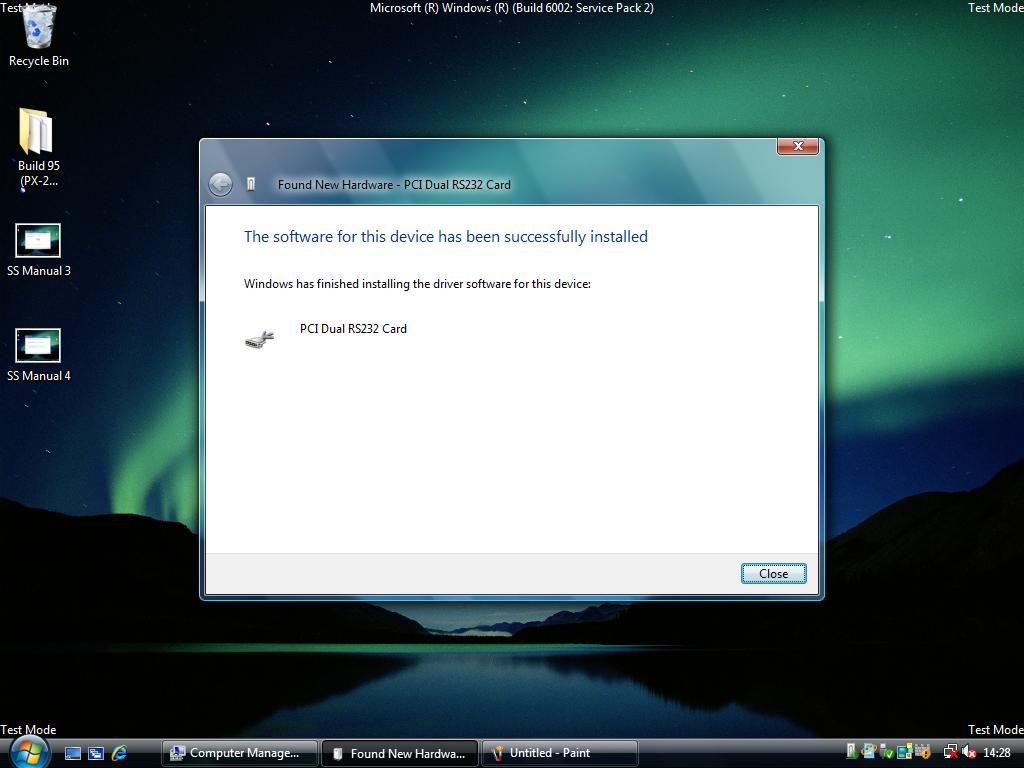
- The drivers for the card will then have been successfully installed.
Next Steps
Once installation is complete, proceed to Product Configuration to configure your COM ports.