
Update firmware on every Brainboxes device at once with BB-Eco
Update all and bb-eco upgrade all are in the BB-Eco beta channel from September 2026. Earlier builds upgrade one device at a time - see Upgrade your first device.
A batch multiplies the exposure of the one rule that matters: never interrupt a firmware transfer. Do not put your laptop to sleep, switch networks or unplug a device while the activity bar shows a transfer in progress. If you must stop, use Stop - BB-Eco finishes the device it is on and leaves the rest untouched. Set aside about two minutes per ED and three per ES device.
This guide covers upgrading firmware on many Brainboxes devices in one go with the BB-Eco desktop app or CLI. Use it when commissioning a site, refreshing a fleet to a new release, or catching up every device after a firmware advisory.
Before you start
- BB-Eco is installed (see the BB-Eco install guide).
- The target devices are visible in the BB-Eco dashboard. (See Discover your first device if any are missing.)
- The devices are on wired Ethernet in the same broadcast domain as your computer. Firmware transfers use BOOTP/TFTP broadcasts, which do not cross a VPN or a router.
- On Linux you have sudo access: the transfer binds UDP ports 67 and 69, which are privileged there. Windows and macOS need no prompt.
- You have read the release notes for the target firmware. Updates that reset a device to factory settings are never included in a batch; upgrade those devices individually.
Step 1 - Check what is out of date
Each device card shows an orange Update pill when the current release is newer than the firmware on the device:
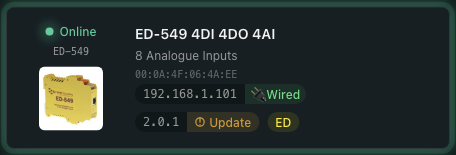
The top bar shows Update all (N) whenever at least one online ED or ES device has an update available. N counts the devices that would be included.
Step 2 - Start the batch
- Click Update all (N).
- The start dialog lists every candidate with its model, current firmware and the target version. Everything is ticked; untick anything you want to leave out. If firmware for a model has not been downloaded yet the dialog says so - BB-Eco downloads it before starting.
- Click Start. On Linux, enter your password once for the whole batch.
Step 3 - Keep working while it runs
An activity bar appears along the bottom of the window and stays there while you use the rest of the app:
Updating firmware: 1/3 devices updated, 2 skipped, about 3 min left
BB-Eco updates devices one at a time. For each device it runs the same pre-flight check as a single upgrade, transfers the firmware, waits for the reboot and confirms the new version. Each device's own Install Update button is disabled until the batch ends.
Some devices are skipped rather than updated, and the report says why:
| Skipped because | Meaning |
|---|---|
| In use by another host | Another computer holds an open connection to the device (serial port, Modbus or ASCII). Close it and run again. |
| Requires a factory reset | The target image would wipe the device's settings. Upgrade it individually, on purpose. |
| Not cached | The firmware image could not be downloaded (offline, or the download failed). |
| Already up to date / no upgrade path | Nothing to do for this device. |
If a device fails, the batch pauses and the bar turns amber with the reason and two choices: Continue with the remaining devices or Stop. If the device had already committed to the new image, a Recover link opens the recovery tool for it - see Recover a stuck ED device.
Closing BB-Eco during a batch shows a prompt: Finish current device, then quit completes the transfer in progress and leaves the remaining devices untouched; Keep running returns to the app. There is no way to quit mid-transfer, on purpose.
Step 4 - Read the report
When the batch ends the bar reads, for example, Firmware update finished: 2 updated, 1 skipped, 0 failed. View report groups every device under Updated, Skipped (with the reason), Failed (with the error and whether recovery was armed) and Not started (devices after a Stop). The report stays available until you dismiss the bar.
Triage anything under Failed before you leave the site:
- Failed before the transfer started: the device was not touched. Usually a firewall, Wi-Fi or VPN issue - fix the network and run again.
- Failed after the device committed (ED): the device is in its bootloader and BB-Eco's recovery radar will find it. Follow Recover a stuck ED device.
- Failed after the device committed (ES): ES recovery has so far been validated on one model (ES-522). Contact support before attempting it.
From the CLI
bb-eco upgrade all does the same thing from a terminal - discovery, plan, sequential transfer, report:
bb-eco upgrade all
Model    IP              MAC                Current  Target  Action
ED-588   192.168.0.5     00:0A:4F:05:F7:CA  8.25     8.33    Update
ED-560   192.168.0.9     00:0A:4F:06:12:3B  8.33     8.33    Skip: already latest
ES-522   192.168.0.12    00:0A:4F:05:28:DB  4.61     4.69    Update

Type CONFIRM to update 2 device(s):
Options worth knowing:
--on-failure pause|continue|stop-pauseasksContinue? [y/N]on a terminal; when stdin is not a terminal or with--jsonit degrades tostop.--force- skip the CONFIRM prompt (for scripts).--allow-factory-reset- include updates that reset the device; asks for a second typed confirmation.--discovery-seconds 10- wait longer for devices to answer on a busy network.--json- the full report as JSON.- On Linux prefix the command with
sudo.
Exit code 0 means every device was updated or skipped, 1 means at least one failed or was not reached, 2 means nothing was eligible.
Update automatically instead
If you would rather BB-Eco keep the network current on its own, see Keep Brainboxes firmware up to date automatically.
More resources
- Upgrade your first device with BB-Eco - the single-device walkthrough this guide builds on
- Recover an ED device stuck in bootloader - for devices that fail mid-batch
- Diagnostics and privacy - the optional anonymous report BB-Eco can send after each update attempt