How to Successfully Set Up Visual Studio Code with Python - Complete Walkthrough
Requirements
Install Visual Studio Code available here: Install VS Code. Download and install Python on your PC: Install Python.
Create your python project
Open Visual Studio code and then click on open folder to create a new folder for your project:
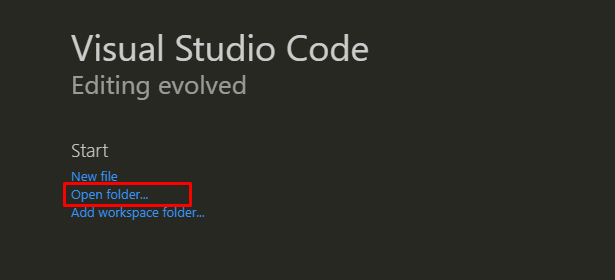
Create a new folder:

Select the folder:

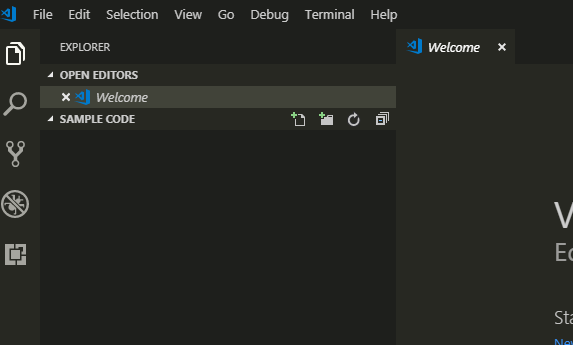
The new project opens up on VS Code:
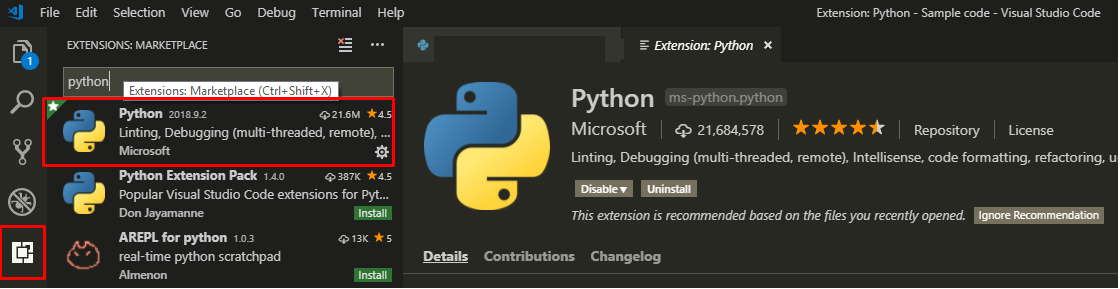
Make sure you have the python extension for VS Code installed:
Set up your environment variables
1. To set up workspace settings for Python.
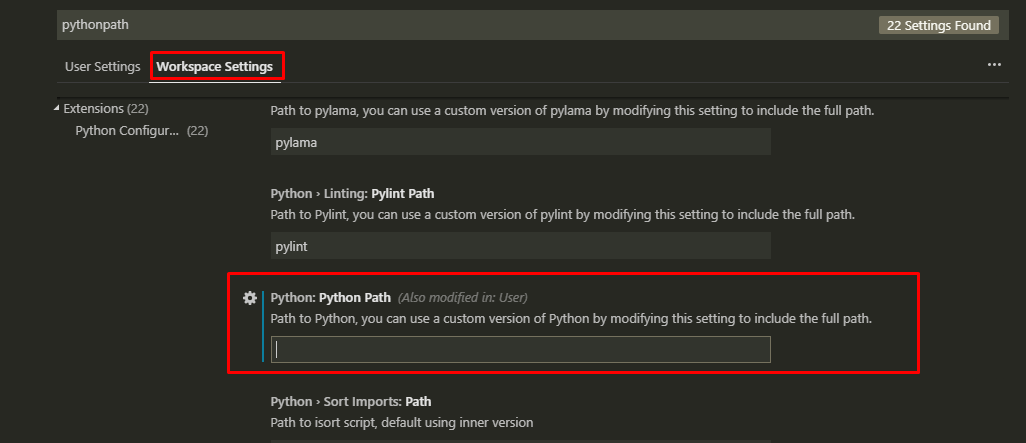
Go to File > Preferences > Settings. Select Workspace Settings and in the Search bar enter the key word pythonpath:
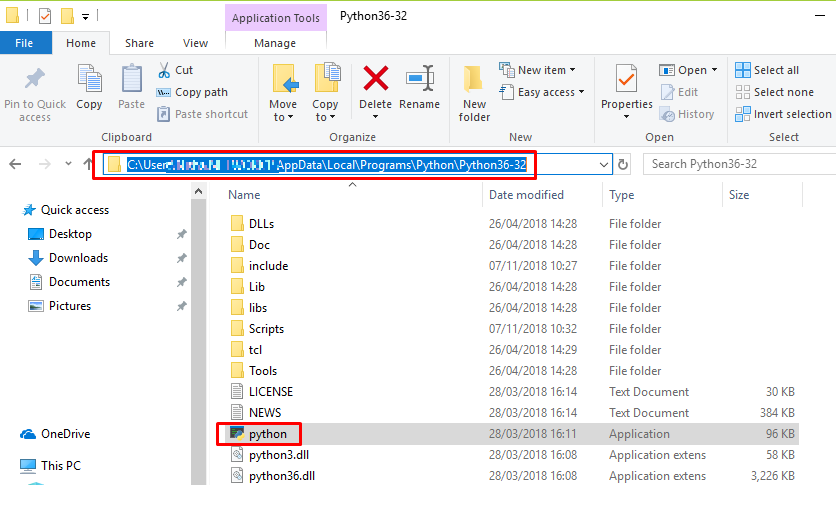
Copy the path to the python.exe file installed on your PC:
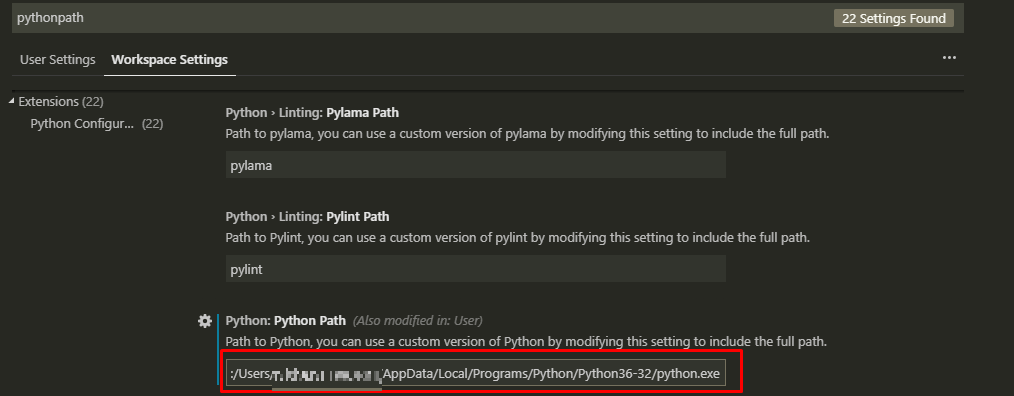
Paste the path in the Python Path setting, highlighted below:
2. To set up environment variables for pip3.
Right click on This PC > Properties > Advanced system settings > Environment Variables.
Edit the environment variable ‘path’:
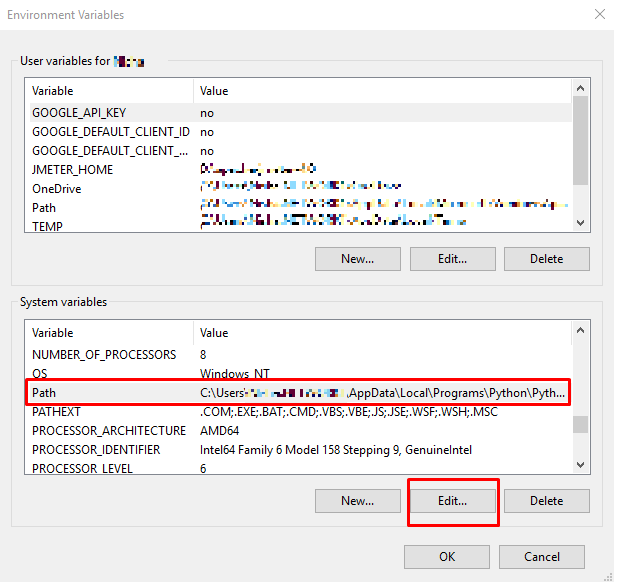
Browse to the directory where the pip3 exe file is available. pip3 is usually found inside the Scripts folder (under the same directory of python.exe).
Select OK to add the path to the environment variable:
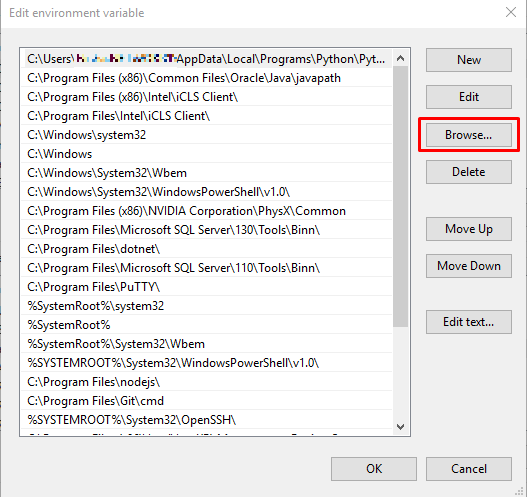
Now we have set up the required environment variables.
Create a new file
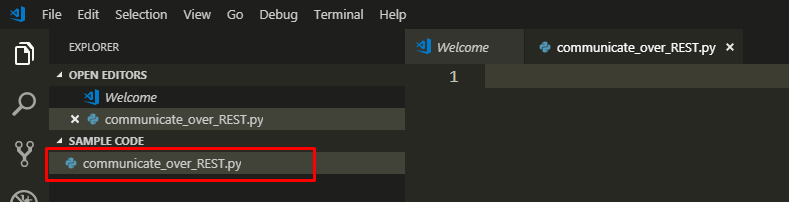
Click on the file icon to create a new file. Give the file a name ending with the extension ".py" (stands for python):
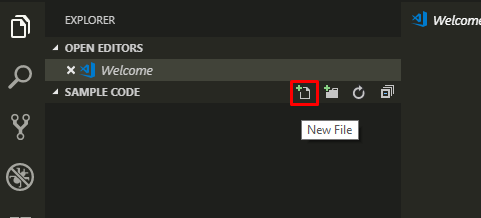
You are now ready to code your new program: