
How do I connect my BB-400 to Azure?
Cloud computing is the process by which information can be sent over the Internet using a variety of different "pay-as-you-go" services. The BB-400 has a number of cloud services integrated, and this FAQ will explore one of these options: Azure. For more information regarding the other cloud services please refer to the FAQ What Cloud services are available on the BB-400?
Create Azure account
In this section we will explain how to set up a free Azure account, if you would like to buy an Azure account then create an account using the following link: https://azure.microsoft.com/en-gb/pricing/purchase-options/pay-as-you-go/.
Go to the Azure website https://azure.microsoft.com/ and click on Start for free.
Enter your details, you will have to undergo the verification process by phone and card, and then verify your account by email.
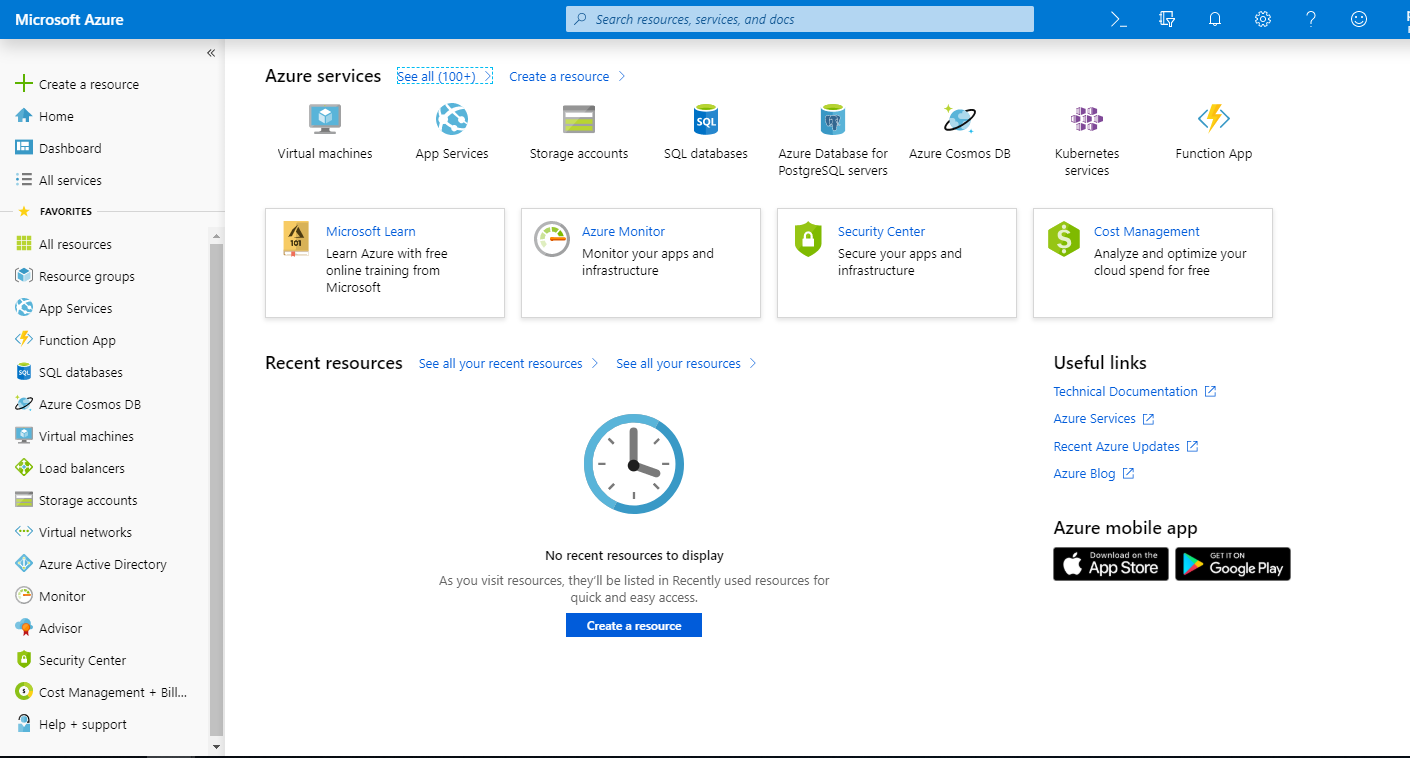
Once you have created and verified your account the initial screen will look like as follows:
Setup IoT Hub
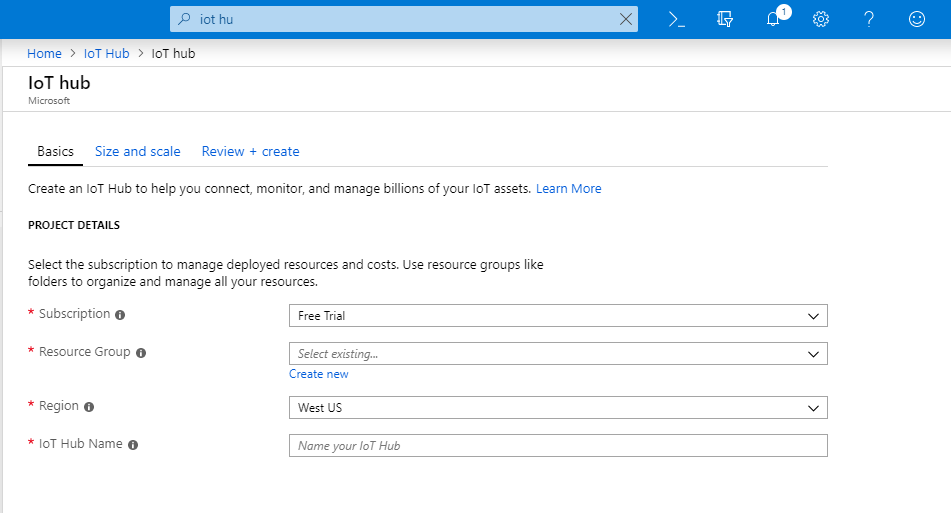
In the search bar at the top of the Azure portal, type IoT Hub and click on the result. We will add a new IoT Hub and fill in the following details and click save: 
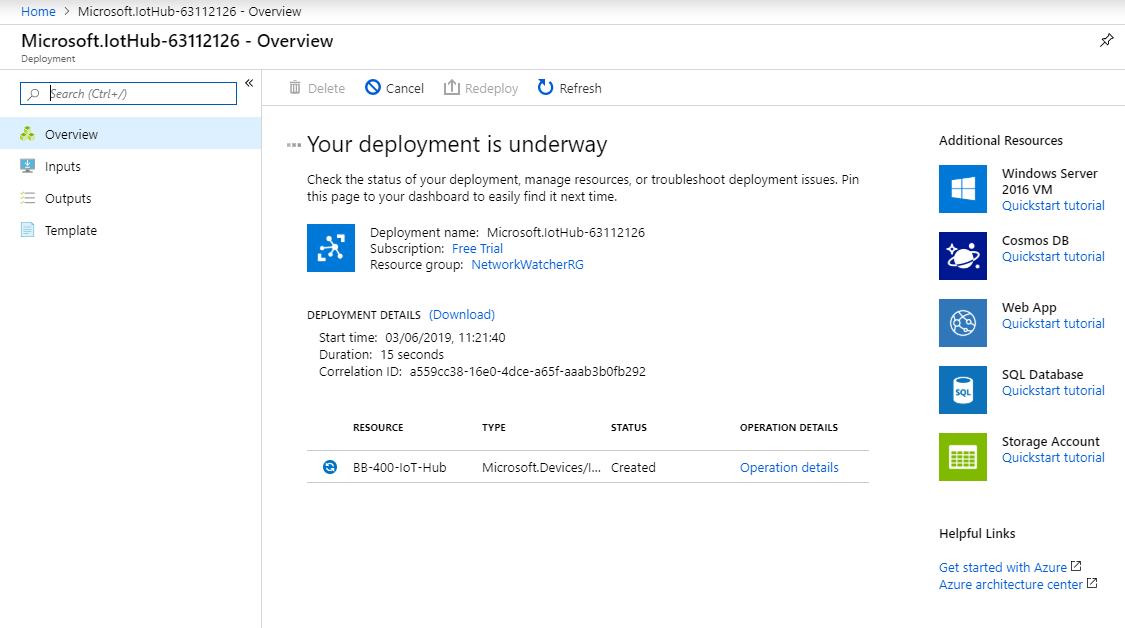
Then your IoT Hub is ready to be deployed:
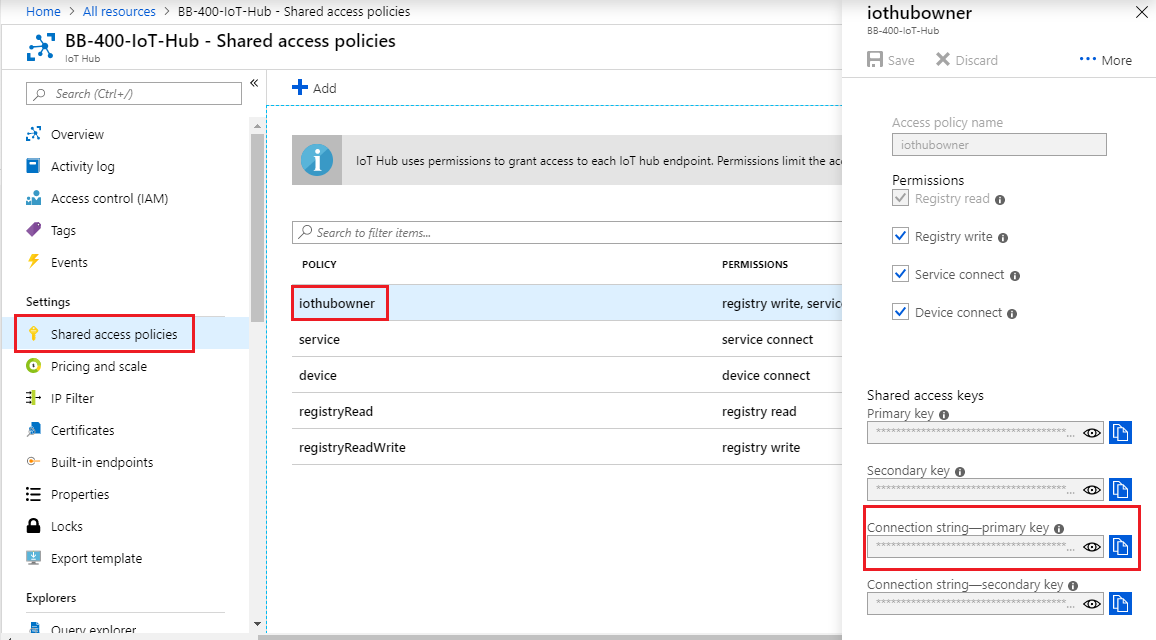
You will need to use your access keys in the next section. They can be found by going to Shared access policies and clicking on iothubowner:
Create IoT device
Now we will add our BB-400 to the IoT Hub. Click on the IoT Hub you have just created and scroll down to ioT devices. We will click on New to add our device:
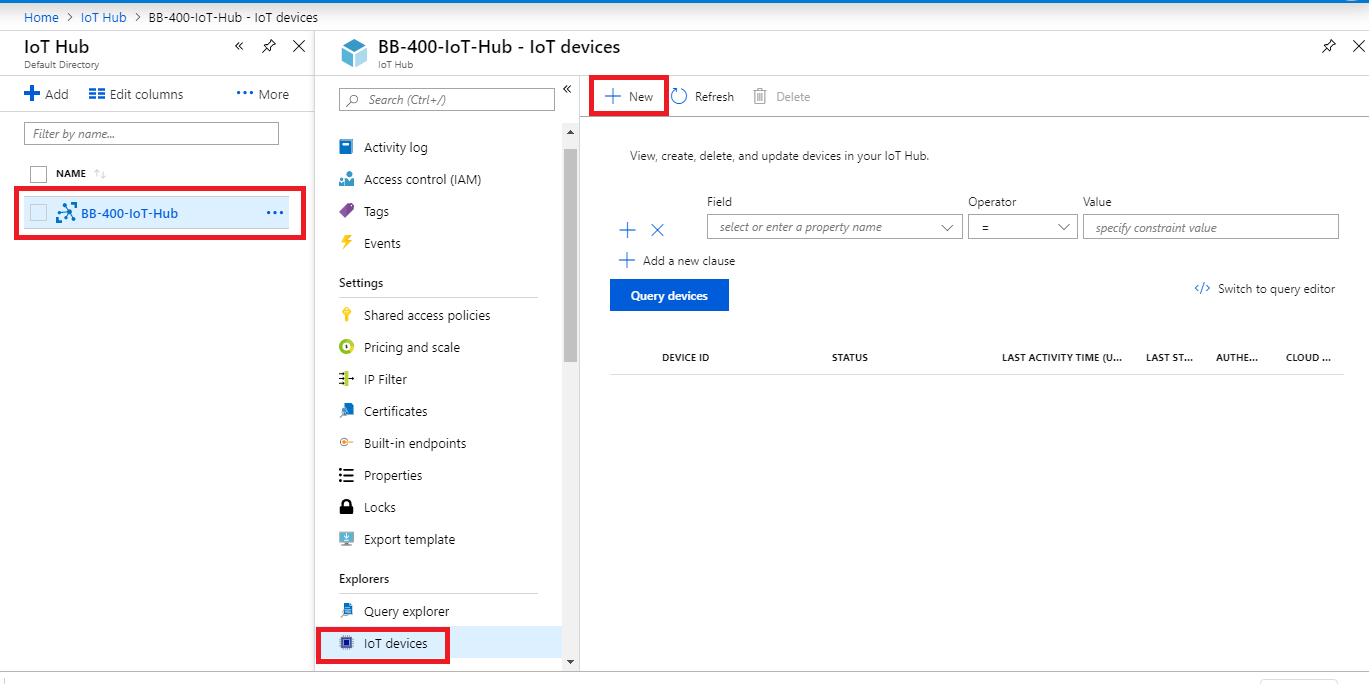
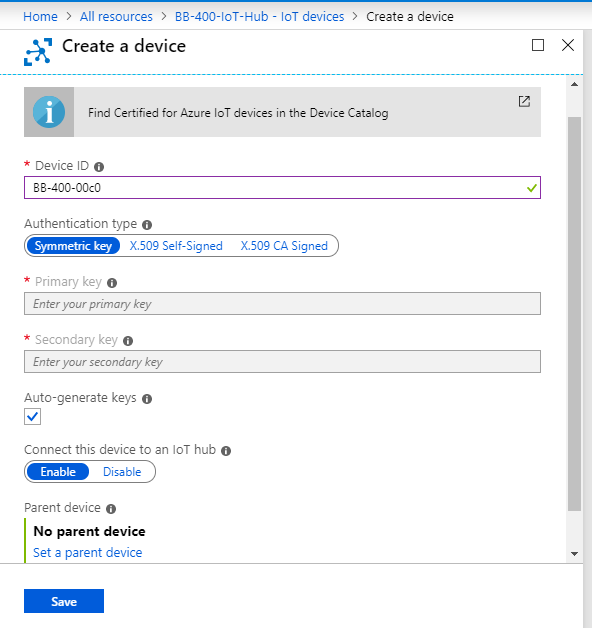
Fill in the details and click save:
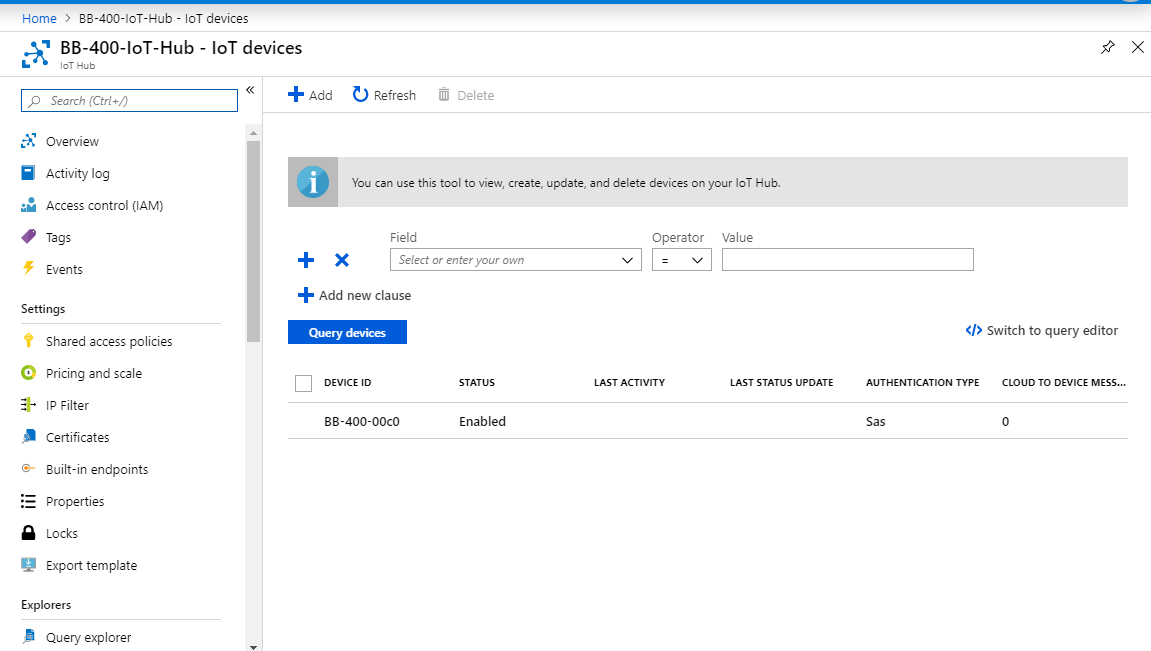
you will now be able to see your device on your IoT Hub:
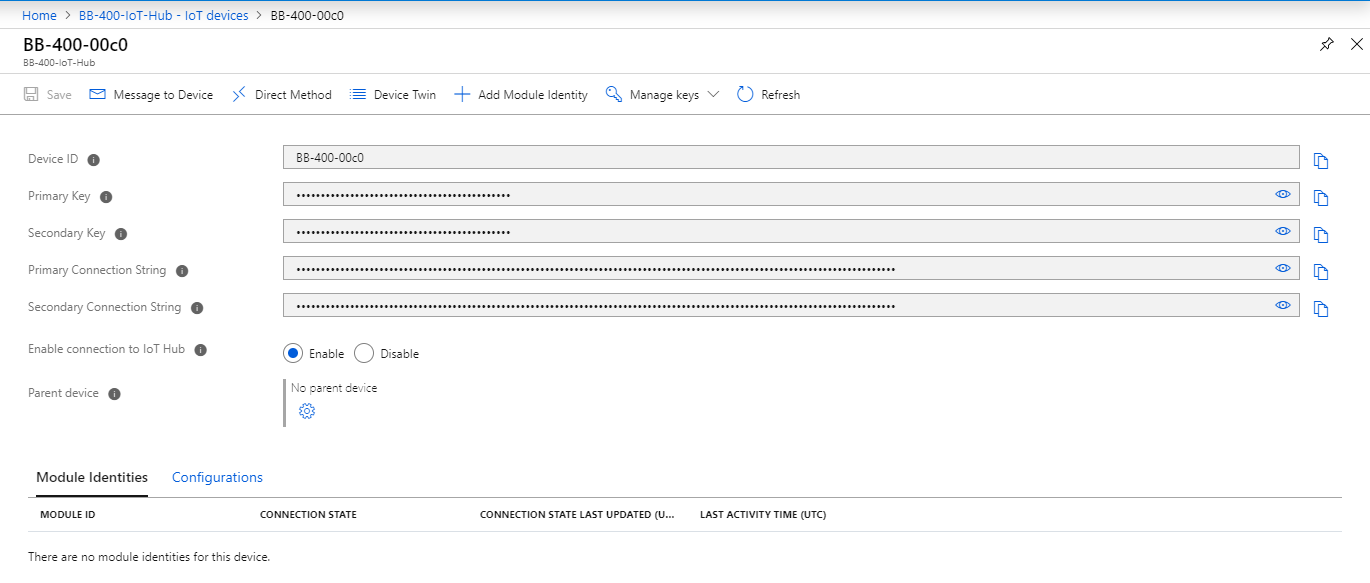
Your device will also come with access keys, and they can be found by clicking on your device:
Connect your device to Azure using Node-RED
Now we are ready to connect our device to Azure using Node-RED. We firstly need to install the Azure IoT Hub nodes and there are 2 ways in which to do this, via command line or manually.
Command Line
The first way is to navigate to the Node-RED directory within your BB-400 terminal:
$ cd node-red-data
type the following command to install the nodes:
$ npm install node-red-contrib-azure-iot-hub
and finally, you will need to restart the Node-RED app so the installed nodes will load up on Node-RED:
$ node-red-restart
Manually install nodes
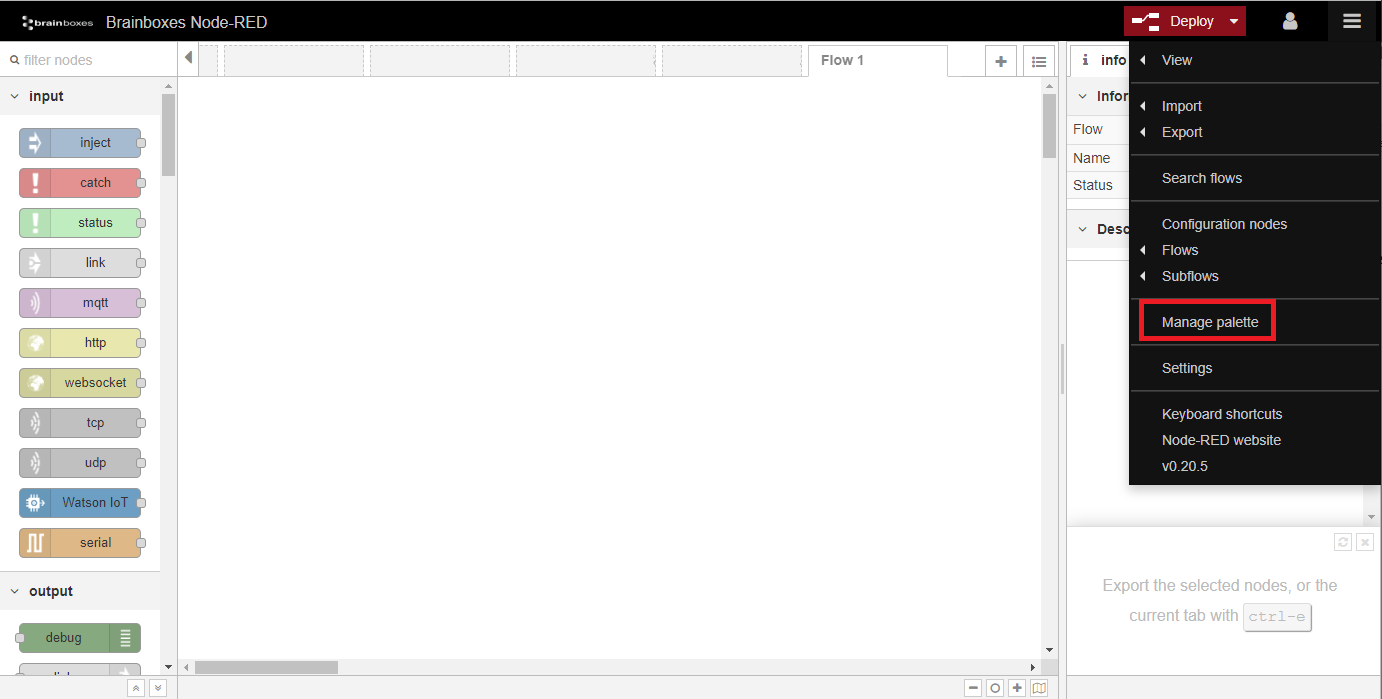
The other method is to add the nodes using Manage Palette within the Node-RED application.
Click on Manage palette:
select the Install tab, type in "node-red-contrib-azure-iot-hub" and click on Install:
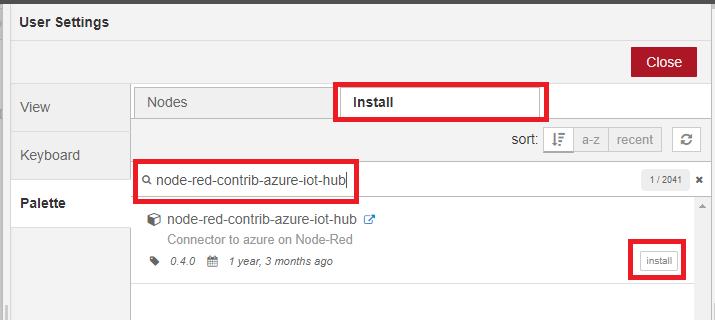
Once installed, you will see the Azure IoT nodes  on the left hand side of your workspace.
Send BB-400's IO status to Azure
We will firstly drag a websockets input node  onto our workspace to send the IO status. Double click on the node and configure it as follows:

Next, add a function node  to the workspace, connect it to the WebSockets input node and configure it to set up Azure credentials and to send the BB-400's IO data as follows:
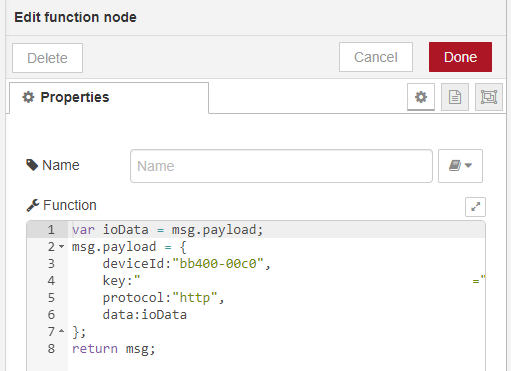
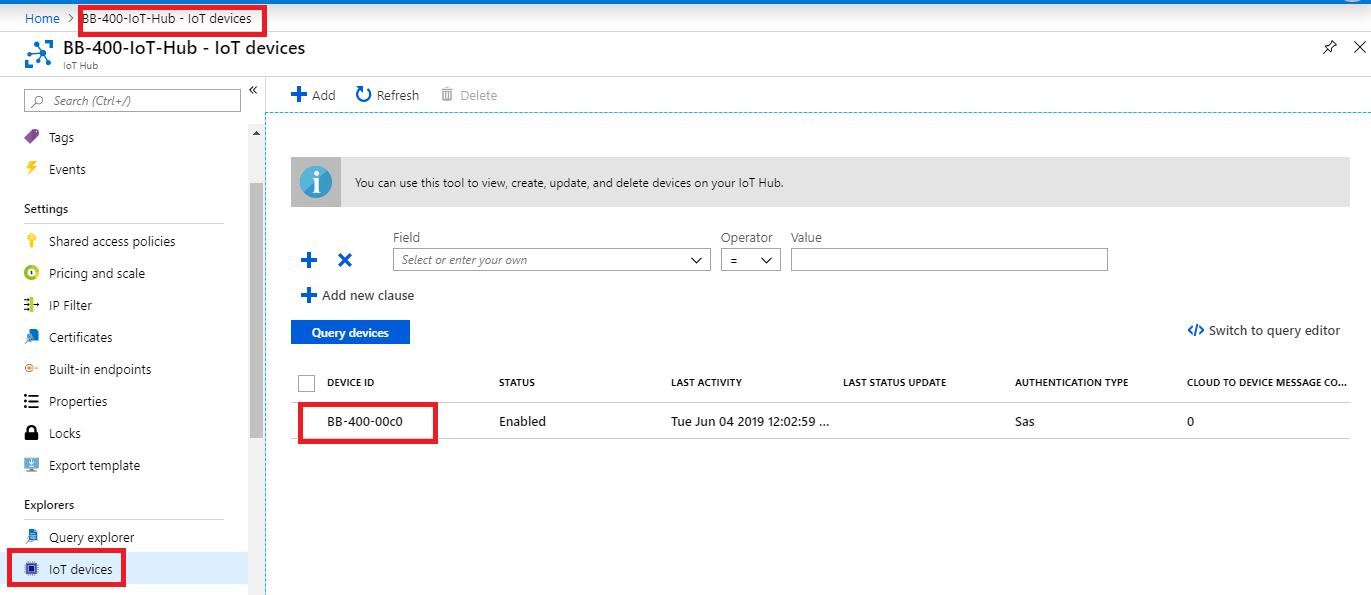
The device ID is the one you assigned when create your device on the IoT Hub:
The "Key" which has been blanked out in the above example, refers to the primary key of your device and can be found by going to your IoT Hub, clicking on shared access policies and then clicking on your device.
Next drag a Azure IoT Hub node and configure it as follows:
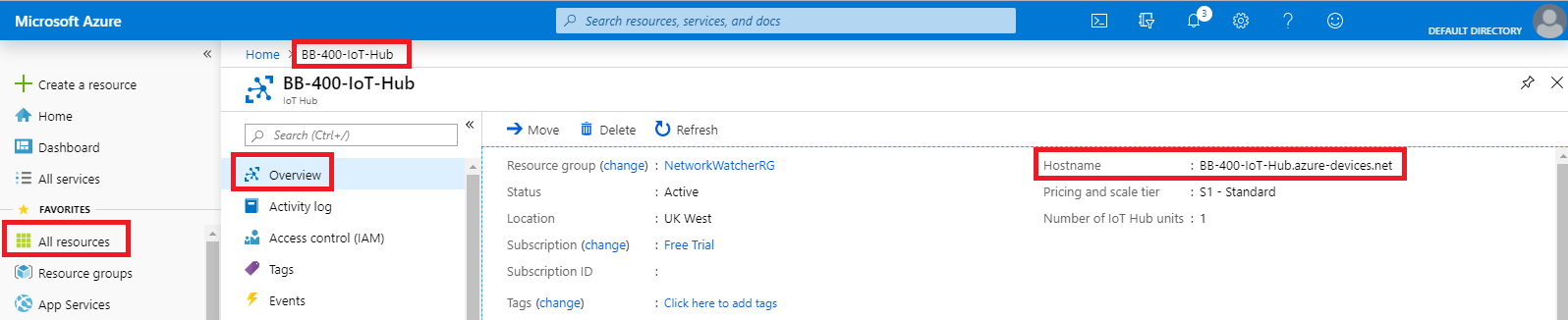
Your host name can be found by going to your IoT Hub and clicking on Overview:
Finally drag a debug node  and connect it to the Azure IoT Hub node. The full node configuration to send IO status to Azure looks as follows:

Click deploy and you should see the IO status being sent to Azure. The Azure node will also have a "Sent message" notification underneath it, as you can see in the image above, if everything has been connected properly.
The debug output looks as follows:

Receive the BB-400's IO status from Azure
We will use a Azure IoT Hub Receiver node to receive the IO status messages sent from the BB-400. Configure the node as follows:
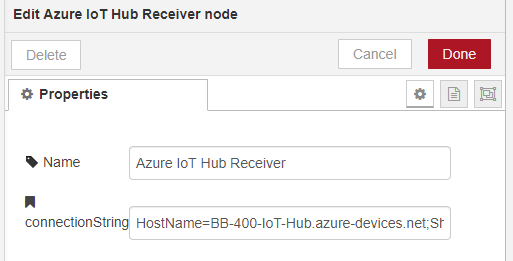
The connection string refers to your IoT Hub's primary key and can be found here:
Next drag a json node  onto the workspace and connect it to the Azure IoT Hub Receiver node. Finally add a debug node and connect it to the json node and click on deploy.
If everything is connected successfully, the full flow should look like below, including underneath the IoT Hub Receiver node the message "Received",

you should also see the BB-400's IO status being received by Azure in the debug messages section:

This FAQ has allowed you to successfully connect your BB-400 to Azure using Node-RED, you have sent your device's IO status to the cloud, and the cloud has been able to receive the messages.