
How do I connect my BB-400 to IBM Cloud?
Cloud computing is the process by which information can be sent over the internet using a variety of different "pay-as-you-go" services. The BB-400 has a number of cloud services integrated, and this FAQ will explore one of these options: IBM Cloud.
For more information regarding the other cloud services please refer to the FAQ What Cloud services are available on the BB-400?
IBM Cloud, IBM Watson and Node-RED
IBM Cloud is a popular cloud platform, and supports the tool: IBM Watson IoT Platform is a cloud service that can connect IoT sensors using IBM Cloud.
It is possible to connect the BB-400 to IBM Watson using Node-RED (link to Node-RED FAQ), and as Node-RED is already set up on the BB-400 by default, this is a great method in which to connect your device to the cloud.
Create an IBM Cloud account and IBM Watson IoT Platform
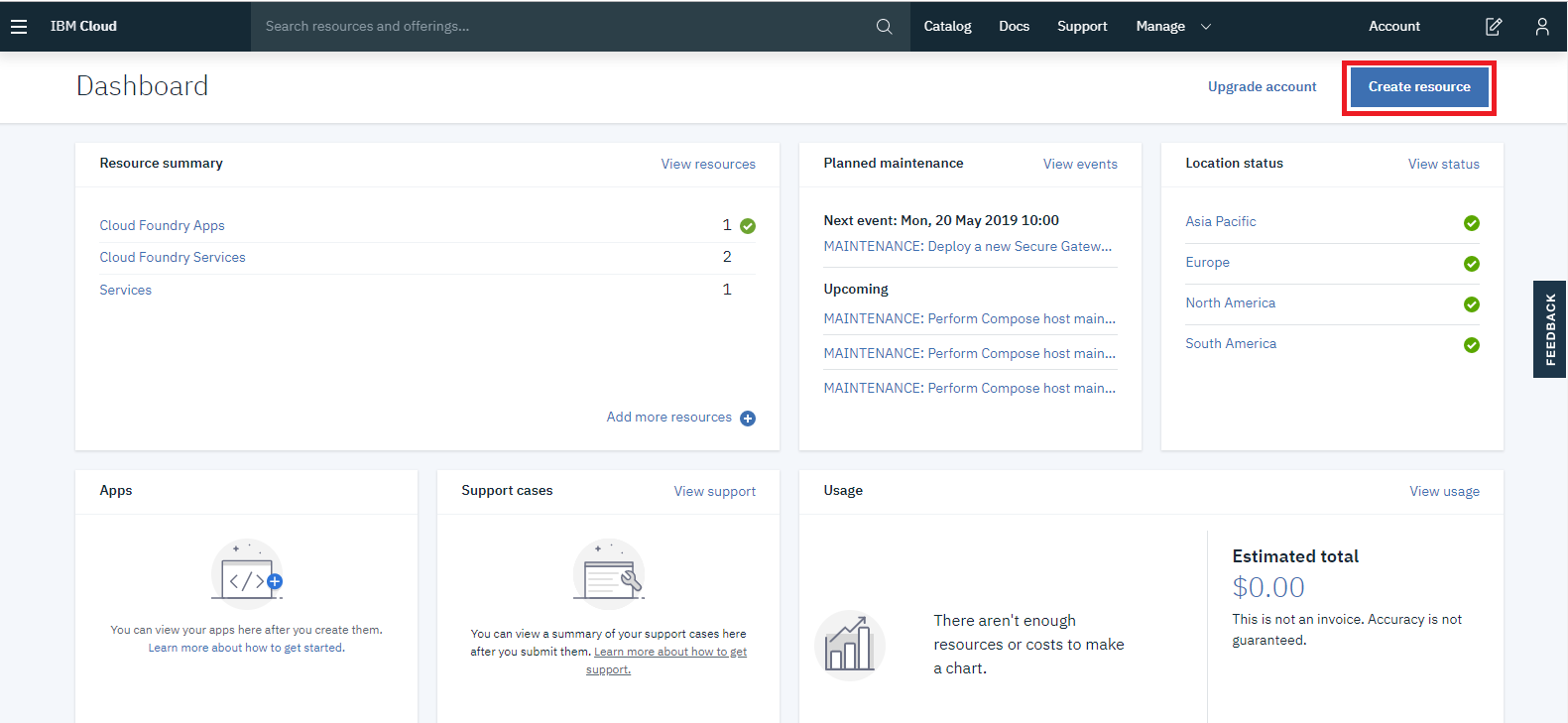
The first step is to create an IBM Cloud account: https://cloud.ibm.com/, and then you need to create an IBM Watson IoT Platform, by going to "Create resource" on the IBM Cloud Dashboard and selecting the Internet of Things platform:
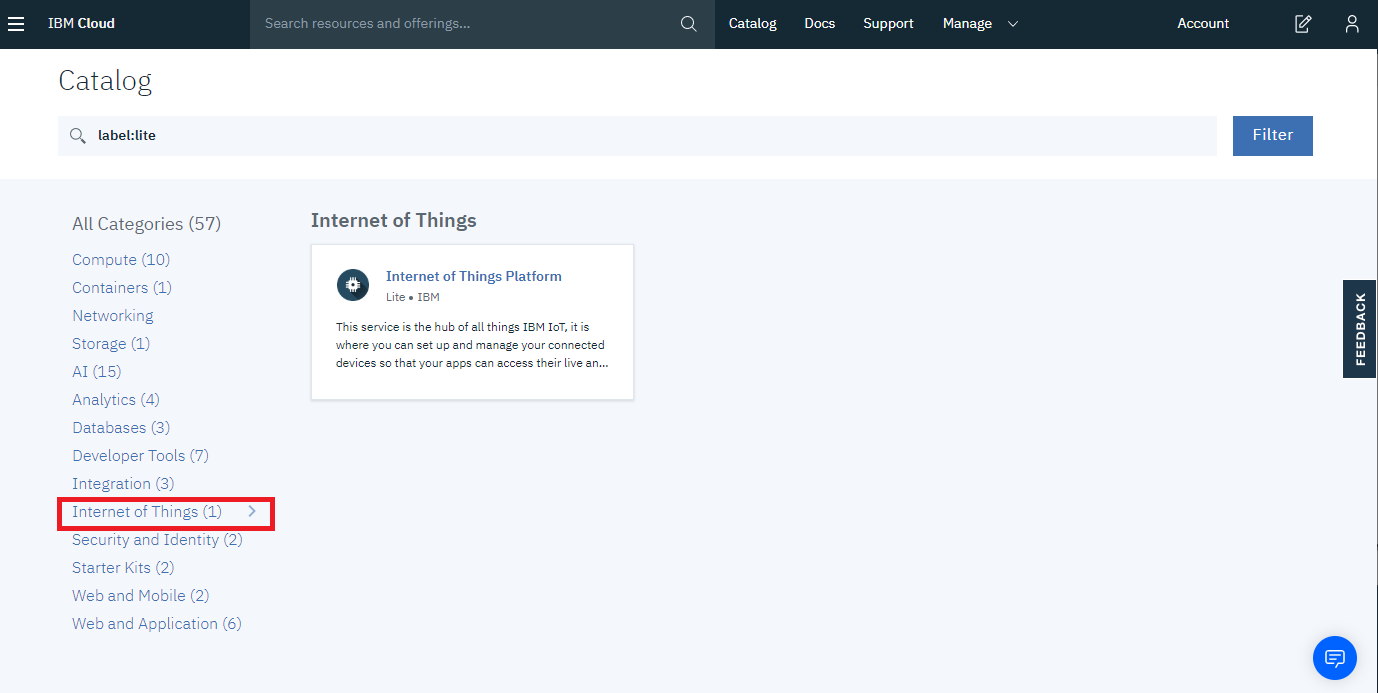
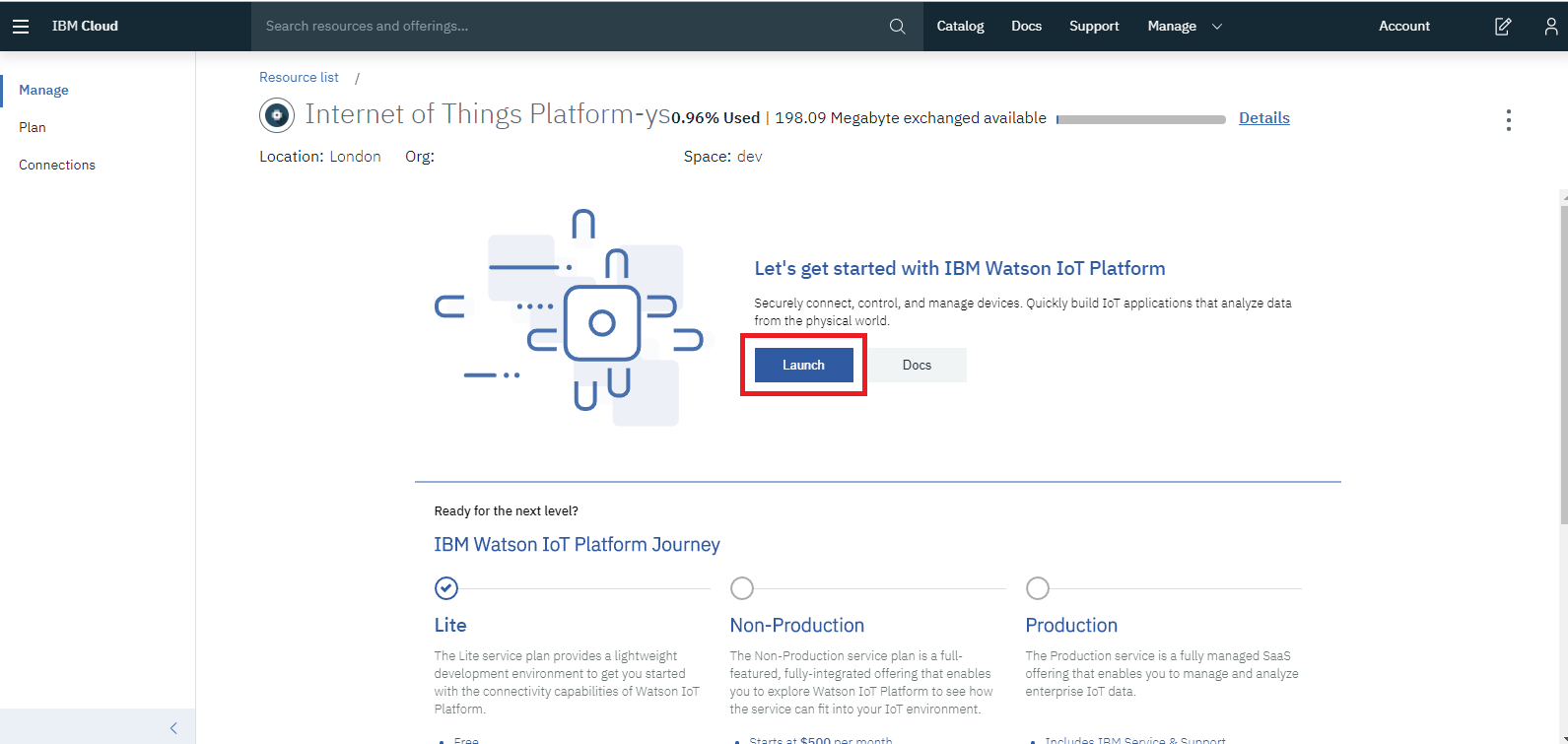
Once you have created the IoT resource, you can launch the IBM Watson IoT Platform:
Add Device
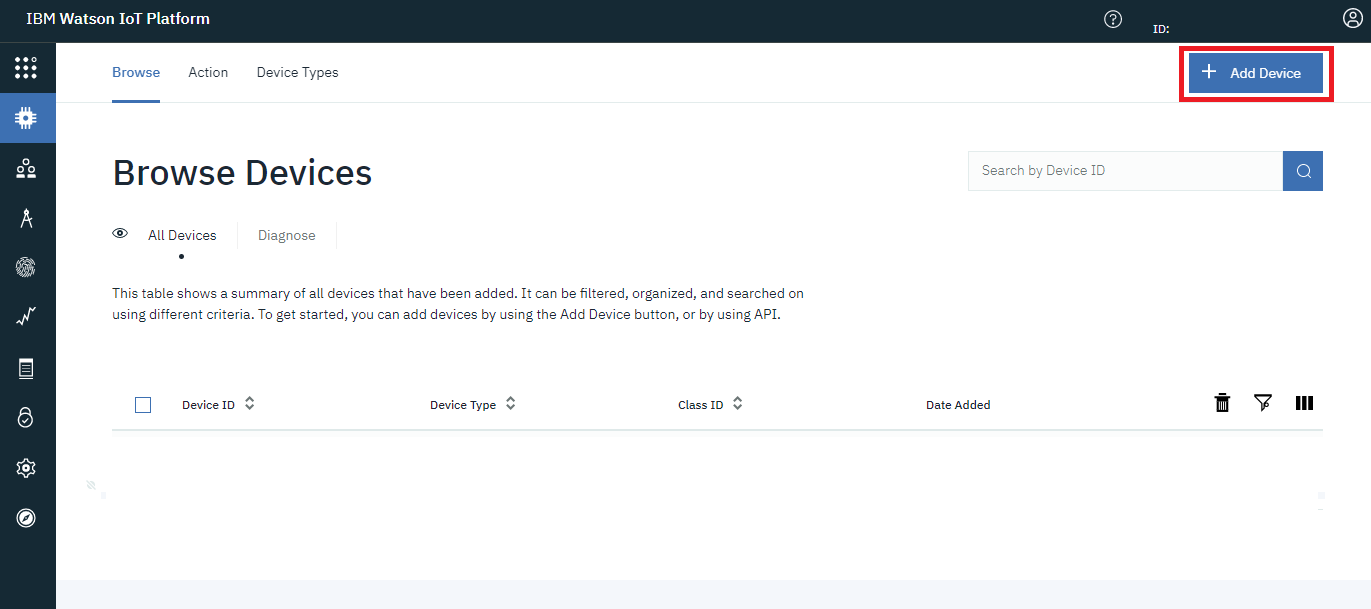
Within the IBM Watson IoT Platform you can add your device, by clicking on the "Add Device" button at the top of the screen:
- Identity The first step is to add information regarding your device type and assigning your device a unique ID:
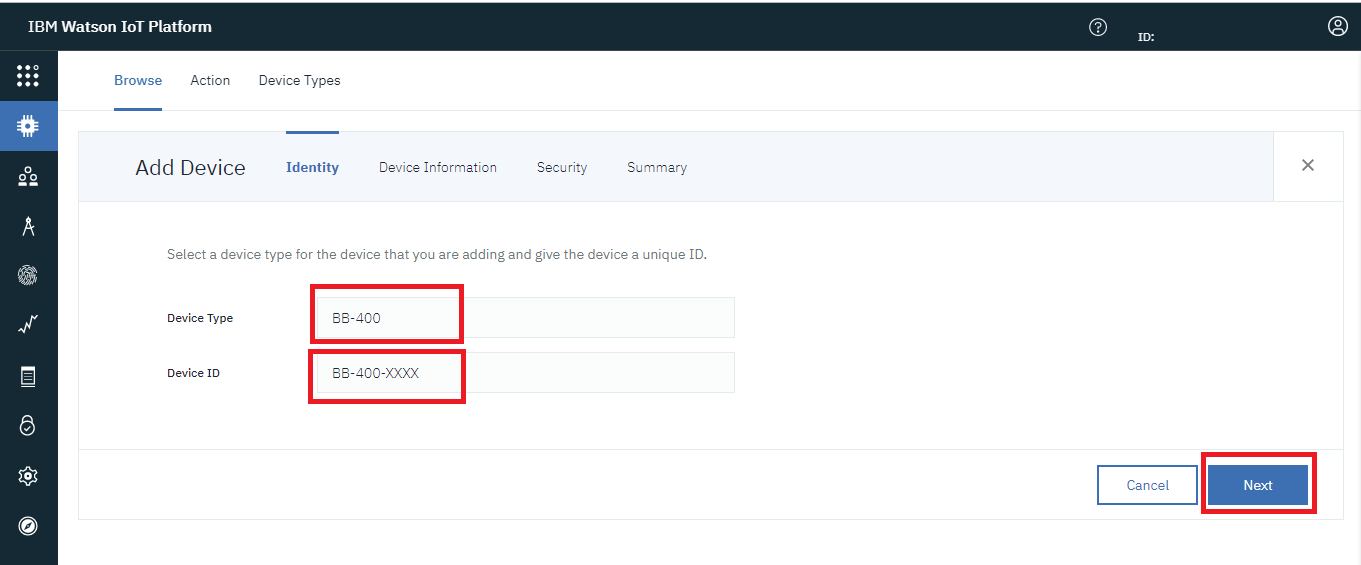
- Device Information You can provide device information in the next section, but it is fine to keep all the boxes blank and proceed to the next section:
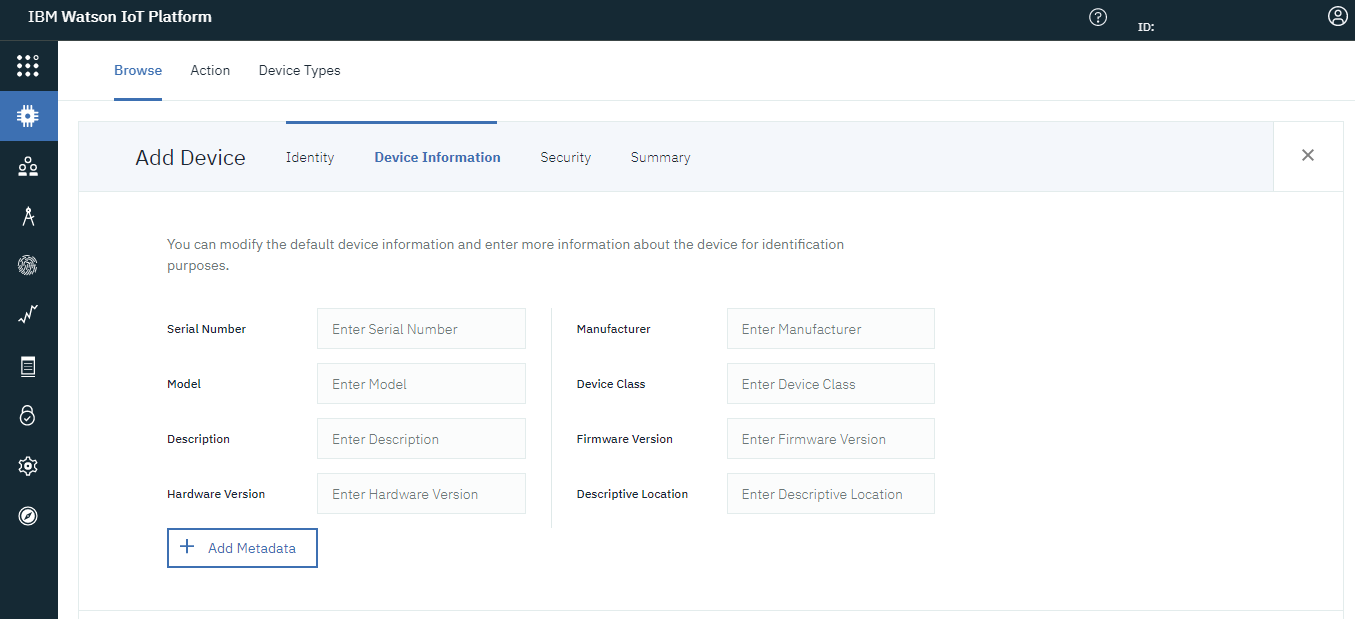
- Security The next stage is to create a device authentication token. You can choose to either auto-generate a token or provide your own authentication token.It is very important that you keep a note of your token when it appears on the summary screen, as when you proceed past the summary stage, the token will not appear again:
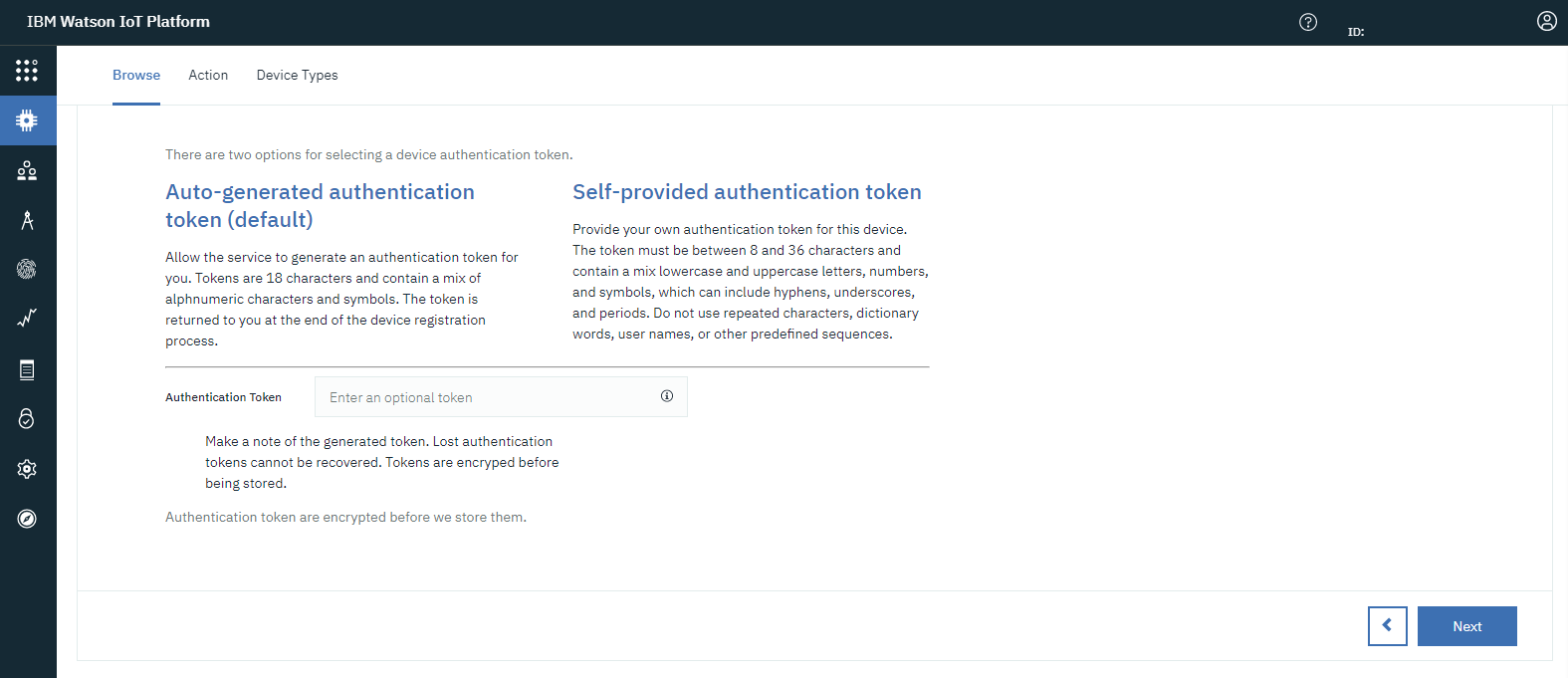 Review the information provided so far before the authentication token is created: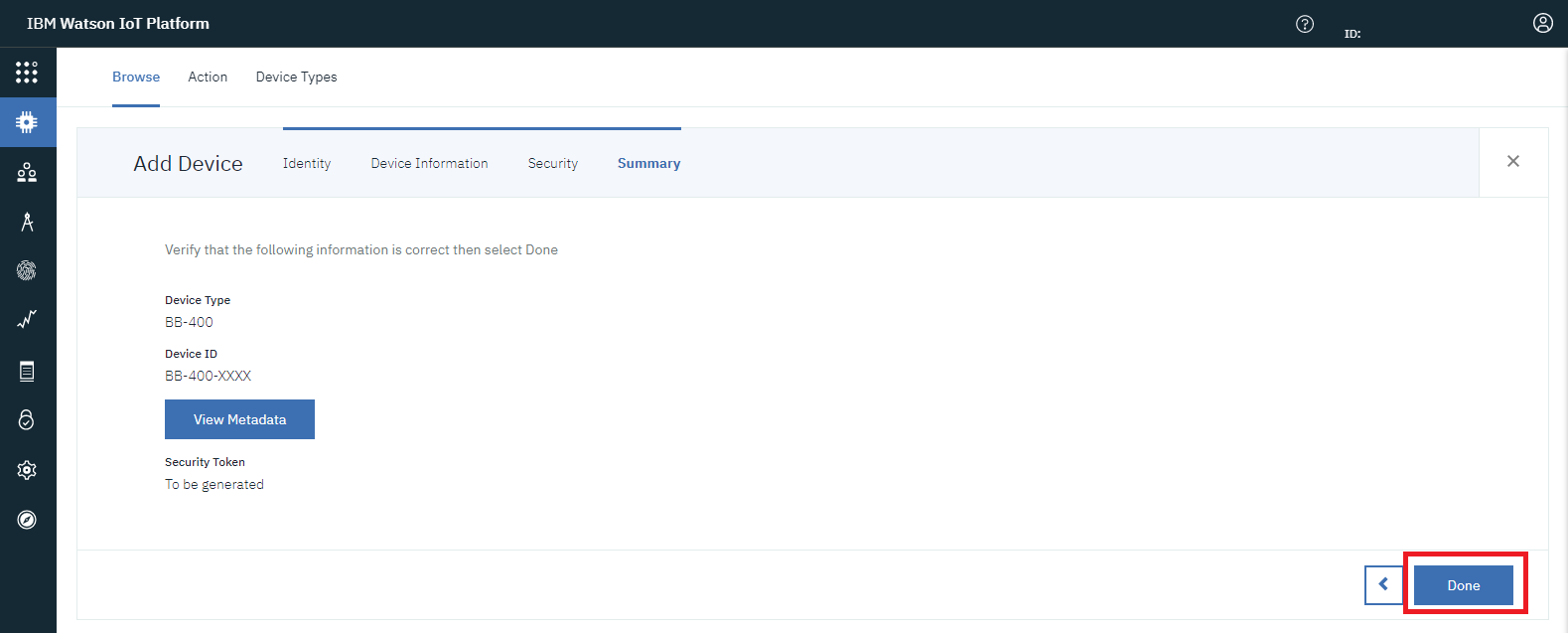
- Summary The summary page provides an overview of your device's credentials. You will need the credentials for connecting your device to the IBM Watson IoT Platform. As mentioned previously, it is important to keep a note of your authentication token as you will not be able to recover its details when proceeding past this stage: ** **
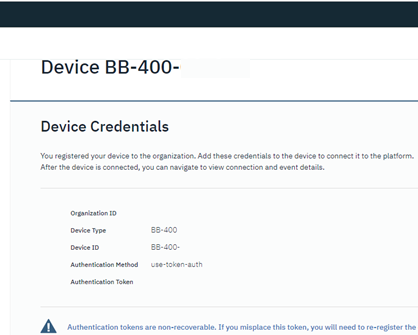 ****You should now see your device on the IBM Watson IoT Platform device section: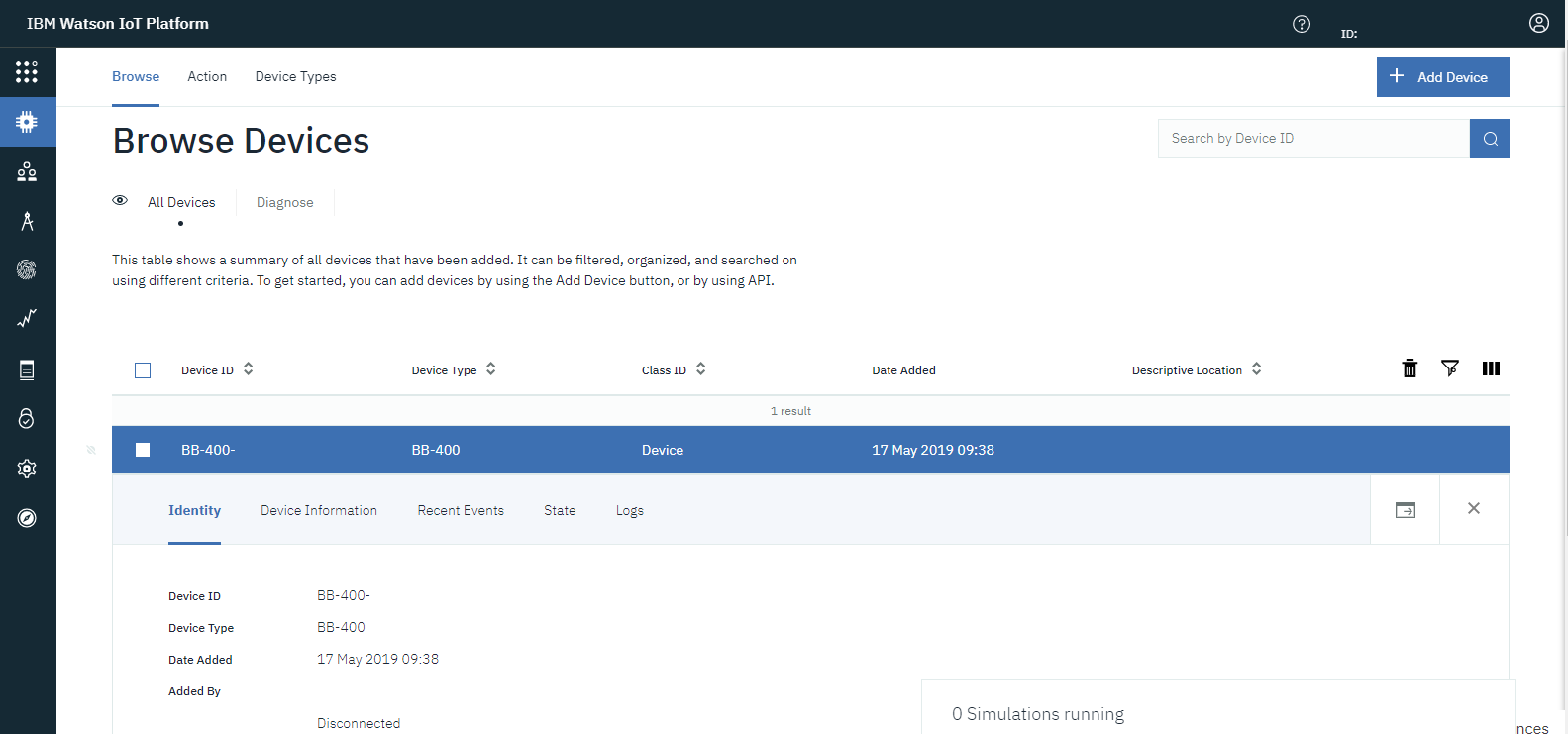
Create Node-RED app
Now you have added your device to the IBM Watson IoT Platform, the next step is to create a IBM Cloud Node-RED application to connect to your device's Node-RED instance. Navigate back to IBM cloud and click on "Create resource":
Within "Starter Kits" you will find the Node-RED Starter application:
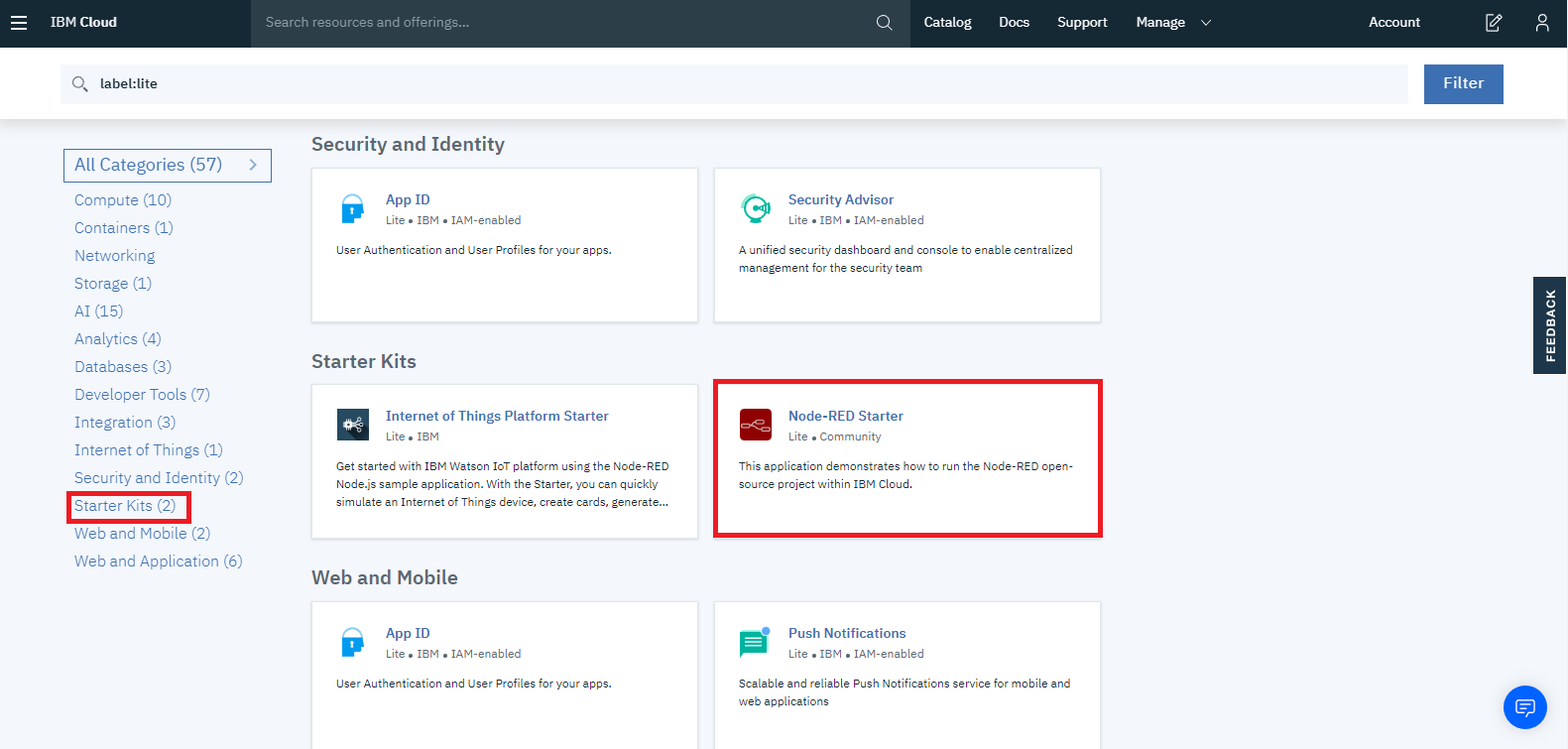
Follow the instructions to create your Node-RED application.
Connect IBM Watson IoT Platform to your IBM Cloud Node-RED application
Once your IBM Node-RED application has been created it is important to connect your IBM Watson IoT Platform to the Node-RED application, so that you can connect your device as a registered device:
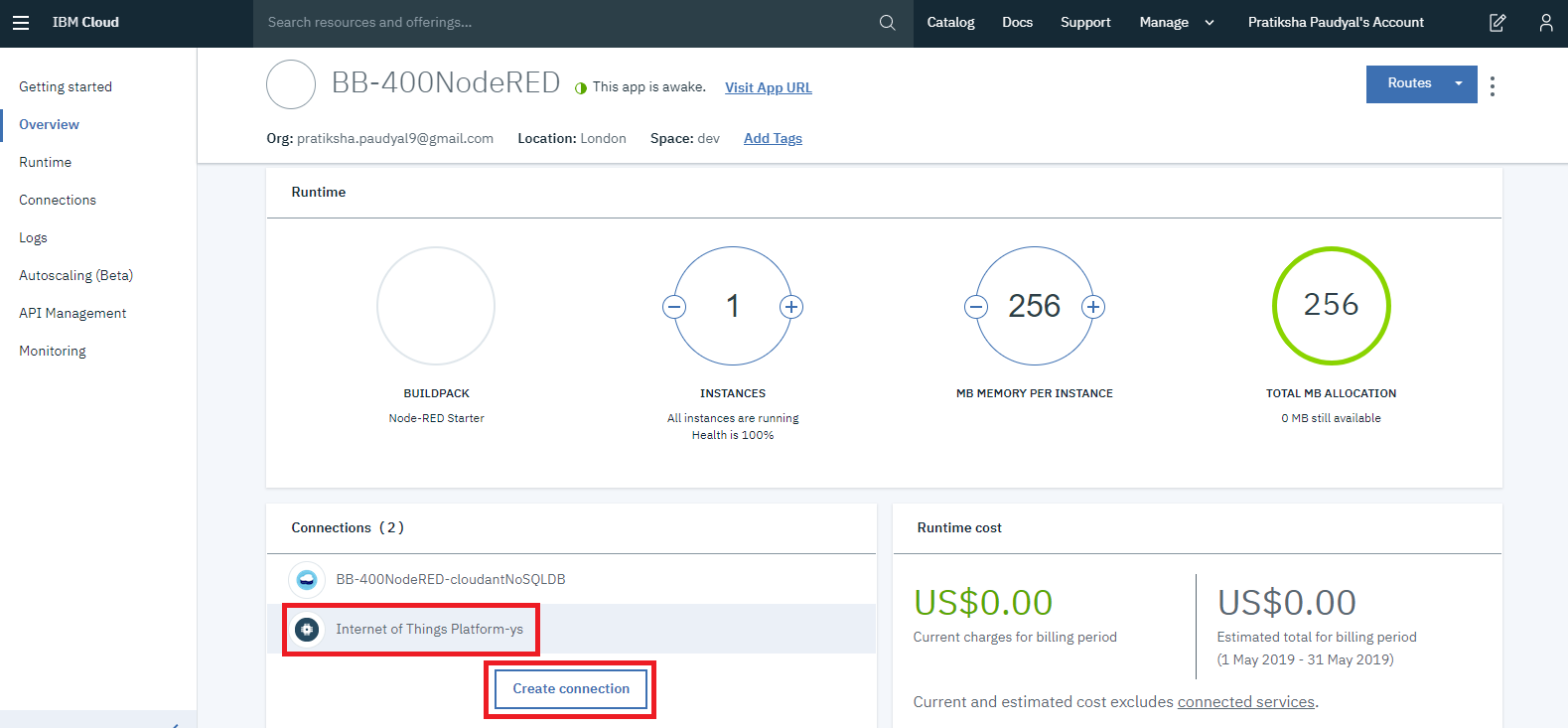
You can open Node-RED by clicking on "Visit App URL":
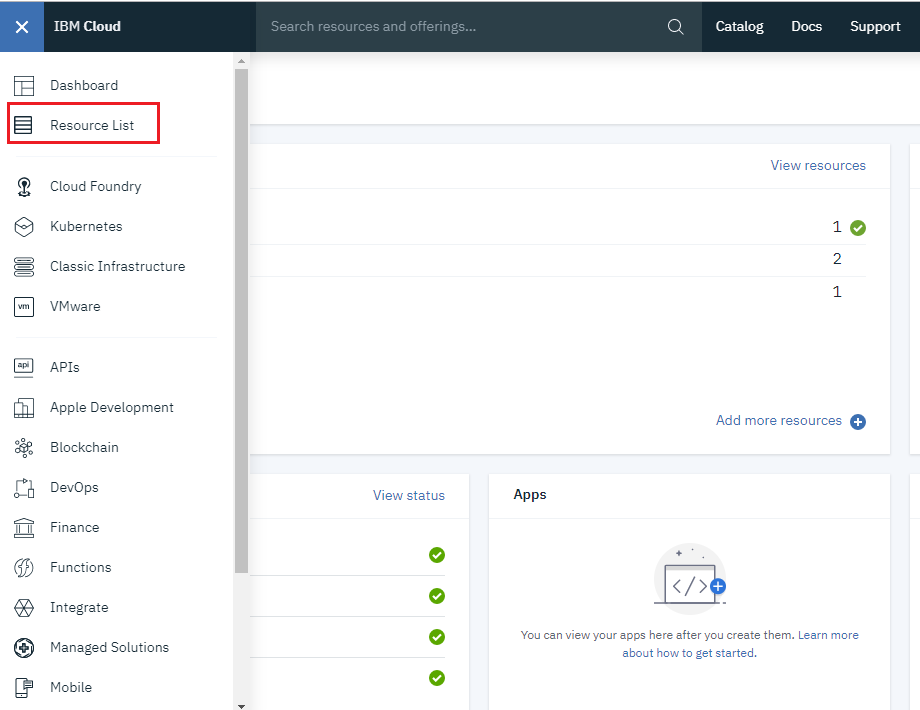
And clicking on "Go to your Node-RED flow editor":
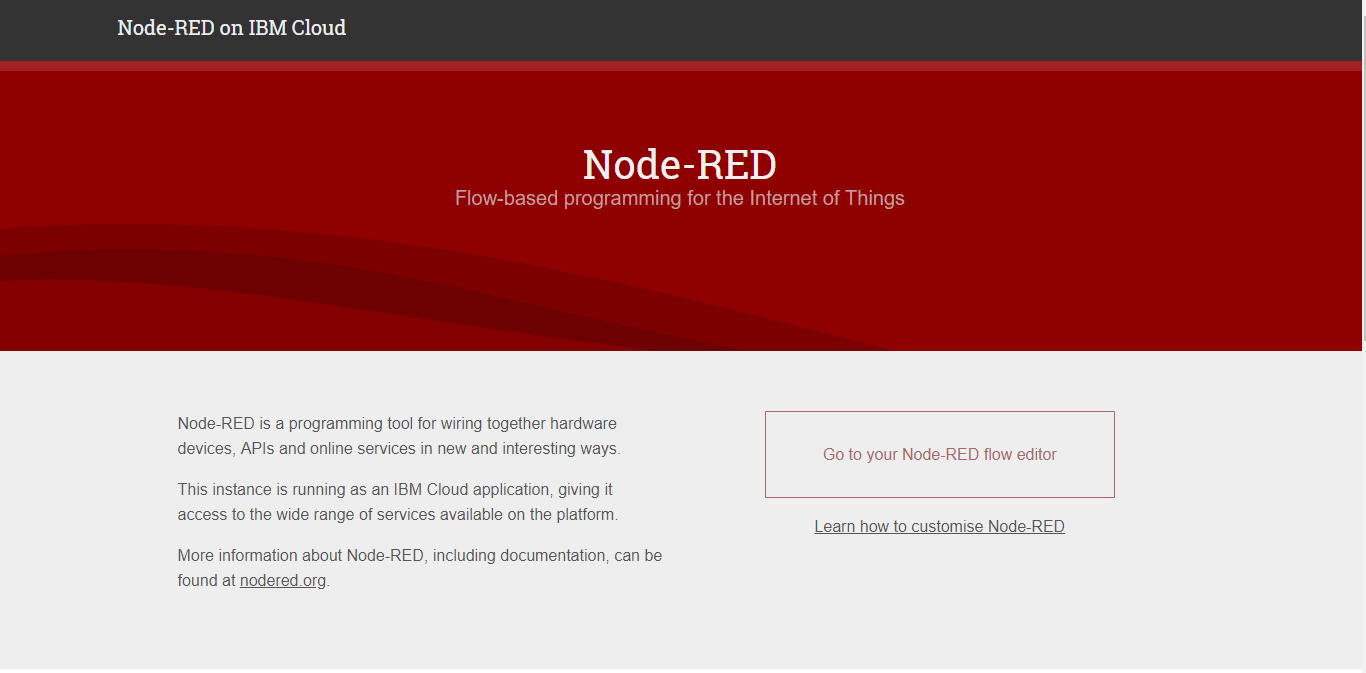
Will take you to your IBM Cloud Node-RED instance and you can now start creating flows.
So far we have created an IBM cloud account, an IBM Watson IoT platform and a IBM Node-RED application. We have also added our device to the IoT platform.
The next section will explain how to connect your BB-400 to the IBM cloud's Node-RED application, and a basic example will be provided so you can send data to the IBM cloud and IBM cloud will receive the data.
Connecting Node-RED
Open your BB-400 and IBM cloud Node-RED applications
First we need to connect the BB-400's Node-RED to the IBM Cloud's Node-RED. In a web browser open up your BB-400's Node-RED instance by selecting the apps section on the BB-400 webadmin page or by typing in http://YOUR-BB400-IP-ADDRESS:1880/; the port number for Node-RED is 1880.
You can open up the IBM Cloud's Node-RED by going to IBM Cloud, clicking on the Navigation Menu, and selecting Resource List.
Under Cloud Foundry Apps you will find your Node-RED starter:
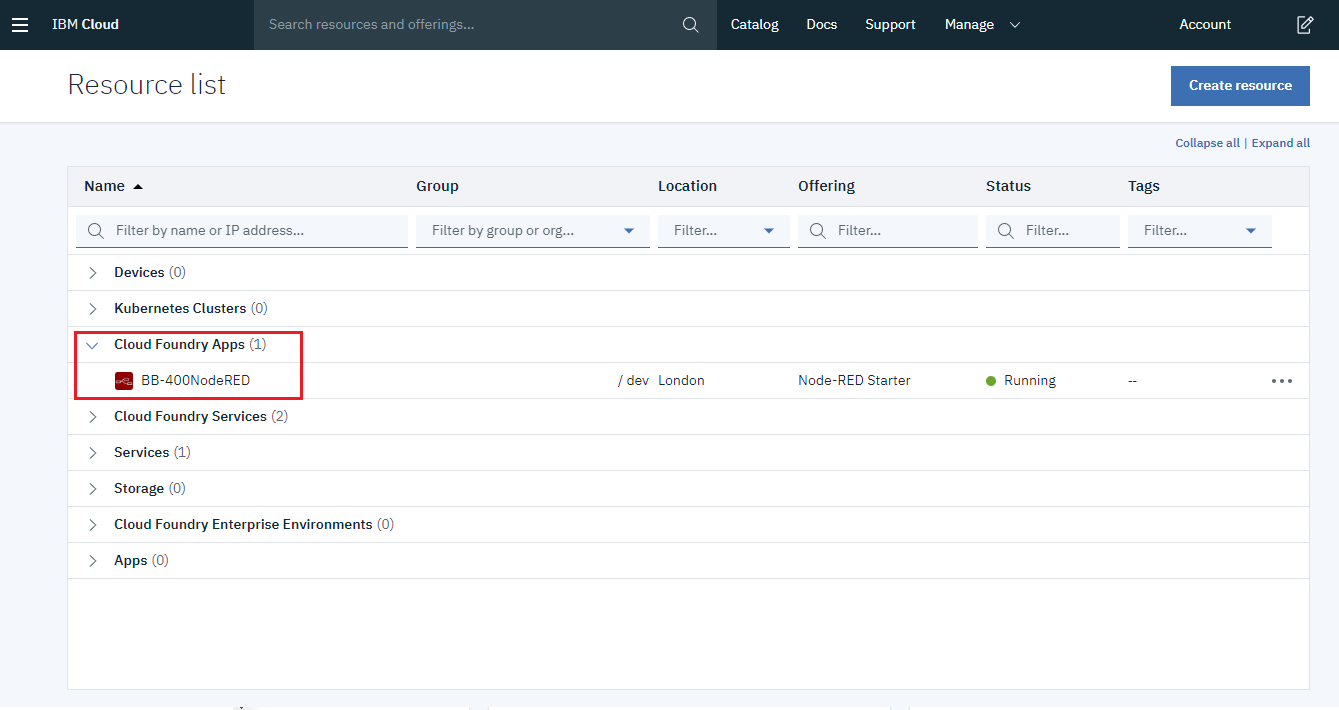
Alternatively, type the following link into your browser: https://YOUR-NODE-RED-APP-NAME.eu-gb.mybluemix.net/red/, where YOUR-NODE-RED-APP-NAME is the name you assigned to your Node-RED starter app.
Installing Watson IoT nodes
You are required to use the Watson IoT input  and output
  nodes to send data to IBM cloud. The Watson IoT nodes are available by default on your BB-400 Node-RED application, they can be found on the left-hand side under "input" and "output".
Sending BB-400's IO status to IBM's Node-RED instance using WebSocket
The following example is a tutorial on connecting your BB-400's Node-RED instance to IBM's Node-RED application and also sending the BB-400's IO status to IBM cloud using Node-RED via WebSocket.
Open up your BB-400's Node-RED instance. The first node we will add to our workspace is a WebSocket input node  and we will configure the node as follows:

Note that 8989 is the port number for WebSockets.
Next drag a json node  onto the workspace and connect it to the WebSocket node.
Then we will use a Watson IoT output node and double clicking on the node gives the following:
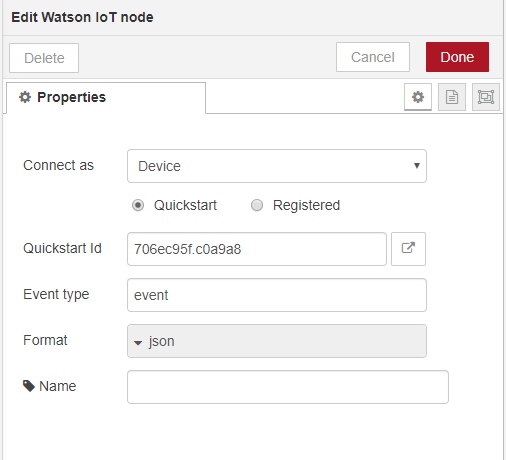
We will change to a Registered mode, click on the pencil next to Credentials and fill in our device credentials:
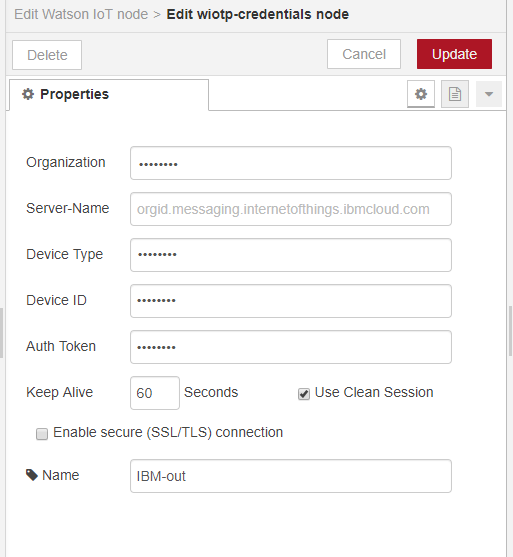
Finally we will add a debug node  so that we can see the output and we will connect it to the json node.
The complete flow looks as follows:
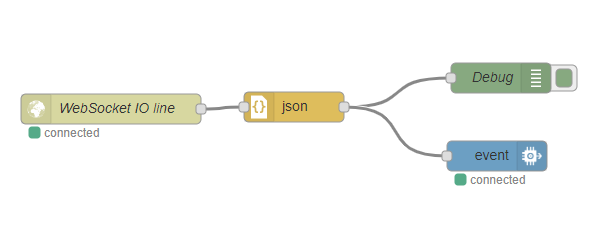
If we navigate to IBM Watson > Devices > Click on our device > Recent Events, we can see the messages being sent to the IBM Cloud:
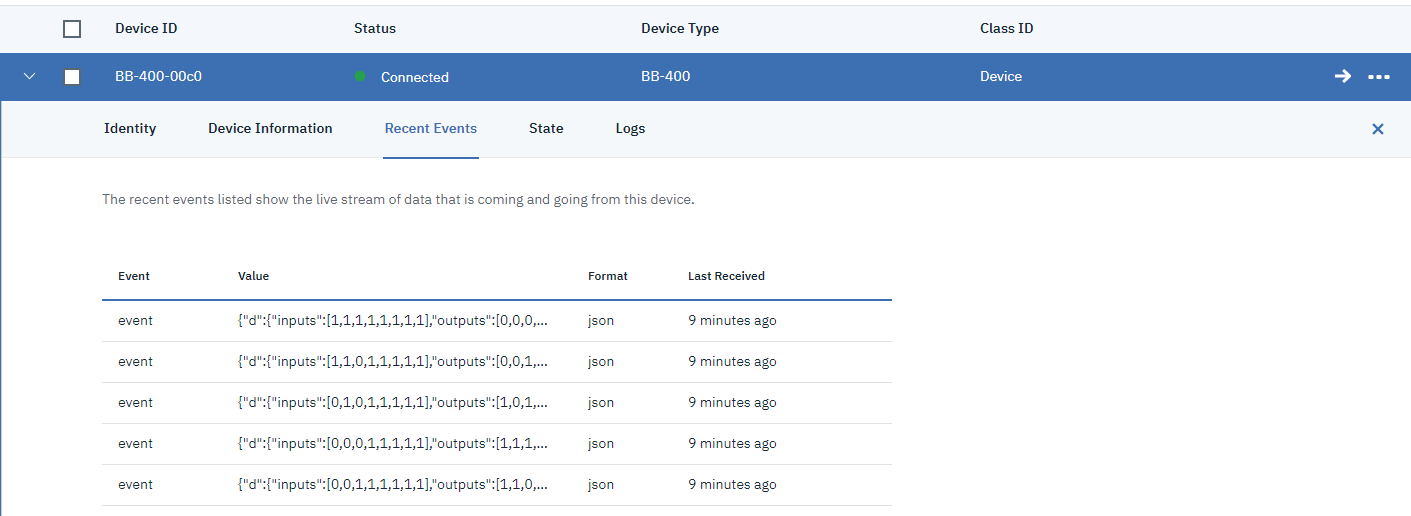
In addition, when we adjust the IO status, for example on the web admin page, we see the change in IO status being sent from the BB-400's Node-RED instance to the IBM Cloud.
Receiving messages on IBM Cloud's Node-RED
Next, we will show how we can configure our IBM Cloud's instance of Node-RED, so that we can read the messages being sent from the BB-400's instance of Node-RED.
We will drag a ibmiot node  and change the settings to use the Bluemix options:
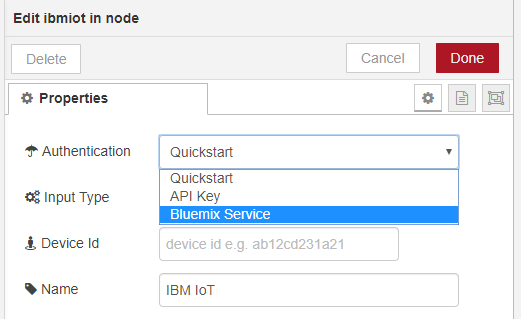
Add your device ID, and click on the tick "All" on the other options:
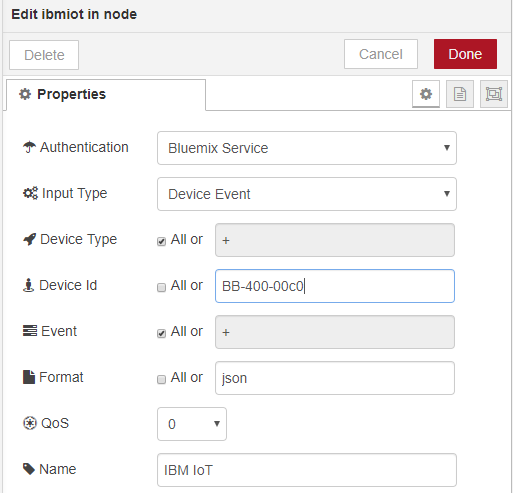
If the Bluemix options do not appear then double check you have connected your IBM Cloud's instance of Node-RED to IBM Watson.
Then we will drag 2 function nodes  and change the messages so that we can read the inputs:

And outputs:
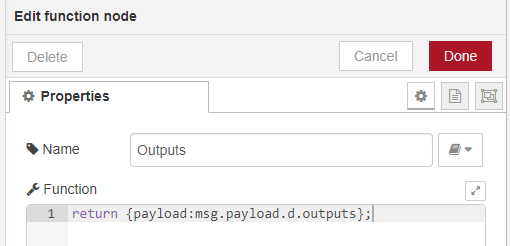
Finally we will add a debug node and attach it to the function node.
Below is the IBM Cloud's Node-RED flow:
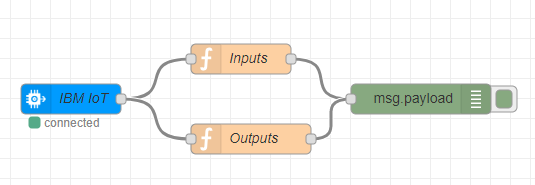
If we click deploy on both Node-RED instances we can see the BB-400's IO status being sent from the BB-400's Node-RED instance:
![BB-400 Node-RED debug panel showing msg.payload objects with inputs array[8] and outputs array[8] IO status data](data:image/png;base64,iVBORw0KGgoAAAANSUhEUgAAAR8AAACyCAIAAAD0wFyeAAAABGdBTUEAALGPC/xhBQAAAAlwSFlzAAAOwwAADsMBx2+oZAAAJSFJREFUeF7tnW9sU1ea/8/vJ1VCi0Q1mxL7EogULW9QqINjcDS7M6KtEtQ6OzEaiTftage3GuzRaEvyZpWlmsZpNTSvJsloRzisNqbSgFZCmsGZxcwQRIums1ICjokpqkZCysoQrm8gSEVixavtPs9zzv3j/3aSO6TwfITIvec+Pufce8/3PM851+f6/83OzgYCAVGJ73znO2qLYZjm+f/qL8MwG00t38UwzHrgyJBh3IIjQ4ZxC1YXw7gFq4th3ILVxTBuwepiGLdgdTGMW7C6GMYtGn7edSs5NJ2Dv563hocPeTDFmB0bSxuYFBoe7qMkYVweS4rI8CEjOZQka/tQ7tOh5E3c8L07HnmVkiDPhcB4d0bm7LSGfMYuYd62MZJLDqV3mjZWhnaVqoC56aHxH/lwxzwRoMoHoZSkMMutUG2Fdf7WITsF0iLjESpvwyg6i3pY1ZaUVd6mqWyZ5gB1ParCNzaL04OfXC58803h8ieD04vOFNg6Mzidww06jImQ8skfTGs6VPjDJ4Nn6HPKBKEP2vmgjczcKiVnHZSJgLkPh1RN7FIqAqUgsnRZirldEWlfo9oS+5BdE/tc3KBuzZ3gWVjGdOmqXaKmsmWaorHI8FYmJzwe6OU9voAnl7lFKftC0of4fmT1i8Y9EfCBwU3h0ci625NbAEdh5BZE6E3qHT19ln8ydF/gVejj1b6nK0B/hbGYMTw7cfvVgM/I5NAb5JLoE0PSADB0Q+wLyBw9Gu1WAjrmTPd4ZJ/aBcCS6maDnfdl8+O3oJyQWUylaqN/mgVrz6Fhu7+XtTUMQ16lBgEvOpZMjg0hlKdKlHyqHKyZMpbWVQLWgZKGZIBQcgrlePoib8kbAYBnllhFAhmVSIVCbuZBMJZbZpGfJs0Upj4Nj7tkAyLMpmzeErtlZHKabF2ena2UAujQ5pB7v1dNIgniBIxcRth5AigqJRghVD6AcW8F/vdFlAYVqJCboHkAVFpVXaCB4ogIlW9ckjVRTRNszPgwl5wWkeIYqbTadu8AUJubzvn6MQXrb7bdWm3diWHsjIyPQwxppNOQP+Q3bYSGIWU4pCcpE6hSDuI6sNmpzjGXHMsE0GZ8+C0jSXpwnEJl8HLhjYACMOhF3vWkk+aNu2nsxAwjvptJdZrFGJeTaUH16hbyojGNsMZZDWzNN0UA79JwSKST1Jigd/R1FzVNE+Me9OsatqPxd325aWzW0BZFt89uEbeSYwuB4caj/1cjkX2yKSfvFfuimoCrVGDTLO6Fc59Cy3MOlipUuxiQGhyLiGnUHnozRcRzaaxiMy1D+jqz61q5Z3jA+WMKuH28yBg1gIdXKWiDHtJIk+RxaKq6mAaBMxK5afwsDj5VXAB5y0J9gX0V+ynw4YZH3iyIJmQa0wANqwvviwI6QuwLVZOwAjNwC7IdANLhEOiF0FTFY62wCQ0Eg65AF6WANYQiCwEzQiRMjwf5226wGIhIieGAKA32GgE/4jgpqr9seTgzARvJW+XVJsNS0Ky4UZanbCx2H4EORyXWAitjhhXkgyTF8QCz0TSmLuyxqG1BOGeQhOwREQZm1FINNViyu0Ds88ibWQMw6p6xw4Z2rYYoIC0YUjnnrHAAJts99NyqWy0DBy1qRJC+6bGEWg+cD5SdPdbHCkQRq8ni8I4m2cqrTYaEPdTBa4IVKE/B7aYADZtXFd0FXFW88jTQpRS0wVrk0lSQY4BUE2M2eUndCCgg/Xs6IxzOmd7YHNzKAbPd76DnBMiRLpCJSmEaoukZeXtu10wR+1AbUiT2AEbeOTpEKRDxO+bvV2guHg5ZyQo1kY0tFWfkHTP6ABrDkEOllM2VQ6GZQKW+HC0tAVvVdpTlqDmAxdzrl3kWVxtMIAGtYdOuulkBO6XuQwIEawLVgjo4Siy+qqYZpHh8+2DMQ1PnjpKrnEKNGXmrf1FnhJd6wQMaRvWoQq3b5/PhkAzMzCLtFMyCqc1ztb7LuDxrHOqjJsm4g90jMPVZ46zGpsTIQQevtpmNBPwbzYTQBGnRxA9TC16bzDBu8Tz5LobZXLC6GMYtWF0M4xasLoZxC1YXw7gFq4th3ILVxTBuwepiGLdgdTGMW2xydelzI9GrWbXTOCsX4+dPN/CxQvp30eh5+c+yzybOj6StBTRE9mq00Wp8dTr6u4vWKmLmheYF9l0grZHU1tjUkSn4F29fTlQXpP+Nqak3/GqnJvrjZbXFMA18zxD68gvt7W2pfEYIb/jg4fy1BLRCrX003uPFrvpLSAcCsSPHoAGCt4nnC7Drb8kUtpKNBPzJteVg+3KKjkpjx8eFf+9UTJyO3mmL/6Bfo6af3z0VfjwSf3KYWjZUA8u1P2unCNESc9poLQGxKsLKjIDS50QUczbBooWZFYAlzrdChXU4X9EisqtQTzjf0VAr+q6EoCKsCm8ZoHpa50sXpCMTvzYDjktdHOYFpzHfVUg9OQAdfKylkLp2vQd7eq++ktGhRd7JgCroUCY1V4BGPJUX4YOQcgDadxmZefETaZygQCsrMFtyHd6snhV7DvifLmNTXcnMPw307KEPIdD0E4X2UbJcTsjQ6ysBNcGPHxzQVq9DdtmriSzI7MhUdOtyaWzW2i/FYIFOZkubQwFef6tXfyI/V8iKw1SWSM05wjyQKAqSznfrzFTR+ca8+VNp0R9t94LwoiwtBmgwMvRr2MV7t3pFywHY0ra1UTK2yOyXOGgRb0xBb60vzetbgn5cqu/vaSGTIgJhanZ+LSCe3IdW699D3uB8VHb/9KnM3FdCrC7rVJCJnn/qDXbgZ7WOoCYVuMfvR2cVjZK7AHHNrap6og2mrB07H1mWBGolMlji+WhiVWD/Ainm+caOoJdjGJt1jru0HvQn6IugzTU9/UCTChAKku+SSSA8cGJZPSPbdw1wwgNCVvAb4LtUWhNgB+FUDvirlYK2tV5OEBBKhwn/ip0hw5SyPnXhWCW9goN+KQ/q7OezOOGGnqQM8ktwTM+IrTtk0/TvxlEWtGzaA480EBYXUqvOsBDQ2rcU5pfQhtyjGdG1HAZ3gSm4g94Sw0tpgyk1gYK2qAAV0OdOpZ4q1wrY+Tijx5Y27elMSp6CnEXEFHW+0L8k6BDDKNanLm+oJzh/DSOleL4tBoP+Vhh4iBSmXBcqMlQKJLyFOzKsCqCxHVieEq0qVsTEraI4LAS8oR/AwAacFRVETgOVvJqAlCkR9ItlHUUe88uUJ22lXgWGTKUT5ZDnVEygvcrWMQviF9cpUYR7HA4KBm97A1ThaOLJQJzON763jc4Xh3yxPdIl0pCMYVxbm4zTd2LvFDQ4Bc4ZzgdpCq4mqMb8bscHNwHgqVLO+U+GaYR1jrtKAQmRK7D68iYBTY6kxEB4k0krsarmVBimCfi9GgzjFhvsuxiGsWB1MYxbsLoYxi1YXQzjFqwuhnELVhfDuAWri2HcgtXFMG7B6mIYt2B1MYxbsLoYxi1YXQzjFmtX1//czT/8X7VdjYczx/cDv5S/U1yDB5/9dPLETz8vfs8Zg4sGopJ6L5DTL8YbtGT+YqxdXX++9PMPTqb1GgIzUh9/1DF948aN95/JT4HePtuV/Ix+u/vbS/Z6VhuITwH2yk5LcNHoSNpaEKr1o1ksIPwlC083mpULyRPjt9XOWnge7kuDrC8yvJuK1xbY33bsUFu12f76r46f/NVr/NaXYnR9WXjVKxIkIC189xsR8xdSqSJHBfZae+mybOaZsfb1XdnT0YR8FeGucPxESCvXqZE6/nPxs1+GX1H7VVj4zYnIXdw42ntyqJOSsIM8Jzq2jyxSJ7nrncUfwgFKDHbNXpn9AhK39V2OvO6BUj6fOPSojwysbTE+efYMftJE5UAGiyr+dBQnRG5i/7u//sfp+m62kI6PpEyPoYVH4yGvnh6ZEoeD8wmZ7o9Bu6dQbUqEMZXeAqBSndcNCMSmjnnTI/H8YXUUPhVfDpueCrQ016OOEFj6fBALlUIrUAXUwQr2DeK4LK2jbw8e3k4eZn6HvMLWtnBcPUIa3x6fvHmwV0SulNysiaWgvMLWNlhWvi9WG7ArQGQn9v/41//wbzcGmz6lTcFGzGrcTf3HH79W207uL/1pd0cdaQHdPzy5eHxwdJvaNVkZWRTJ43DonaN3Zy88MBOv3H8PEwdHxey5qvFJ5xDY9HaiAtH4pLyF0EzOLW6nPPGfLa2GUY2bPMdoWPMG/diyC/mCnkrkw5gaD3uzc+RPCsu6PpMA2WDqgAYxHiSitCzXo6I4TWsTBflOEaFn53U7tCvoBa/5siyJNxQdEKkRCgsxI6e0IPe5bIl9I6C0lrrUherdPnLu7II6UorntUF5p6BjomtoyeB2BOSHKc6bVU6V+/Lgs3//2kyx83wO2AB1tff+c/Tgy2pHAa5g//4/vrGuEdfR3ne68e/2jm0rS2aPaSa2frej9c6DZmdBIKvbkclKwwbfYAPjw+xMSgxEZYPWM/N6m4ZRGGgAnZj0GFpoVPoODOpgyKRSYVAE7qiQTmX8MdMvzWVUFAdy0uW73wrZ+YK/xxSX0POqCJtsakYX3nAYow0s2Il+vyBK7Rtg+dHK0SD5KKBz31HxIF9VHtVoHf17mUPnwV32zWqU7a27H88empwol6Ufb8u31HEB61UXSGvoyN/8ldqzoMb6/asNzBb+RWk9HMEO8uCfT3StYYoSRzXBgGy96GQ0+TI20EAgXORDEHBo/nDJCw/R0tQOejivJj8FKgNHR+r1xuy4DtSiilCYg67RUOgYuD49NVM06gJv6faUhkuQTzv+tvhPvC/rmjLZXKxdXS+99FIVaZns6Pi7O0sP1c4GAzGe6Os0Z0G+XsE5qAeffeQcFbTu+N7j+xV/MwFj0d7OLx45ukpytvX7AtAH/smejsNoSs43lGmAKA/qJKQijDATIC7TAFQGYgTPJhzaIgEXTWmQkzQnLcD1ieJyy6c0Hqbeh7OaqHNWbX/demZeTeIZn8+e2db1XRmbqat3e1wOqBSt7S+LqlEDxHh3Ow+aIbc0Mz4/N/JYJhBV7wv2fZe7ikISGHfBCXxrHzGsXV17I//6QQ1pNQzO8HZNTsANOHOlftclbbomz4peFaB7Xus7inHFia5z99+DmN5i++vv7cI4EO1/Q5nSUzX6+ImuKyKpBmMNo/mDGrgPINUWC3tlUy7TAGHHjU4g6Cuk8LHUSD4MMrINQGfZBCTa0+4Aej87SgS8oTD4KznoiiYKA/F4kW8Ee9MZKl7p2A3/Ly3Vnv6G0VTyZbqAkycOwbhUzmR09o1SFN01OdvR2/c9aUp0f79PLE7QZbRiuZWRc3RVzy32va1C98PBzi/I7NCjvuQuspKU35fbZyk3/AcjwA+fo6nj2dnZR1X4Zp0ULrz/TxceqJ0NwPjt9L/84ku181yxcOrYsVMLakehXxz58OJ9tdMAkEe5/cJ4IDC+qHbc4stfTIz/dkXtMA42Ys6wBv919U8vxnPDdaCnRxLZgDMmJCpMadSibEqDYt0fi+kbg8/kWT4DuKkuT/hnH4qP+xsZz7ygZE9DjBeHONPxVQwFqiWDYWi83i9ZUibR+EzJlAZNLLG0nin8tlCGcQuXI0OGeYFhdTGMW7C6GMYtNr+69LR6whNP1/lRLPksqp6lkaI1Z/WesTLMutn0sxr4xdl8uOR73/iVIPUAXyt5qAr2p0R0NFR7LvvhzPE3//u9Z7TwjHlR2PS+S8/rJV8pMr9tR98z9+szJUucGnpM9MquDrXFMK6xFnXJBywKtc6cvIkVmqk1sxUTyb2oJICiOLCxl9nCjh3a4bf4gn6nWvBBkKk3XNZRrL3K3/pjmGdB0+qqtEIJBKMXQBUX2mmResxfmM+CPConVloipbVrhbwSFC5SkuumkMJy6bf4tP5oWNC39eQSp6IgsPK3/irg5jeMGUbSpLqqrFCi7477Y6qh+9WqvkqJlZdIef1Br1qthG+SsJ1VpaXs2VSqAMOtMFZCfuXcBjRaZl8RT3jyA/Hx/v3HZ1hijFs0qS4QTKUVShiPyebuoFJilSVSuD4XtYjqXQ5H7VmKsu99Y7CJrjPeH8Kl9CUvlsB1H7bfq4V8K8GNG5MD9RdPM8zaaH7cVWmFUnn8BlRMJIHiH+cSKcDbphXu69mZ+eBPHJFe2VJ256CL5F3sqSDvBr/52uBbCRhmHTSprsorlBwhok3FxIpLpOjADq8+E0+1qaBRgt6veEpD6w+rCgCl72zhKQ1mc7FZnnfhu5Dmg/Hi51TZ09G5AyWPumqgO1+uVIfsxHpf+8Ew9Wg+MnSDbCI+I8LOmBCpNKVRi4anNIR4eHdJbTGMazxrdclnX2UxHgFqkQvdze9lVEM9QEs4p/KrQt+EevOjjml2XIzL8PouhnGLzREZMszzCKuLYdyC1cUwbsHqYhi3YHUxjFuwuhjGLWrNyDMMsx74eRfDuAVHhgzjFqwuhnELVhfDuAWri2HcgtXFMG7B6mIYt2B1MYxbNPy861ZyaBpfve55a3j4EP6wrjBmx8bS+MuSntDwcB8lCePyWFJEhg8ZyaEkWduHcp8OJW/ihu/d8cirlAR5LgTGuzMyZ6c15DN2CfO2jZFccii907SxMrSrVAXMTQ+N/4iWS5onAlT5IJSSFGa5FaqtsM6/+Ixk5vsiqriNo+gs6mFVW1JWeZumsmWaA9Slfia5DPXjr8ji9OAnlwvffFO4/MngNP0Or5kCW2cGp3O4QYcxEVI++YNpTYcKf/hk8Ax9Tpkg9EE7H7SRmVul5KyDMhEw9+GQqoldSkWgFESWLksxtysi7WtUW2IfsmpiVbvceiOoW3MneBaWMV26apeoqWyZpmgsMryVyQmPB3p5jy/gyWVuUcq+kPQhvh9Z/aJxTwR8YHBTeDSy7vbkFqAvN3ILIvQm9Y6ePss/Gbov8KovMq72PV0B+iuMxYzh2YnbrwZ8RiaH/iGXRJ8YkgaAoRtiX0Dm6NFotxLQMWe6xyP71C4AllQ3G+y8L5sfvwXlhMxiKlUbPdYsWHsODdv9PdUWqi3eCpWcZC3A0Y0lk2NDCOWpEiWfKgdrpoxZrwLHOlDSkAwQSk6hHE9f5C15IwDwzBKrSCCjEqlQyM08CMZyyyzy06SZwtSn4XGXbO6E2ZTNW2K3jExOQw2idSulALohj977vWoSSRAnYOQyws4TQFEpwQih8gGMeyvwvy9S3FxRITdB8wCotKq6QAPFEREq37gka6KaJtiY8WEuOS0ixTFSabWLhENtbjrn6zdT9LSytrRRG8PYGRkfH4/4jHQa8of8po3QMKQMh/QkCQaqlIO4Dmx2qnPMJccyAbQZH37LSFJBjlOoDF4uvBFQAAa9yLuedNK8cTeNnZhhxHczqU6zGONyMi2oXt2isRNjkDXOamBrvikCeJeGQyKdpI4Tekdfd1HTNDHuGYahYTsaf9eXm8ZmjT19t89uEbeSYwuB4caj/1cjkX2yG07eK/ZFNQFXqcCmWdwL5z6Flhdx1KBCtYsBqcGxiJhG7cE1MXQSS/VmWgZFBFbXtXLP8IDzxxRw+3iRMWoAD69S0AaqJAwpYhyaqi6mQeCMRG4aP4vjQxUXQN6yUF9gX8V+Cny44ZE3C6IJmcY0QMPqwvuigI4Q+0LVJKzADNyCbAeAdDgEeiE0VfFYK2xCA8GgK9BFKWANochCwIwQCdPjQf62GywGIlJiOCBKg71GwI84TorqL1sezlXARvJWebXJsBQ0gyuAlpbrphQ66gZ2H4FKVom1wMqYdSMfJGkgfGXWQWPqwh6L2haEcwZJyB4RYWBGLdVQgyW7C8Q+j7yZNQCj7hk7bGjXsttGacGQyjlnhQMw2e6h51bdahk4aFEjgvRNjyXUeuB8oOzssT5WIIpYTRaHdzTJVl5tMiTsoQ5eE6wAVtsMVtG6ecGjhs2riu4CcsArTwNdSkEbrEUuTUU7Bkg1MWaTl9SNgALSv6c64nDO9Mbm4FYOmOlumtcfD5MjXSATlcI0RNMz8tVmn6VI7AGMvHP2xDRE/I75+xWai4dDVrICmjh2xth2cUbeMaMPoDEMOVRK2Vw5FJoJVOrL0dISsFVtR1mOmgNYzL1+mWdxtcEEEtAaNu2qW9fErHb9hwQI1gSqBXVwlFh8VU0zSPH49sGYh6bOHSVXOYUaM/JW/6LOCOu84AENo3pUodbt8/lwSAZmZpF2CmbB1Oa5Wt9lXJ41DvVRk2Tcwe4RmPqscVZjU2LkoINX28xGAv6NZkJogrRo4oepBa9NZhi3eJ58F8NsLlhdDOMWrC6GcQtWF8O4BauLYdyC1cUwbsHqYhi3YHUxjFuwuhjGLTa5uvS5kejVOr9JXoGVi/Hzpxv4WCH9u2j0vPxn2WcT50fS1gIaIns12mg1vjod/d1FaxUx80LzAvsukNZIamts6sgU/Iu3LyeqC9L/xtTUG361UxP98bLaYpgGvmcIffmF9va2VD4jhDd88HD+WgJaodY+Gu/xYlf9JaQDgdiRY9AAwdvE8wXY9bdkClvJRgL+5NpysH05RUelsePjwr93KiZOR++0xX/Qr1HTz++eCj8eiT85TC0bqoHl2p+1U4RoiTlttJaAWBVhZUZA6XMiijmbYNHCzArAEudbocI6nK9oEdlVqCec72ioFX1XQlARVoW3DFA9rfOlC9KRiV+bAcelLg7zgtOY7yqknhyADj7WUkhdu96DPb1XX8no0CLvZEAVdCiTmitAI57Ki/BBSDkA7buMzLz4iTROUKCVFZgtuQ5vVs+KPQf8T5exqa5k5p8GevbQhxBo+olC+yhZLidk6PWVgJrgxw8OaKvXIbvs1UQWZHZkKrp1uTQ2a+2XYrBAJ7OlzaEAr7/Vqz+RnytkxWEqS6TmHGEeSBQFSee7dWaq6Hxj3vyptOiPtntBeFGWFgM0GBn6NezivVu9ouUAbGnb2igZW2T2Sxy0iDemoLfWl+b1LUE/LtX397SQSRGBMDU7vxYQT+5Dq/XvIW9wPiq7f/pUZu4rIVaXdSrIRM8/9QY78LNaR1CTCtzj96OzikbJXYC45lZVPdEGU9aOnY8sSwK1Ehks8Xw0sSqwf4EU83xjR9DLMYzNOsddWg/6E/RF0Oaann6gSQUIBcl3ySQQHjixrJ6R7bsGOOEBISv4DfBdKq0JsINwKgf81UpB21ovJwgIpcOEf8XOkGFKWZ+6cKySXsFBv5QHdfbzWZxwQ09SBvklOKZnxNYdsmn6d+MoC1o27YFHGgiLC6lVZ1gIaO1bCvNLaEPu0YzoWg6Du8AU3EFvieGltMGUmkBBW1SACuhzp1JPlWsF7Hyc0WNLm/Z0JiVPQc4iYoo6X+hfEnSIYRTrU5c31BOcv4aRUjzfFoNBfysMPEQKU64LFRkqBRLewh0ZVgXQ2A4sT4lWFSti4lZRHBYC3tAPYGADzooKIqeBSl5NQMqUCPrFso4ij/llypO2Uq8CQ6bSiXLIcyom0F5l65gF8YvrlCjCPQ4HBYO3vQGqcDTxZCBO5xvf20bni0O+2B7pEmlIxjCurU3G6TuxdwoanALnDOeDNAVXE1Rjfrfjg5sA8FQp5/wnwzTCOsddpYCEyBVYfXmTgCZHUmIgvMmklVhVcyoM0wT8Xg2GcYsN9l0Mw1iwuhjGLVhdDOMWrC6GcQtWF8O4BauLYdyC1cUwbsHqYhi3YHUxjFuwuhjGLVhdDOMWrC6GcYu1q+t/7uYf/q/arsbDmeP7gV/K3ymuwYPPfjp54qefF7/njMFFA1FJvRfI6RfjDVoyfzHWrq4/X/r5ByfTeg2BGamPP+qYvnHjxvvP5KdAb5/tSn5Gv9397SV7PasNxKcAe2WnJbhodCRtLQjV+tEsFhD+koWnG83KheSJ8dtqZy08D/elQdYXGd5NxWsL7G87dqit2mx//VfHT/7qNX7rSzG6viy86hUJEpAWvvuNiPkLqVSRowJ7rb10WTbzzFj7+q7s6WhCvopwVzh+IqSV69RIHf+5+Nkvw6+o/Sos/OZE5C5uHO09OdRJSdhBnhMd20cWqZPc9c7iD+EAJQa7Zq/MfgGJ2/ouR173QCmfTxx61EcG1rYYnzx7Bj9ponIgg0UVfzqKEyI3sf/dX//jdH03W0jHR1Kmx9DCo/GQV0+PTInDwfmETPfHoN1TqDYlwphKbwFQqc7rBgRiU8e86ZF4/rA6Cp+KL4dNTwVamutRRwgsfT6IhUqhFagC6mAF+wZxXJbW0bcHD28nDzO/Q15ha1s4rh4hjW+PT9482CsiV0pu1sRSUF5haxssK98Xqw3YFSCyE/t//Ot/+Lcbg02f0qZgI2Y17qb+449fq20n95f+tLujjrSA7h+eXDw+OLpN7ZqsjCyK5HE49M7Ru7MXHpiJV+6/h4mDo2L2XNX4pHMIbHo7UYFofFLeQmgm5xa3U574z5ZWw6jGTZ5jNKx5g35s2YV8QU8l8mFMjYe92TnyJ4VlXZ9JgGwwdUCDGA8SUVqW61FRnKa1iYJ8p4jQs/O6HdoV9ILXfFmWxBuKDojUCIWFmJFTWpD7XLbEvhFQWktd6kL1bh85d3ZBHSnF89qgvFPQMdE1tGRwOwLywxTnzSqnyn158Nm/f22m2Hk+B2yAutp7/zl68GW1owBXsH//H99Y14jraO873fh3e8e2lSWzxzQTW7/b0XrnQbOzIJDV7chkpWGDb7CB8WF2JiUGorJB65l5vU3DKAw0gE5MegwtNCp9BwZ1MGRSqTAoAndUSKcy/pjpl+YyKooDOeny3W+F7HzB32OKS+h5VYRNNjWjC284jNEGFuxEv18QpfYNsPxo5WiQfBTQue+oeJCvKo9qtI7+vcyh8+Au+2Y1yvbW3Y9nD01OlMvSj7flW+q4gPWqC6Q1dORv/krtWVBj/f7VBmYL/6K0Ho5gB3nwzye61jBFiaOaYEC2XnQymnwZG2ggEC7yIQg4NH+45IWHaGlqBz2cV5OfApWBoyP1emN2XAdqUUUozEHXaCh0DFyfnpopGnWBt3R7SsMlyKcdf1v8J96XdU2ZbC7Wrq6XXnqpirRMdnT83Z2lh2png4EYT/R1mrMgX6/gHNSDzz5yjgpad3zv8f2Kv5mAsWhv5xePHF0lOdv6fQHoA/9kT8dhNCXnG8o0QJQHdRJSEUaYCRCXaQAqAzGCZxMObZGAi6Y0yEmakxbg+kRxueVTGg9T78NZTdQ5q7a/bj0zrybxjM9nz2zr+q6MzdTVuz0uB1SK1vaXRdWoAWK8u50HzZBbmhmfnxt5LBOIqvcF+77LXUUhCYy74AS+tY8Y1q6uvZF//aCGtBoGZ3i7JifgBpy5Ur/rkjZdk2dFrwrQPa/1HcW44kTXufvvQUxvsf3193ZhHIj2v6FM6akaffxE1xWRVIOxhtH8QQ3cB5Bqi4W9simXaYCw40YnEPQVUvhYaiQfBhnZBqCzbAIS7Wl3AL2fHSUC3lAY/JUcdEUThYF4vMg3gr3pDBWvdOyG/5eWak9/w2gq+TJdwMkTh2BcKmcyOvtGKYrumpzt6O37njQlur/fJxYn6DJasdzKyDm6qucW+95WofvhYOcXZHboUV9yF1lJyu/L7bOUG/6DEeCHz9HU8ezs7KMqfLNOChfe/6cLD9TOBmD8dvpffvGl2nmuWDh17NipBbWj0C+OfHjxvtppAMij3H5hPBAYX1Q7bvHlLybGf7uidhgHGzFnWIP/uvqnF+O54TrQ0yOJbMAZExIVpjRqUTalQbHuj8X0jcFn8iyfAdxUlyf8sw/Fx/2NjGdeULKnIcaLQ5zp+CqGAtWSwTA0Xu+XLCmTaHymZEqDJpZYWs8Uflsow7iFy5Ehw7zAsLoYxi1YXQzjFptfXXpaPeGJp+v8KJZ8FlXP0kjRmrN6z1gZZt1s+lkN/OJsPlzyvW/8SpB6gK+VPFQF+1MiOhqqPZf9cOb4m//93jNaeMa8KGx636Xn9ZKvFJnftqPvmfv1mZIlTg09JnplV4faYhjXWIu65AMWhVpnTt7ECs3UmtmKieReVBJAURzY2MtsYccO7fBbfEG/Uy34IMjUGy7rKNZe5W/9McyzoGl1VVqhBILRC6CKC+20SD3mL8xnQR6VEystkdLatUJeCQoXKcl1U0hhufRbfFp/NCzo23pyiVNREFj5W38VcPMbxgwjaVJdVVYo0XfH/THV0P1qVV+lxMpLpLz+oFetVsI3SdjOqtJS9mwqVYDhVhgrIb9ybgMaLbOviCc8+YH4eP/+4zMsMcYtmlQXCKbSCiWMx2Rzd1ApscoSKVyfi1pE9S6Ho/YsRdn3vjHYRNcZ7w/hUvqSF0vgug/b79VCvpXgxo3JgfqLpxlmbTQ/7qq0Qqk8fgMqJpJA8Y9ziRTgbdMK9/XszHzwJ45Ir2wpu3PQRfIu9lSQd4PffG3wrQQMsw6aVFflFUqOENGmYmLFJVJ0YIdXn4mn2lTQKEHvVzylofWHVQWA0ne28JQGs7nYLM+78F1I88F48XOq7Ono3IGSR1010J0vV6pDdmK9r/1gmHo0Hxm6QTYRnxFhZ0yIVJrSqEXDUxpCPLy7pLYYxjWetbrks6+yGI8AtciF7ub3MqqhHqAlnFP5VaFvQr35Ucc0Oy7GZXh9F8O4xeaIDBnmeYTVxTBuwepiGLdgdTGMW7C6GMYtWF0M4xa1ZuQZhlkP/LyLYdxBiP8Dyp3o00doFEEAAAAASUVORK5CYII= "BB-400 Node-RED debug output showing IO status")
And the IO status messages being received on IBM Cloud's Node-RED instance:
![IBM Cloud Node-RED debug panel showing received IO status arrays like [1,1,1,1,0,0,0,0] and [0,1,0,1,1,1,1] from BB-400](data:image/png;base64,iVBORw0KGgoAAAANSUhEUgAAASUAAACTCAIAAABH4Zj8AAAABGdBTUEAALGPC/xhBQAAAAlwSFlzAAAOwwAADsMBx2+oZAAAHUxJREFUeF7tnG9oXMe1wOe9xMStS9qgoN21ZFHxREBgb7S6sQXJB78YW8hrIhWCmi8h4YrnSoFGib40SwKJnNKgflJiAtFaRZfkU19CwKvgtbCM/dxSUzlerbwOmAaBgiR7dRXLreuqVWjSvnPOzL37V/vvSteLdH6Y6N65c2fOzJx/M5vd/7h3794f//hHTdMEwzCbTBF7e+SRR9QVwzCV8uc//1le/Kf8wzCMC7C9MYx7sL0xjHuwvTGMe7C9MYx7sL0xjHuwvTGMe5Tz+dt1Y2AsAX89R0Ohdg+WmJNDQ1ETi4Kh0BEqEua5IUPooXbTGDCodupR4sMBYwYv/D3D+j4qgjanteHWmGw5vTa0M3QW205VRhLGQLTeqmM3mBJpHbC1ZHD4RT/eWAMB1nkRejGE1W8esRX2+O1HqRIo04d16m/DyBhFUZQs1pTCqM/YM5dnetefTGxo8RhVy7fikizZiohqC5MSMrg4RAqTLUCRFbcHIlr0UmfGdSr4/C1hjJnB0PBwKCjORmleEsZQTIOS4WHdF41ep1rCTEwL7XFP4kPDPCprq0cwL2CHWDsUNM9MSp1MTCf8rUK1DE+OiqicdHPSOOvB2j3+hFUZF1vasOS6YcyATuN72vSQoQTIAyySWhLCTJq4NkReKwXh7V7yii0xzxlRHz0CIcfkK+aiCaqDZTAr93fxzWsxE4eJmgqjsF0Mkju99mTi+hoZ40yRd8XzkDXhBbCF9ExIhZECWKuZu+JJml1bSByIoCLdP2MU0IEqoWR7ux5LCI8HlNPj1zyJGAwMSlqC0uv4X7Qdv7koND9UmBEeH9Vu9YBRQTnYYbCDNNBzxPJWppn0a/tgmdW953GN/tIyeOrxep/mN2MJXLuEgXEzKCsAZDaabNHjo9t8gKrFWof1FnULQE2SLQX6yHPW67CoImh1k09sdMm41p72UMqhSmlNE1w1zlKJgJsfMoyhAYTaVIWSDy1NUyVD0aQqIEWUKHXMGAJw3UCNnzGwEEekh46mxMozvbV0q1BDALNBhqKLVJp/xXNky53wFJbYxjTdpgkJDSrfhwpGT3NWXOyzNQWQ2pg+2Z76WnVVtZSzf5MrRFjKHVOqkdKVWMInpyBt8EnQQmRxQimJ5b0SMZG+zNLbSRMSQrUDmIvL8F+/npprBG1mBrwAAHa7rr2BVVi+QIK+wDyr1l0qK9SxAh2EcaFnpiXZYqf8BUAaNJbwH8MSlB9aoMoZ2l8A06zHsKL7TYoY0J6K9qFgkqwFRUpA1gd16tUYU3EmdNQ0yCzThkDsIwNrgcTeg9e5YTxrenFQ9VEcJERzisx2xNPr1fohWSueK1vuhNtAMIoKCmKaoIlPF9IGtMIELwxX2SsuQS8wBO0EaZFAQkhEQaCYlmaLVUvl5yWo3zNCo0WHpNEg9aL8MENZLSDRMs3M7Au0U7T6U1ME3m5aC5Wegu/T9Rap3MZiZrwqiExBEVRW21MQkEmKnvQ8MI/YmYCewjNdjKE1YsRT6B47KSqCdNGWM1uGhBQSBCyB1AAnGTMLqX9YgnUwippRcgIUH6TTcQQmnDJv1gXEXJgUzEqk77MCTp4Vz5WtAGhIHthrwOU6SgJIV1IoFYdICALADkKGbrI0QIvZDrGKKcfeQPfUFcYWDC9KSex0DkKHnH1ABiUCXSlWVVkcpi6gMmqnRzVovaczPZQVFaH99fIEmnogpInsFLEU8JW0QZH8IjGGagxbeLgwrueKTRWzwWqZATa3ZGNJeQ0wkZJdVBqZ0wuieqTvQ+syY9fySJ5vxTcUzBVKDFNKAJRBJUR+rYV8RHVTsr1Boi+1zQ73qZ0VpnOku6baFdDgaT3AqExyZvZGjlw4OnU8WpA5DRgb+ta0yIYbOWkJ4EGVv88BNz8UnczJ6IxynCWAZ49yWVIuXGErMW4a6OAuV2yqSKS2TJbnzi3B67IAq7ZmFaYOZxVnnjbMVIJ1UIpElDpCP5UZokshd3qhI3OauiUPBLe4ajJy4ljwQZ4Vz5WtAGmWnMcwwNjsVHY9YMXVnhY9I0iIMqTtKfC2unlQ/S2OX++JDQwNROGqZ1h6FLsEj/vaQdsgP9TliP0v6vjsLD2iiOdp14NDkAPhZTAU8l83jBZNhzs8YgJDpsoIKL3u9xzRj8raUFm1mQ3kk9OqfxCJnCLYEjjIwv6exCY5qC+sKw0+zyYnV2z4KzUDvHC7rsEjElsJkFbiOVrRdgLy057F9FmFIr3HPwBRFxS2RbYIGxsQSnYEQ8B+CgwhD7nTC5uupOoWj9pxySBdH4B0Dbq1/F32iueTLQ+2bEf0YIzE9rdkLRFu7UgJsG2AnJ28TINWnNYiJWRIDcQWqarZat9/M89Nmu1HCtobw7jNVv3+m5kAR6uuGabq2GL25jnSzubGVC9bzN4Ypqphe2MY92B7Yxj3YHtjGPdge2MY92B7Yxj3YHtjGPdge2MY92B7Yxj3qH57S0691Xshrm5KZ/nM4Cenyn+tQlDIT3qVnDdO4TX8++xMUoj4BbwenFqiisz2huPbRuFrOBE+FAD7GvkiFtgbDnef6BLj4amlwKHwYINXVWK2OaV9Hyc+8snphoa6yHxMCG/XwZ/MXxoBTw4aNtjmRXf+BZQDWl/3z0DjwNkPzoM71wI1saVdVEcCMefSzQMNNyP0VFZOe12AmvaJU72zdYPPHPOJpehnb803hbvkMwTEwH5T76ZKhKjpU+pOJb6anC88QO9TohdbtsEuImt0ubMTOyUJvTWx+Grnc7vGfyc0sRLzSqlKFdLXsFPMq2vhfZgtjUmj5Pi2FFndH+4O99UsRS593taNPju5HEuCws1Kdw6PYhHImpbPhOdF10Eo2S9W1MtpxK6Il2TlEcq+4gKbhX/QYDwZF837A2s3Mfdajl1Z09qa6SUENHtkCWII1rw5QqmauCFAEnz9YKdv5XNoLn5hJA6G1x3u3XXT/m0dRe0xspA0lpO+Nnq9uy+wdiWuvo8eE75w+Jljj4DjWK3rBVGbSxcS8AafOdEwCznkB6IN32WYFKXnkwEfRhTvLq+o2Q9XvofrqNgbqPXGvwD1OiUgcWrzJueuJHceCOAPIATaaqhKBloXhbuATxOrt8AkAs0BueGhkIhP2mpiUzeEWLmZpI4skvNr3gON+K6v8YBPqntzIIABrbf30jhZV3xqRcmJdbCkILWBQC2YMQhvBUnE22CLvWu3bKRkISmKkqWFu18SU7xtYzJxvn/ztWHMwXhlHxiUAak75GYUOmQRmCLEkHgyJi2nAHRKcboBYinEN1VWDmhCmA1ifFNFeSlHSLBA5W7QE1EKwDAWju0NNzDRZWGfClDwkbkZRpscKCzAs2QsFT2acCMUX7ZCQXNnlzgdWcnK02BftHRlDutQCK1Til/zk2AtleANRlTM92QdLCnGzs4u6OUG5qKFKU1IkKfOGr5YWl2yx8gwiGN78wbbDly5REfe83V9hwKwTeptEBEs+VyoxEzZJOFdwr1N78iKhpVT6egHolZlmFi4S2Tnabgv6vPO47E7dkQ7MbTtlREoCYsDAXEziWbfF5Alq3XZig6Zntz12eA2bHwQwnKyrmvn0nwe7yApXUjaJe6to+H3jqx2DuIYGcZiM3+/BI8Kxd60MwM8/bty4OAJiEgFQfuENK+6DxsyhITMNixeSp3EZlL4KbP12cTfL8EDA/TueAhR01e+zYCVvhURlOZVL3mETELszbd9jV+wT1mYbc9W+30uhqlCturvczFMVcP2xjDuwfbGMO7B9sYw7sH2xjDuwfbGMO7B9sYw7sH2xjDuwfbGMO7B9sYw7sH2xjDuwfbGMO7hyN7+vjB/+1/qOh+3I/1PSN4t93vfzNYlcVJpxSvjt1XRtsGRvf3p7K/eeCeaLGRy4vnRq8Crxb52uTz+ZeMTNxr7F9TXUstm+R14/Ykb71Rq2A4FUK9X3oKSv+IhOBXAXOhRAnz5sanKymL6pJK/8WSR/v39qBJjL6jbbYXjfHIhMljM5IoCS9X21Y+m3nxA3ZcL6spfms7UHFf3ZeNUgPhc2/nvTV1tnrvaPHX4H23FFC6Hux/3r4hRfH3uao04Xr7GOxVg+Z1j/+g4QwKc+d7EsblpVV4qYO3PihqSv/lTsdIzflc9YDLZiP2bY5Nr7W+e6y/yne9CePaMXX3spx51VwHOBLj7sbF2XN9D79/9v/PfiY9Wy9PX+J3XxA/+R6YA8dVR8d3EVFn66lSA5fG/jL7wIzmBy1P/uCjWJsqLscu/eVv8+jk5gcsTH4mL5/9aUZDf+mzQeclC5Le/37Yu7ZvZyw807YYLyAlvzeoQZv85W06AWl74p2h6CLQVc0LjwU/ffODiV9+oZyXhVIDFr757+scPwYWM85++IGYXyllN85tZsaMJzFUmGqM/ePryt4vqGZPBxthbw+Ff9B78obrZntySOW3z65X+QJDU9bmTe+pVQZk4FeCbj/tvvP/j3ZXH+fhc47Fvfw6JBlo+k58NsDcwtoHu//q+utuGPNT05HevHSdVQx9vOfuSqd2zQ3y0Yuu6HW1KxqkA9T9+4OLbK7N681gnOM27s7OiaU853tPzUJNYe9Z4cOpqYyvc3vr24pMPVug1tjqO7G3Hjh2bbGzyE4V3E+q2bG6Pv4LvV/5pROJdeL8/UvDc+of/ffgB8cIuVDUIU//7t4vWNVCSAIFdx8UDHW2k4ubC+x9Z10Ac+y92bl5AgJImsLbte0+LnR1qA3nntcvWNVCSALUdL4inDz8sN5CwmbSumWwc2dte/f03NsLY5Fl229vfict/a8s4UH60sQn+OzdXZDciD9NXRoUYPZ5xov3onkb479xCkc951hdgd+OTQlyeu6Vu81Pb+dinYkWehuMxXVpKVpoAta/jqSAdpuM5YdrZz+7Gp4T4w1eF+y8gQGkT6NkzNiqepdcbj4tPZZiSlCZAa//ujvO3SIBbE4d3U5xk8nHv3r3Jyck76/BvR3x9+mVteFrdVMj0sKYNX1M3FXAN33cgw9eRfu3l01+ruwpwKADOYX/EQf9OJ9CxAOtw7b1NabY6UeZ0584GnU9uCpTLHRdjV1/1q5LyoP+PoUeMFv+0PT9mBHLBjvOHJk52PaqKysOhAJSLdlw4PPFeZ4X9O5xAxwIw2Wzq70/C5qHjl5fx6vmKlZ7ZcoAb6vkIL556c7tYsv37k/x7rwyz6fDvvTLMfYDtjWHcg+2NYdyD7Y1h3IPtjWHcg+2NYdyjyOcBDMNsIPz5G8NsOvz5G8PcB9jeGMY92N4Yxj3Y3hjGPdjeGMY92N4Yxj3Y3hjGPcr5/O26MTCGPzzjORoKtdMvbJiTQ0NR/GkMTzAUOiJ/dMM8N2QIPdRuGgMG1U49Snw4YMzghb9nWN9HRdDmtDbcGpMtp9eGdobOYtupykjCGIjWW3XsBlMirQO2lgwOv0hfdLYGAqzzIvRiCKvfPGIr7PFnjkg23qKr7jaOjFEURUlnTSkIdsaeuTzTu/5kYkOLx6havhWXZMlWRFRbmJSQwcUhUphsAYqsuD2QzZjwjaKCz98SxpgZDA0Ph4LibJTmJWEMxTQoGR7WfdHodaolzMS00B73JD40zKOytnoE8wJ2iLVDQfPMJM2QSEwn/K1CtQxPjoqonHRz0jjrwdo9/oRVGRdb2rDkumHM+GWL2vSQoQTIAyySWhLCTJq4NkReKwXh7V7yii0xzxlRHz0CIceU2ENjVu1kNKO265jXYiYOEzUVRmG7GCR3eu3JxPU11pE874rnIWvCC2AL6ZmQCiMFsFYzd8WTpCm2kDgQQUW6f8YooANVQsn2dj2WEB4PKKfHr3kSMRgYlLQEpdfxv2g7fnNRaH6oMCM8Pqrd6gGjgnKww2AHuR/PEctbmWbSr+2DZVb3nsc1+kvL4KnH632a34wlcO0SBsbNoKwAkNloskWPj27zAaoWax3WW9QtADVJthToI89Zr8OiiqDVTT6x0SXjWnvaQymHStKC2OJoMGuQhQA3P2QYQwMItakKJR9amqZKhqJJVUCKKFHqmDEE4LqBGj9jYCGOSA8dTUmTZ3pr6VZBC01mgwxF1Y8l513xHNlyJzyFJbYhf289TUhoUPk+VDB6mrPiYp+tKYDURimpxFNf9b/CV87+Ta4QYSl3TKlGSldiCZ+cgrTBJ035dHFCKYnlvRIxkb7M0ttJExJCtQOYi/j7dH49U4HRZmbACwBgt+vaG1iF5Qsk6AvMs2rdpbJCHSvQQRgXemZaki12himRBo0l/MeskmRU1batpTCmWY9hRfebFDGgPRXtIUKStaBICcj6oE69GmMqzoSOmgZ1lDYEYh8ZWAsk9h68zg3jWdOLg6qP4iAhPus4fjvi6fVq/ZCsFc+VLXfCbSAYRQUFMU3Q5KQLaQNaYYIXhqvsFZegFxiCdqRfAwkhEQWBYlqaLVYtlZ+XoH7PCI0WHZJGg5wr5YcZymphLpqmmZl9YTRo9aemCLzdtBYqPQXfp+stkNwDxmJmvCqITEERVFbbUxCQSYoe0jZFHrEzAT2FZ7oYQ2uEOTGTZD5lpDfSRVvObHnR9ECCgCWQGuAkY2Yh9Q9LsA6IJExp1hQfpNNxBCacMm/WBcRcmBTMSqTvswJOnhXPla0AaEge2GvA5TpKAkhXkr4E2UAkBAFgByFDN1kaoMVsh1jFlGNvoHvqCmMLhhelJHY6B6FDzj4ggxKBrhSrqiwOUxdQGbXToxq03tOZHsqKitD+enkCTT0Q0kR2ilgK+EraoEh+kRhDNYYtPFwY13PFporZYDWYAaxph3cqoaebQcproG2rwnLInF4UXvo+tC4zdi2P5Di67BXfUDBXKDFMKQFQBpUQ+bUW8hHVTcn2Bom+1DY73Kd2VpjOke6aaldAg6f1AKMyyZnZGzly4ejUQdNV9g3Ghr41LbLhRk5aAnhQ5e9zwM0PRSdzMjqjHGcJ4NmjXJaUC1fYSoybBjq4yxWbKhKpLZPluVFsK8XF2tJQywKs2ppVmDpsAWeeNsxUgnVQikSUukY/lRmiSyF3eqEjc5q6tSTHVZNjwdHhgzwrnitbAdIsOY9hgLHZqex6wIqrLB09I0iIMqTtKfC2unlQ/S2OX++JDQwNROGqZ1h6FLsEj/vaPeY5yA91OWL/izo+O0uPKOJ52vXgEORAeBkMhfzXDaNF0+EOj5jAkKkyAkqv+z1H9KOyNlRWbWYD+eS06h9EIqcItgQOsrC/J7FJDuoL60qDz7PJyRUb/krNAC/crmvwiMS2BLDFpgNrFerLAfLTnsX0WYUivcc/AFEXFLZFSggbGxBKdg1DwJ4LDCEPudMLm66k6taSHNL1AUjXoFvL32WveD7Z8mDLdkQPxkhsf0vWEuHWjpQA2wbI2cnLNGjFaXZTQoasCbdEqmq22vffzHOTZvuRgvbGMG6zVb//ZibA0aprhqk6tpi9eY60s7kx1csWszeGqWrY3hjGPdjeGMY92N4Yxj3Y3hjGPdjeGMY92N4Yxj3Y3hjGPdjeGMY9qt/eklNv9V6Iq5vSWT4z+Mmp8l+rEBTyk14l541TeA3/PjuTFCJ+Aa8Hp5aoIrO94fi2UfgaToQPBcC+Rr6IBfaGw90nusR4eGopcCg82OBVlZhtTmnfx4mPfHK6oaEuMh8Twtt18Cfzl0bAk4OGDbZ50Z1/AeWA1tf9M9A4cPaD8+DOtUBNbGkX1ZFAzLl080DDzQg9lZXTXhegpn3iVO9s3eAzx3xiKfrZW/NN4S75DAExsN/Uu6kSIWr6lLpTia8m5wsP0PuU6MWWbbCLyBpd7uzETklCb00svtr53K7x3wlNrMS8UqpShfQ17BTz6lp4H2ZLY9IoOb4tRVb3h7vDfTVLkUuft3Wjz04ux5KgcLPSncOjWASypuUz4XnRdRBK9osV9XIasSviJVl5hLKvuMBm4R80GE/GRfP+wNpNzL2WY1fWtLZmegkBzR5ZghiCNW+OUKombgiQBF8/2Olb+Ryai18YiYPhdYd7d920f1tHUXuMLCSN5aSvjV7v7gusXYmr76PHhC8cfubYI+A4Vut6QdTm0oUEvMFnTjTMQg75gWjDdxkmRen5ZMCHEcW7yytq9sOV7+E6KvYGar3xL0C9TglInNq8ybkryZ0HAvgDCIG2GqqSgdZF4S7g08TqLTCJQHNAbngoJOKTtprY1A0hVm4mqSOL5Pya90AjvutrPOCT6t4cCGBA6+29NE7WFZ9aUXJiHSwpSG0gUAtmDMJbQRLxNthi79otGylZSIqiZGnh7pfEFG/bmEyc7998bRhzMF7ZBwZlQOoOuRmFDlkEpggxJJ6MScspAJ1SnG6AWArxTZWVA5oQZoMY31RRXsoREixQuRv0RJQCMIyFY3vDDUx0WdinAhR8ZG6G0SYHCgvwLBlLRY8m3AjFl61Q0NzZJU5HVrLyNNgXLV2ZwzoUQuuU4tf8JFhLJXiDERXzPVkHS4qxs7MLermBuWhhShMS5Kmzhi+WVpfsMTIM4tjevMG2A1cu0ZH3fF3foQBsk3obRARLPhcqMVM2SXiXcG/TO7KiYeVUOvqBqFUZJhbuEtl5Gu6L+rzzeOyOHdFODG17ZQRKwuJAQNxMotn3BWTJal22okOmJ3d9NrgNGx+EsJys69q5NJ/HO0hKF5J2iXvraPi9I6udgzhGhrHYzN8vwaNCsTftzABP/64cOHgCIlJB0D4hzavuw4YMISGzDYuXUiexmRR+ymx9NvH3S/DAAL07HkLU9JVvM2Clb0UEpXnVSx4hkxB7821f4xfsUxZm27PVfp+LYaqQrfr7XAxT1bC9MYx7sL0xjHuwvTGMe7C9MYx7sL0xjHuwvTGMe7C9MYx7sL0xjHuwvTGMe7C9MYx7sL0xjHs4sre/L8zf/pe6zsftSP8TknfL/d43s3VJnFRa8cr4bVW0bXBkb386+6s33okmC5mceH70KvBqsa9dTp+80fgE/TupvphaJsvv0OvvVGrYTgWIz9Hrc9PqvlzuftyPvfeM31UF5eJUAKcTuDz+JQrQv1B0+vz9qBJjL6jbbYXjfHIhMljM5IoCS/WsqJm72gz/PhUrZeucudDzxF+aztQcV/dl41AAVDXjwanRneq+bEDXb83qu3/9pLovF6cCOJ5A8FZtX/1o6s0H1D2zDhuxf3Nqcsu/eVv8+jn5ne/liY/ExfN/LS/EePaMXX3spx51Vz5OBajtfGzu5J4iX1ovRO3rV5tfd/DLC04FcDqBorW/ea7fwQRsGzbovGQh8tvfV5oImd/Mih1NsNjSy47+4OnL3y6qZ65w3wVgtg0bY28Nh3/Re/CH6qYyYPtx7Nufg5fdrQrc5r4LwGwDNsDewNgGuv/r++qufDwPNYm1Z2H7cbWxFW5vfXvxyQfr5SN3uO8CMNsGR/a2Y8cOp8aG1Ha8IJ4+/DCl/3c/Ntasa0B+ovBuQt2Wze3xV/D9ImduBQRIvAvv90cqPrcuTYD1iWP/Ds7NnU6gYwGYDBzZ2179/TecGhvS2r+74/wtOs6+NXF491innZo+2tgE/52bM+Xtesiz7JVRIUaPw8WXH1v1H93TCP+dWyiiLusLsLvxSSEuz91St+sgz+KPrwmIk5ln4qUJID8MuPXaZXHxbRQjdSi/u/EpIf7wVZH+1xfA6QSWKID8MKDt7e/E5b+1QVMVfqizDbh3797k5OSddfi3I74+/bI2PK1uKmR6WNOGr6mbCriG7zuQ4etIv/by6a/VXQU4FADnsD/ioH+nE+hYgHW49t6mNFudKHO6c2eDzic3Bcrljouxq6/6VUl50P/H0CNGi3/anh8zArlgx/lDEye7HlVF5eFQAMpFOy4cnnivs8L+HU6gYwGYbDb19ydh89Dxy8t49XzFSs9sOcAN9XyEF0+9uV0s2f79Sf69V4bZdPj3XhnmPsD2xjDuwfbGMO7B9sYw7sH2xjDuwfbGMO5R5PMAhmE2EP78jWE2Hf78jWHuA2xvDOMebG8M4xZC/D+td8iGd9WLpQAAAABJRU5ErkJggg== "IBM Cloud Node-RED debug output showing received BB-400 IO data")
Import Flows
To import the flows into your Node-RED applications, go to Import > Clipboard:
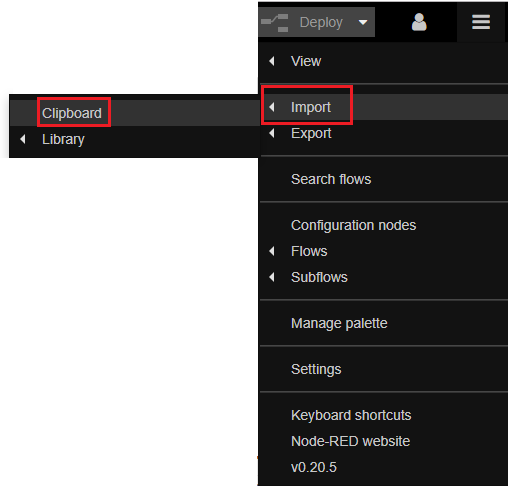
Copy and paste the flows provided below and click on "Import". Make sure you adjust the credentials for your device and then the flows can be deployed.
BB-400 Node-RED flow:
[
   {"id":"9d939786.842cb8","type":"tab","label":"WebSocket IBM Watson","disabled":false,"info":""},
   {"id":"2c0bde6b.e85b22","type":"json","z":"9d939786.842cb8","name":"","property":"payload","action":"","pretty":false,"x":307,"y":123,"wires":[["581f4a36.f5f5b4","24706ab1.c0d526"]]},
   {"id":"581f4a36.f5f5b4","type":"debug","z":"9d939786.842cb8","name":"Debug","active":true,"tosidebar":true,"console":false,"tostatus":false,"complete":"payload","targetType":"msg","x":514,"y":94,"wires":[]},
   {"id":"5d1a306f.9dc8f","type":"websocket in","z":"9d939786.842cb8","name":"WebSocket IO line","server":"e685ee4f.10906","client":"","x":124,"y":125,"wires":[["2c0bde6b.e85b22"]]},
   {"id":"24706ab1.c0d526","type":"wiotp out","z":"9d939786.842cb8","authType":"d","qs":"false","qsDeviceId":"","deviceKey":"1717da24.6c8e56","deviceType":"","deviceId":"","event":"event","format":"json","qos":"","name":"","x":510,"y":172,"wires":[]},
   {"id":"e685ee4f.10906","type":"websocket-listener","z":"","path":"ws://localhost:8989","wholemsg":"false"},
   {"id":"1717da24.6c8e56","type":"wiotp-credentials","z":"","name":"IBM-out","org":"l7wvs2","serverName":"","devType":"BB-400","devId":"BB-400-00c0","keepalive":"60","cleansession":true,"tls":"","usetls":false}
]
IBM cloud Node-RED flow:
[
    {"id":"52bc0b88.446e64","type":"tab","label":"Flow 1","disabled":false,"info":""},
    {"id":"65191717.2d87b8","type":"ibmiot in","z":"52bc0b88.446e64","authentication":"boundService","apiKey":"","inputType":"evt","logicalInterface":"","ruleId":"","deviceId":"BB-400-00c0","applicationId":"","deviceType":"+","eventType":"+","commandType":"","format":"json","name":"IBM IoT","service":"registered","allDevices":"","allApplications":"","allDeviceTypes":true,"allLogicalInterfaces":"","allEvents":true,"allCommands":"","allFormats":"","qos":0,"x":160,"y":140,"wires":[["ff2d47aa.bc8cb8","41c162fd.3a33ec"]]},
    {"id":"f108d6d1.df2138","type":"debug","z":"52bc0b88.446e64","name":"","active":true,"tosidebar":true,"console":false,"tostatus":false,"complete":"payload","targetType":"msg","x":510,"y":140,"wires":[]},
    {"id":"ff2d47aa.bc8cb8","type":"function","z":"52bc0b88.446e64","name":"Inputs","func":"return {payload:msg.payload.d.inputs};","outputs":1,"noerr":0,"x":330,"y":100,"wires":[["f108d6d1.df2138"]]},
    {"id":"41c162fd.3a33ec","type":"function","z":"52bc0b88.446e64","name":"Outputs","func":"return {payload:msg.payload.d.outputs};n","outputs":1,"noerr":0,"x":340,"y":180,"wires":[["f108d6d1.df2138"]]}
]
Sending data from IBM Cloud's Node-RED to your BB-400
In this example we will send a message to adjust the IO lines, from IBM Cloud's Node-RED instance and receive it on your device.
We will start within the IBM Cloud's Node-RED instance.
Drag a inject node  and configure the node as follows:
![Inject node configured with JSON payload [1,0,1,0,1,0,1,0] named Adjust IO lines to toggle alternate outputs](/assets/images/how-do-i-connect-bb-400-to-ibm-watson-using-node-red-adjust-io-lines-2055b638329b73c7a79a41c2ea9878d6.png "Inject node - Adjust IO lines payload configuration")
The inject node has been configured to change alternate IO lines to 1, hence turning the LEDs on the front of your BB-400 off.
Now, we will send the message to the BB-400 using a ibmiot out node, change your settings to Bluemix:
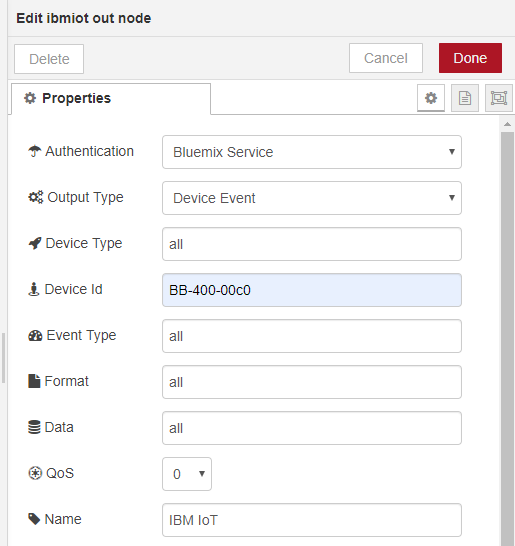
Click on deploy, and click the tab next to the inject node. The payload message is being sent from IBM Cloud to your BB-400, you should see a change in the IO status of your BB-400, alternate LEDs will be switched off.
You can also check the change in IO status within the web admin IO status page:

Import flow
Feel free to copy the flow below into your IBM Cloud's Node-RED instance, making sure you update the credentials for your device:
[
    {"id":"23504559.a842fa","type":"inject","z":"52bc0b88.446e64","name":"","topic":"","payload":"[1,0,1,0,1,0,1,0]","payloadType":"json","repeat":"","crontab":"","once":false,"onceDelay":0.1,"x":160,"y":80,"wires":[["a124cb18.61f478"]]},
    {"id":"a124cb18.61f478","type":"ibmiot out","z":"52bc0b88.446e64","authentication":"boundService","apiKey":"","outputType":"cmd","deviceId":"ADDHERE","deviceType":"ADDHERE","eventCommandType":"all","format":"all","data":"all","qos":0,"name":"IBM IoT","service":"registered","x":380,"y":80,"wires":[]}
]
You have successfully connected your BB-400 to IBM Cloud using Node-RED, sent messages from your device to the cloud, and the cloud has been able to receive the messages. You have also sent a message from the cloud to your device.