
Configure your first device with BB-Eco
This guide takes you from a discovered device to a configuration you can read, change, save as a file, and push to another device — the foundation of config as code with BB-Eco.
Before you start
- BB-Eco is installed and has discovered at least one device.
- The device is online in the dashboard.
Read a device's configuration
Click the device card to open its detail panel. The Info tab shows the device's identity, network settings, and configuration status in one place:
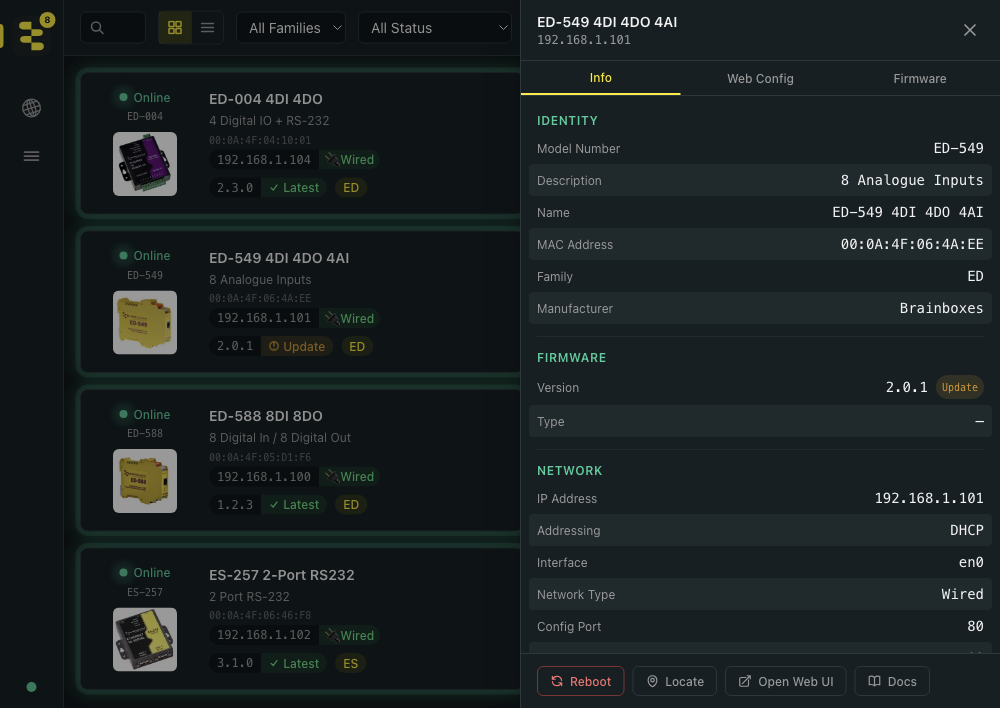
The same view from the CLI is one command, using the same keys you'll meet later in template files:
bb-eco config 192.168.0.63
identity.mac              : 00:0A:4F:06:4A:EE
identity.model            : ED-549
identity.firmwareVersion  : 8.25
network.dhcp              : false
network.gateway           : 192.168.0.254
device.name               : ED-549
device.location           : jim
io.protocol               : ASCII
...
Change a setting
For a one-off change, two routes:
- Desktop app — the Web Config tab renders the device's own embedded web UI inline, so anything the device can configure, you can change without leaving BB-Eco.
- CLI — write any key the read view displays:
bb-eco config 192.168.0.63 device.location Panel-A
Set 'device.location' = 'Panel-A' on 192.168.0.63.
The device firmware caps these fields: on ED devices the name, location and IO line names take at most 10 characters; on ES devices the name takes at most 40, and there is no location field. BB-Eco rejects longer values before they reach the device.
Save the configuration as a template
A template is a JSON file holding a device's configurable settings. On the Info tab, scroll to Configuration Status and click Download Template — BB-Eco saves the device's current configuration as a .json file. The CLI equivalent:
bb-eco template export 192.168.0.63 ed-549-baseline.json
Template exported to ed-549-baseline.json
Commit that file to Git. It is now the documented, reviewable record of how this device is configured — and the input for drift detection.
Security settings (usernames, MAC filters, authentication method) are left out of exports unless you pass --include-security, and passwords are never written to a template — see the template export reference.
Make the template reusable
An exported template describes one device's settings, but it is portable by design — the MAC address, IP address and firmware version are not part of it. To turn it into a standard for many:
- Set anything you don't want to manage to
null— anullfield or missing section means don't touch, so the template only governs what you care about. - Leave
staticIpasnull— IPs are device-specific.
Every available key, its factory default, and the range the firmware accepts is documented in the downloadable reference templates:
Check your edited template before using it — validation is offline and CI-friendly:
bb-eco template validate ed-549-baseline.json
Family: ED
Model: ED-549
Template is valid.
Apply the template to a device
In the app: Info tab → Apply Template → choose the file. A preview lists every change before anything is written to the device.
From the CLI, preview first with --dry-run, then apply:
bb-eco template apply 192.168.0.91 ed-549-baseline.json --dry-run
bb-eco template apply 192.168.0.91 ed-549-baseline.json
Templates are family-locked — an ED template refuses to apply to an ES device — and network settings are written last so an IP change can't strand the rest of the apply. The full section-by-section behaviour is in the template format reference.
To push one template across many devices, loop the CLI over your device list — the pattern (and its drift-audit counterpart) is in Detect configuration drift across your fleet.
Next step
Your template is now the single source of truth for this device. Next, let BB-Eco tell you when reality diverges from it.
More resources
- Configuration as code with BB-Eco — why templates + Git beat per-device web UIs
- BB-Eco template JSON format — every field, type, and range
bb-eco templateCLI reference — export, validate, diff, and apply with real outputbb-eco configCLI reference — read and write single settings