UC Driver Upgrade / Rollback
Serial Solutions Driver Upgrade / Rollback
There are two parts to the Serial Solutions driver.
Taking for example the PCMCIA PM-121 2 port Device:
Card Drivers:
- Brainboxes Limited - 2 Port PCMCIA 422/485 Card
- Brainboxes Limited - 2 Port PCMCIA 422/485 Card Port 1
- Brainboxes Limited - 2 Port PCMCIA 422/485 Card Port 2
Port Drivers:
- Brainboxes Serial Port (COM7)
- Brainboxes Serial Port (COM8)
If you need to upgrade or roll back the Serial Solutions driver, we recommend completely uninstalling the existing drivers first, and then installing the new drivers from fresh. This will restore all the factory settings to default.
However, if you wish to keep all of your existing settings, you can use the Update Driver or Rollback Driver options in Device Manager.
Upgrading the Serial Solutions Driver
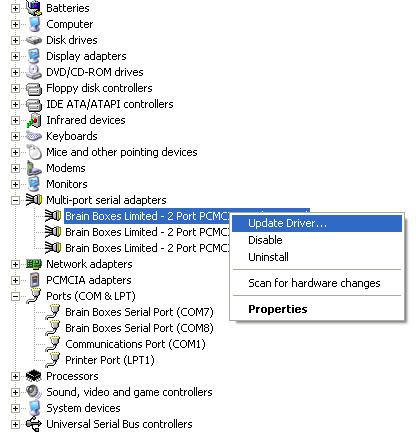
- Go to Device Manager and right-click on the Serial Card entry (Found under Multiport Serial Adaptors - see image below).
-
Select Update Driver Software. This will launch the Found New Hardware Wizard. Follow the on-screen instructions and point to the location of the new driver package.
-
Repeat this for every Serial card and port entry.
Rolling Back the Serial Solutions Driver
-
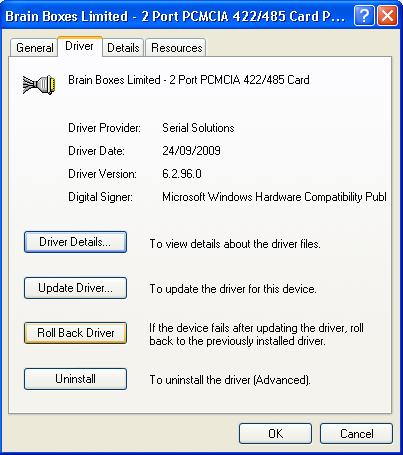
Go to Device Manager and double-click on the Serial Card entry. Click on the Driver tab of the Card properties page.
-
Click on the Roll Back Driver button.
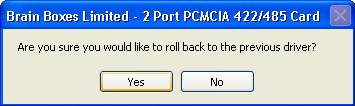
- Click Yes to roll back the driver to the previous version, and click No to keep the current driver version.
-
Click on the Close button to close the properties.
-
You may have to restart your computer for the changes to take effect.