
General troubleshooting with BB-Eco — logs, filters, and contacting support
When something doesn't work in BB-Eco — a device that won't appear, a config that won't apply, an upgrade that stalls — the first stop is the Logs panel under Settings. This guide covers what's in there and how to get the right detail to Brainboxes support quickly when you need help.
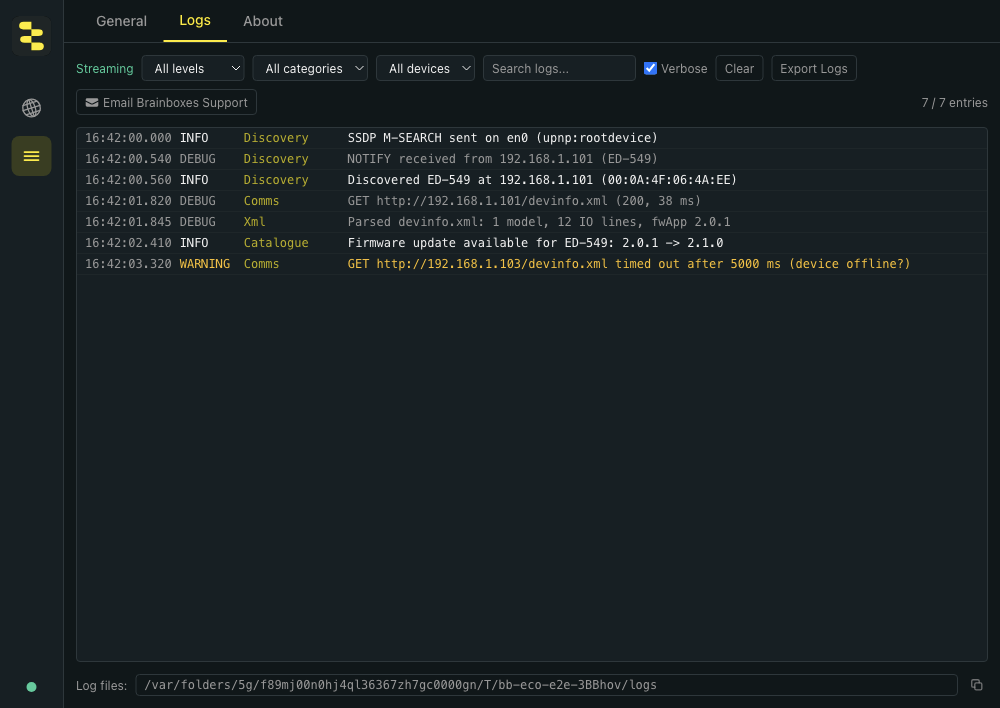
Open the Logs panel
- Click the Settings (≡) icon in the left sidebar.
- The Logs tab is selected by default.
The panel streams live — new entries from the sidecar appear as soon as they're emitted, no manual refresh needed.
The toolbar above the log stream is where you narrow the firehose:

What's in a log entry
Two example entries — one informational, one warning:

Each row has four fields:
| Field | Example |
|---|---|
| Timestamp | 15:42:01.823 — shown in your local time in the app; the log files on disk use UTC |
| Level | Debug, Information, Warning, Error, Critical |
| Category | Discovery, Comms, Xml, Cgi, Auth, Upgrade, Catalogue, Config, Telemetry, Rpc |
| Message | Human-readable description with relevant IPs, ports, and paths |
Categories are stable identifiers — Discovery always means SSDP / mDNS / WS-Discovery activity, Comms is HTTP traffic to devices, Upgrade is anything related to firmware transfer.
Toggle verbose mode
By default, the panel shows Information and above. Toggle Verbose at the top of the panel to include Debug entries — needed for diagnosing tricky issues like SSDP packet flow or per-block TFTP progress.
Verbose mode is non-persistent — it doesn't survive a restart, and toggling it on doesn't slow the app down (the logs were already being written; the UI just shows more of them).
Filtering: the four controls
The toolbar has four filters that compose:
- Level filter — drop-down:
All,Debug,Information,Warning,Error. PickingWarningshows warnings and above. - Category filter — drop-down listing every category that's appeared in this session. Useful for narrowing to one subsystem.
- Search box — substring match across the entire entry (timestamp, level, category, and message). Case-insensitive. Useful for tracking a specific IP or MAC across many categories.
- Verbose toggle — described above.
Filters apply live; the entry list updates as you type.
Copy individual log lines
Click any log row to copy that single entry to the clipboard, formatted as it is in the file (UTC timestamp, so lines from different machines line up):
[2026-05-05T15:42:01.823Z] [Information] [Discovery] Discovered ED-549 at 192.168.1.101 (00:0A:4F:06:4A:EE)
Useful when you're chatting with a colleague or pasting one specific line into a ticket. No need to copy-paste the whole window.
Export the full log
The Export Logs button in the toolbar writes all visible entries (after filters) to a .log file. The file picker defaults to your desktop — pick a location and BB-Eco saves the formatted text.
Export uses the filtered list, so if you've narrowed to Category: Upgrade and Level: Warning+, the export contains only those entries. Clear filters first if you want everything.
Email Brainboxes support directly
The Email Brainboxes Support button next to Export is a one-click escalation:
- Click Email Brainboxes Support.
- BB-Eco exports the current logs to a file.
- BB-Eco opens your default email client with:
- To:
[email protected] - Subject:
Technical support issue with BB Eco - Body: A pre-filled template prompting you to describe what you tried, what you expected, and what happened — with the app, sidecar, and OS version details already filled in, so support never has to ask "which version are you on?"
- To:
- Attach the exported log file to the email before sending — BB-Eco can't attach it for you (browsers and OSes don't expose that capability), so the email body reminds you.
- Send.
Including the logs in your first email saves a round-trip — the support team can diagnose most issues from the log file plus your description without needing follow-up requests for diagnostic detail.
Where the log files live on disk
Even without exporting, BB-Eco writes daily-rotated log files to disk. Useful when something happened earlier and you've since restarted the app:
| OS | Path |
|---|---|
| macOS | ~/Library/Logs/bb-eco/ |
| Linux | ~/.config/bb-eco/logs/ |
| Windows | %APPDATA%\bb-eco\logs\ |
The panel shows the log directory path with a button that copies it to the clipboard.
You'll see two files per day:
bb-eco-YYYY-MM-DD.log— the unprivileged sidecar (discovery, configuration, monitoring)bb-eco-upgrade-YYYY-MM-DD.log— the transfer sidecar (firmware upgrades and stuck-device detection)
On Linux the transfer sidecar runs as root to bind UDP 67 / 69, so that file is root-owned there: sudo less ~/.config/bb-eco/logs/bb-eco-upgrade-2026-05-05.log. On Windows and macOS it runs as you and the file is yours.
What's stripped before logging
BB-Eco's logger masks credentials before writing: passwords, tokens and authentication parameters in device requests are replaced with ***. Everything else needed to diagnose a network problem stays — device IP and MAC addresses, device names and locations, and the path of any file BB-Eco opened — so review the file before sharing it outside your organisation.
Common workflows
"My device isn't appearing"
- Filter
Category: Discovery, set verbose on. - Look for
SSDP M-SEARCH sent on...— that confirms BB-Eco is broadcasting. - Look for
NOTIFY received from...orSSDP response from...— that confirms the device is replying. - If you see only the M-SEARCH and no responses, it's a network issue — see BB-Eco finds no devices on my network.
"An upgrade failed"
- Filter
Category: Upgrade, set verbose on. - Find the stage at which it failed (
BootloaderUpgrade,FirmwareAppUpgrade, etc). - Look for the surrounding
Commsentries — TFTP block ACK timing, BOOTP reply confirmations. - Use Email Brainboxes Support to send the file with a description of which device, which firmware version, and what stage failed.
From the CLI
The CLI carries the same diagnostics it bundles for the desktop app:
A single-shot system and network snapshot for a support ticket:
bb-eco diagnostics --output bb-eco-diagnostics.json
The same, plus a fresh discovery sweep so support sees what is currently visible on the LAN:
bb-eco diagnostics --output bb-eco-diagnostics.json --discover
The file is JSON: operating system and CPU architecture, every network interface with its address and multicast capability, and (with --discover) the devices a three-second sweep found. It does not include log files — attach those separately from the log directory above if support asks for them.
Combine with --verbose on any command to get a higher log level temporarily:
bb-eco discover --verbose 2> discover.log
stderr carries the verbose log; stdout is the discovery output. The pattern works for every command — separate the diagnostic stream from whatever you're actually scripting against.
See the bb-eco diagnostics CLI reference for every flag.
"Configuration apply silently doesn't change anything"
- Filter
Category: Cgi, set verbose on. - Each setting change shows the CGI request and the device's HTTP response code.
- A
200response means the device acknowledged the change. A401means an auth issue. A4xxother than401usually means the device rejected the value.
Last resort: reset the app to a clean state
When state itself is the suspect — a corrupted device cache, template history from a decommissioned site — BB-Eco can wipe its own data and start fresh: Settings → General → Advanced → Reset App Data, or from the CLI:
bb-eco reset
Both routes list exactly what gets deleted (saved devices, template and drift history, logs) and ask for confirmation. The downloaded firmware cache is deliberately kept — it's checksum-verified and expensive to re-download. See the bb-eco reset reference.
More resources
- BB-Eco finds no devices on my network — the discovery-specific checklist
- BB-Eco firewall rules for IT administrators — when the blocker is Windows Firewall policy
- Recover a stuck ED or ES device — for firmware-related stuck states
- How BB-Eco works — the architecture context for what each log category means
- Use BB-Eco as a network discovery tool — when troubleshooting needs a wider view of what's on the LAN