
UC Troubleshooting and Testing
Installation Problems
-
Check the Brainboxes card is correctly installed, and the ports appear in Device Manager without any errors (Errors are indicated by yellow ! icons)
-
If the installation did not complete or shows any error messages then restart the computer
-
If Device Manager is still showing error messages, it is wise to uninstall and re-install. This should cure issues such as Resource Conflicts or failed installations. See Installation Overview and Uninstallation
-
If the problem still persists, try the following to help narrow down the problem:
- A different PCI/PCMCIA slot
- A different PC
-
If the problem still persists, please contact Brainboxes Technical Support. See Lifetime Warranty and Support
Communication Problems
If you are experiencing communication problems:
-
Check the Brainboxes card is installed correctly, and the ports appear in Device Manager without any errors (Errors are indicated by a yellow exclamation mark ! icon). If there are any errors, follow the Installation Problems section above.
-
Perform a loopback test on one of the ports. A loopback test will verify that your card is able to Transmit and Receive Data. The Transmit and Receive pins will need to be connected so that data sent out of the card is then received back in the same port.
-
Please contact Brainboxes Technical Support with your loopback test result should the problem persist with your application.
Testing your Serial COM Port
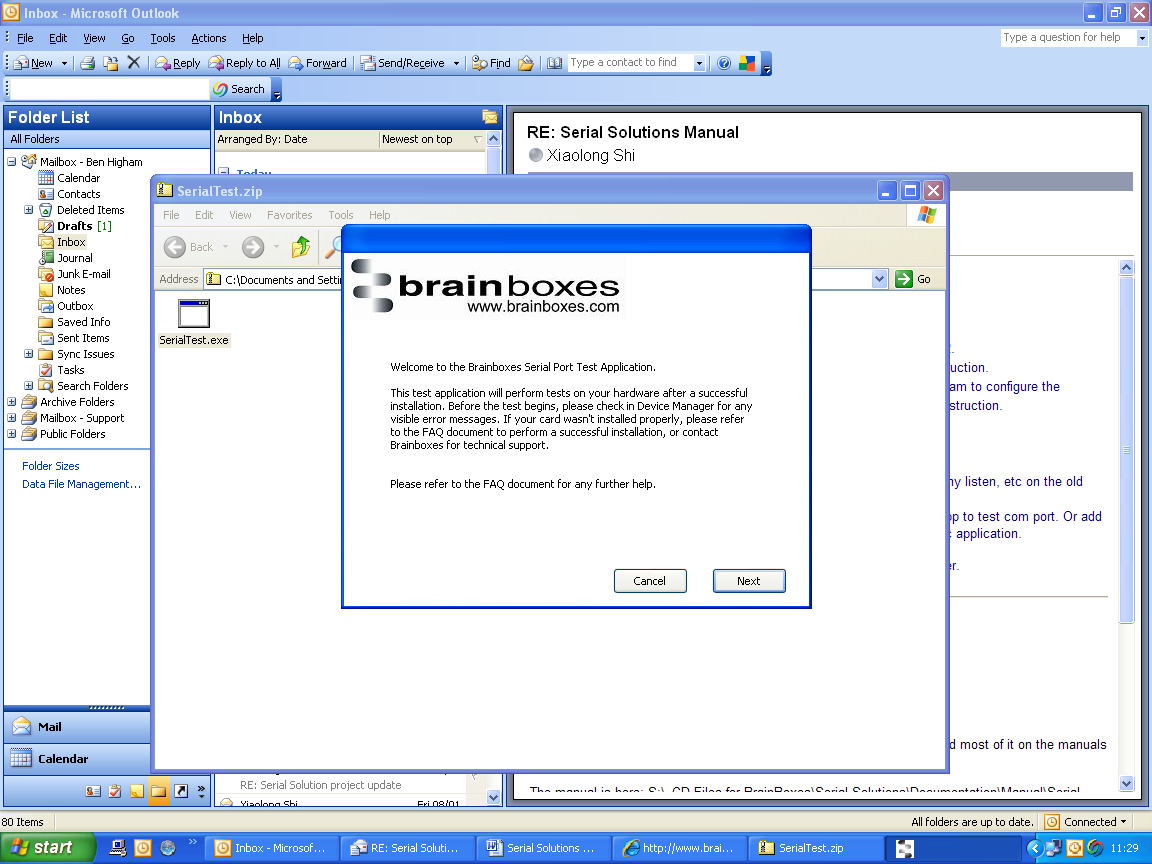
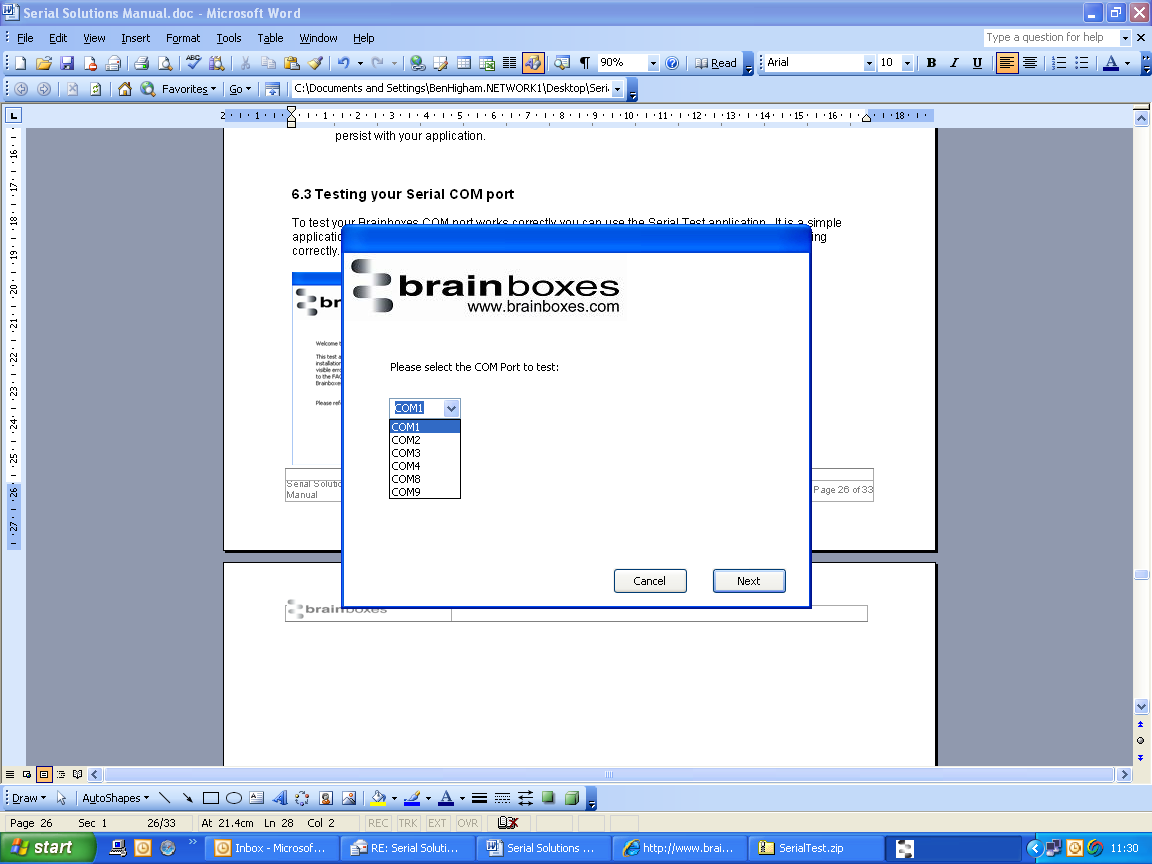
To test your Brainboxes COM port works correctly you can use the Serial Test application. It is a simple application which will guide you through the steps to check that your Brainboxes COM port is working correctly.
You will need to:
- Select the COM port you want to test
- Connect a loopback connector to the transmit and receive pins of the respected COM port
- Run the test
You will then be given a result as to whether the test has passed or failed.
Baud Rate Test Application
To test if a specific baud rate is supported by one of our cards, the Baud Rate Test application can be used. You simply put the baud rate details into the program and then click calculate and the details will be output. This software is supplied on the Serial Solutions CD.
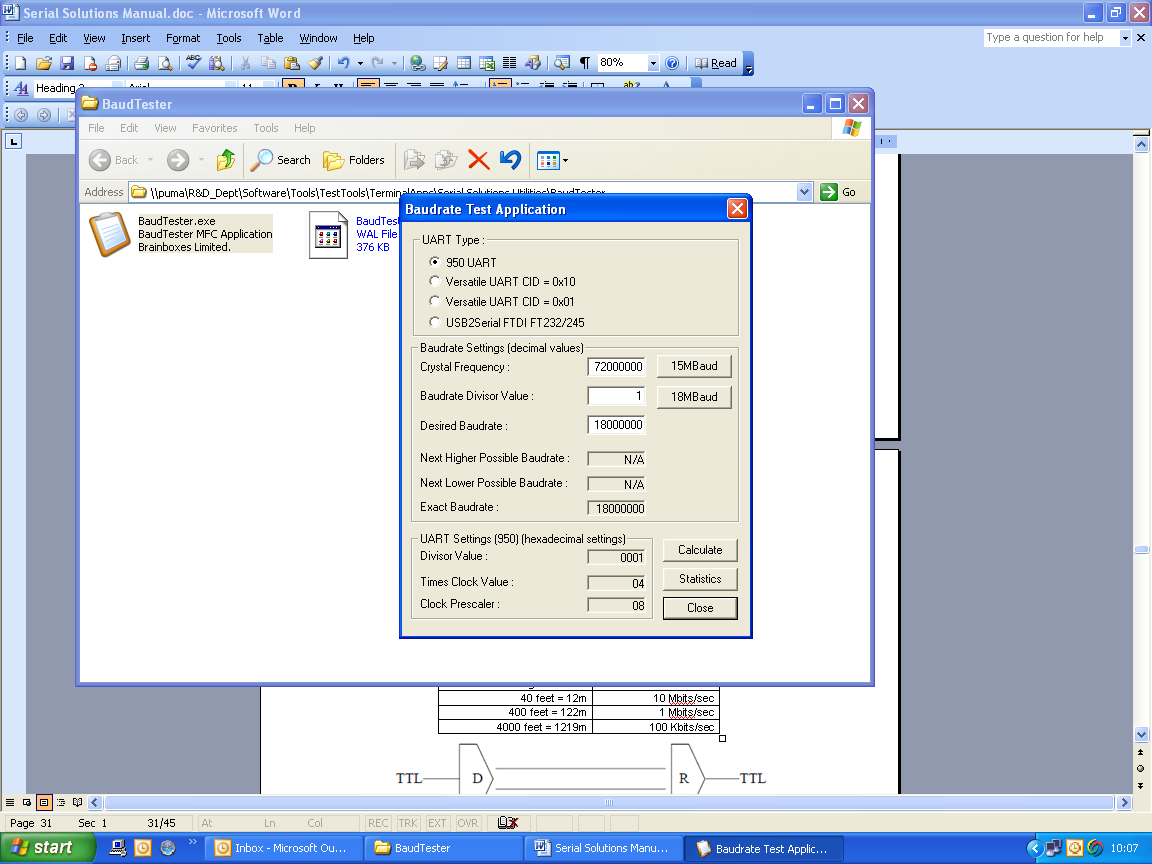
UART Type Settings
The following settings need to be applied for specific Brainboxes products:
| Product | UART Type Setting |
|---|---|
| PM-121, CC-530, CC-525 | 950 UART type |
| Any UC card | Versatile UART CID = 0x10 |
| Any other PM card | Versatile UART CID = 0x01 |
The last option (USB devices) is not applicable for the Serial Solutions software product ranges.
Crystal Frequency
The crystal frequency will also need to be set to a specific value for the card that you are using. For UC and PM cards, the frequency is 1475600.