
Reach a Brainboxes device on its fallback IP address (192.168.127.254) with BB-Eco
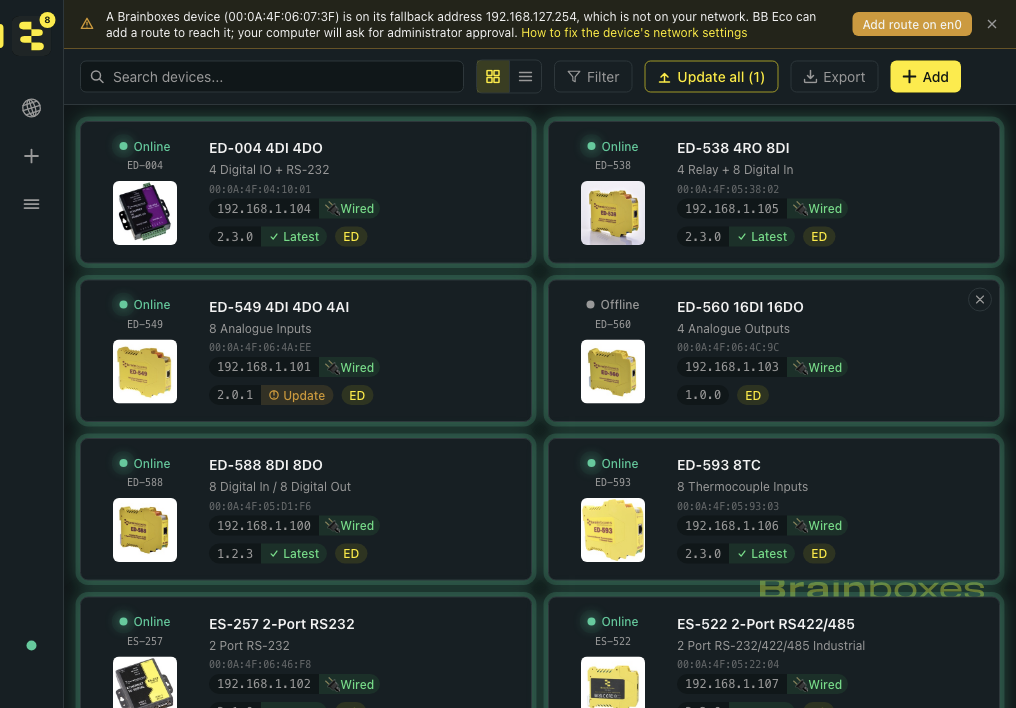
A Brainboxes device that gets no DHCP lease uses its fallback address, 192.168.127.254. BB-Eco can hear such a device but not open its pages, because that address is not on your network. When this happens BB-Eco shows a banner naming the device and offers to add a route to it. Click Add route, approve the one administrator prompt, and the device appears on the dashboard like any other. Then give it an address on your network so the route is no longer needed.
Why a device ends up on 192.168.127.254
ED and ES devices ship in DHCP mode. When a device starts, it asks for an address; if no DHCP server answers within 60 seconds, it uses the static address stored in its settings instead. From the factory that address is 192.168.127.254 (the ED-51604 uses 192.168.1.10). The device stays there until it is next power-cycled, when it asks DHCP again.
So you will usually meet this address when:
- a device is plugged straight into your computer, with no DHCP server between them;
- a device was powered up before the network's DHCP server was reachable;
- a device has just been reset to factory settings;
- a device was deliberately given that static address, or any other address outside your network.
The device's own page is at http://192.168.127.254 once your computer can reach it. Until then, pings and page loads time out, although BB-Eco still sees the device's discovery announcements, which travel on the local network segment regardless of IP address.
What BB-Eco shows
Within a few seconds of the device announcing itself, a banner appears above the dashboard:

The banner names the device by its MAC address (it is printed on the device's label) and the network adapter BB-Eco heard it on, which is the adapter the device is plugged into. If BB-Eco could not tell which adapter that was, a drop-down lets you choose.
A device given a static address on some other network produces the same banner with different wording: is set to 10.20.30.40, which is not on any of your networks. The fix is the same.
BB-Eco never changes your computer's routing on its own. Nothing happens until you click the button, and a banner you dismiss stays dismissed until BB-Eco is next started.
Step 1 - Add the route
-
Click Add route on <adapter>.
-
Approve the prompt your operating system shows. This is the same kind of prompt as installing software:
Prompt What is added <img src="/img/os-logos/windows.svg" alt="" width="18" style={{verticalAlign:'middle'}} /> Windows User Account Control A route to the device's address on that adapter, active until the computer restarts <img src="/img/os-logos/apple.svg" alt="" width="18" style={{verticalAlign:'middle'}} /> macOS Password dialog A route to the device's whole 192.168.127.0/24range on that adapter, until the Mac restarts<img src="/img/os-logos/linux.svg" alt="" width="18" style={{verticalAlign:'middle'}} /> Linux Password dialog (polkit or sudo) A route to the device's address on that adapter, until the computer restarts -
A Route added dialog opens while BB-Eco waits for the device to answer. As soon as it does, the dialog says so and the device's card appears on the dashboard. Click OK.
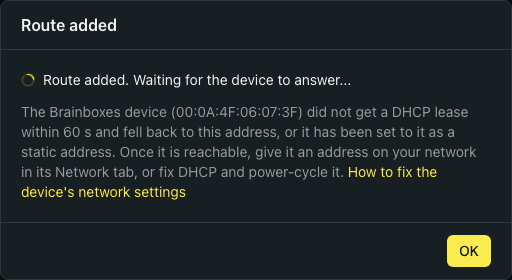
The route reaches only the device's address on that one adapter (the whole 192.168.127.x range on macOS), so it cannot affect how your computer reaches anything else. On macOS the one route covers every device on that range, so if several devices are on their fallback address at once, the first click reaches them all.
Everything BB-Eco does with a device works over the route, including firmware upgrades: the device keeps its address through the upgrade.
If the prompt is declined, the dialog says so and nothing has changed. Click Add route again when you are ready.
Step 2 - Give the device an address on your network
The route is a way in, not a fix. Once the device's card is on the dashboard, move it onto your network so it stays reachable without the route:
- Click the device card and open its Web Config tab. This is the device's own configuration page.
- In the Network settings, choose one of:
- DHCP, if your network has a DHCP server. Then power-cycle the device, or reboot it from the Info tab's quick actions: the device asks for a lease again on start-up.
- A static address inside your network's range, if that is how your network is run. The device applies it straight away and reappears at the new address.
For the settings on each page, see ED web configuration or the ES equivalent (light industrial or industrial). To apply a whole saved configuration to the device instead, see Configure your first device.
If the device went to its fallback address because the DHCP server was down or unreachable when the device started, fix that and power-cycle the device; its settings do not need changing.
Step 3 - Remove the route (optional)
The route disappears when your computer restarts. To remove it sooner, from a terminal (elevated: sudo on macOS and Linux, an Administrator prompt on Windows):
sudo bb-eco route remove 192.168.127.254 --interface en0
Use the adapter name the banner showed (en0 on a Mac; eth0, enp3s0 or similar on Linux; Ethernet or similar on Windows).
From the CLI, or without BB-Eco
The same route from a terminal, for a headless machine or a script:
sudo bb-eco route add 192.168.127.254 --interface en0
Route to 192.168.127.254 added on en0. It lasts until the next restart.
See bb-eco route for the options. The command accepts only an address that is outside your current networks and an adapter that is up and not a VPN. Any address a device can be given is allowed, including ones outside the private ranges, because a device that has been set to one still needs reaching so it can be corrected; the route covers that one device and lasts until the next restart.
Without BB-Eco, the operating system's own route command does the same job. Replace en0 with the adapter the device is plugged into:
sudo route -n add -net 192.168.127.0/24 -interface en0
sudo ip route add 192.168.127.254/32 dev eth0
netsh interface ipv4 add route 192.168.127.254/32 "Ethernet" store=active
The older approach, giving your computer a second address such as 192.168.127.253, still works too: see Connect to a remote IO device.
More resources
- BB-Eco finds no devices on my network - when there is no banner and no cards at all
- Discover your first device - how auto-discovery and manual entry work
- Default ports and anti-virus / firewall exceptions - the ports Brainboxes devices use