
Use BB-Eco as a general network discovery tool
BB-Eco isn't just for Brainboxes hardware. The Network Neighborhood tab discovers anything on your LAN that announces itself — printers, NAS units, IP cameras, edge controllers, smart-home gear — using three industry-standard discovery protocols at once.
Useful when you walk into an unfamiliar site and need to know what's actually on the network before you start configuring anything.
What it discovers
BB-Eco sends the standard search query on each of three protocols, listens for the answers and for the announcements devices make on their own, and merges the results into one list:
| Protocol | Multicast address | Devices that typically use it |
|---|---|---|
| SSDP / UPnP | 239.255.255.250:1900 | Smart TVs, NAS, routers, Brainboxes ED/ES/SW, media servers |
| mDNS / DNS-SD | 224.0.0.251:5353 | Apple devices, printers, Brainboxes BB-400, AirPrint, Chromecast |
| WS-Discovery | 239.255.255.250:3702 | IP cameras (ONVIF), Windows network shares, network printers |
If a device speaks any of those, BB-Eco sees it. If a device speaks two or three (common for higher-end gear), BB-Eco merges the announcements into a single row and shows all the source badges.
How to use it
- Open BB-Eco.
- Click the Network Neighborhood icon (the globe) in the left sidebar.
- That's it — devices appear as they announce themselves. No button to press, no scan to start. Discovery runs continuously.
The badge on the sidebar icon shows the live count, so you can see at a glance how many devices the network has revealed.
Reading a row
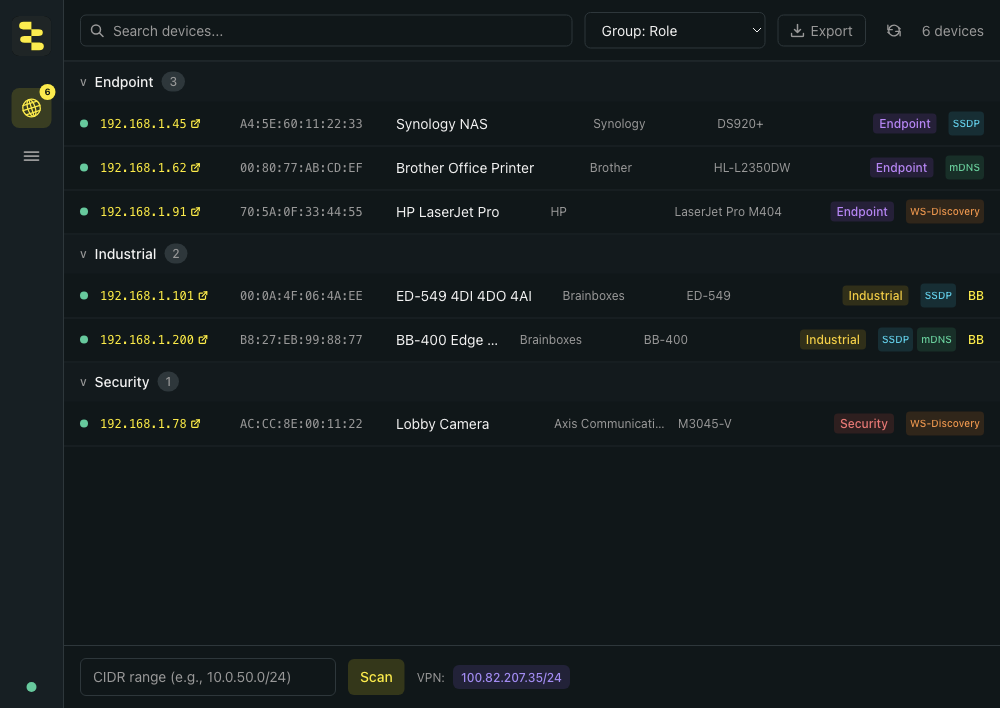
A typical row in the Neighborhood view, with all the badges that can light up — the BB-400 announces on multiple protocols, so it gets SSDP, mDNS, and the green BB tag indicating Brainboxes hardware:

Each device row shows:
- IP address — links to the device's web UI if it has one
- MAC address — useful for cross-referencing DHCP leases or asset databases
- Friendly name / hostname — whatever the device advertises
- Manufacturer — extracted from MAC OUI lookup or protocol metadata
- Model — from protocol metadata where the device provides it
- Role badge — BB-Eco categorises devices into Industrial, Infrastructure, Security, Endpoint, Smart Home, or Unknown based on signals like manufacturer, advertised services, and device class
- Source badges — SSDP / mDNS / WS-Discovery, one per protocol the device announced on
- BB badge — set when the device is identified as Brainboxes hardware, even when discovered as a "neighbor" rather than through the dedicated Brainboxes dashboard
Grouping and filtering

The toolbar offers four ways to organise the list:
- By role (default) — Endpoint, Industrial, Infrastructure, Security, Smart Home, Unknown
- By subnet — useful when your laptop has multiple network interfaces
- By source — separate columns for SSDP, mDNS, WS-Discovery — see which protocol each device speaks
- By manufacturer — useful when you want to find every device from one vendor
The search box does substring matching across IP, MAC, hostname, manufacturer, and model.
Active CIDR scanning
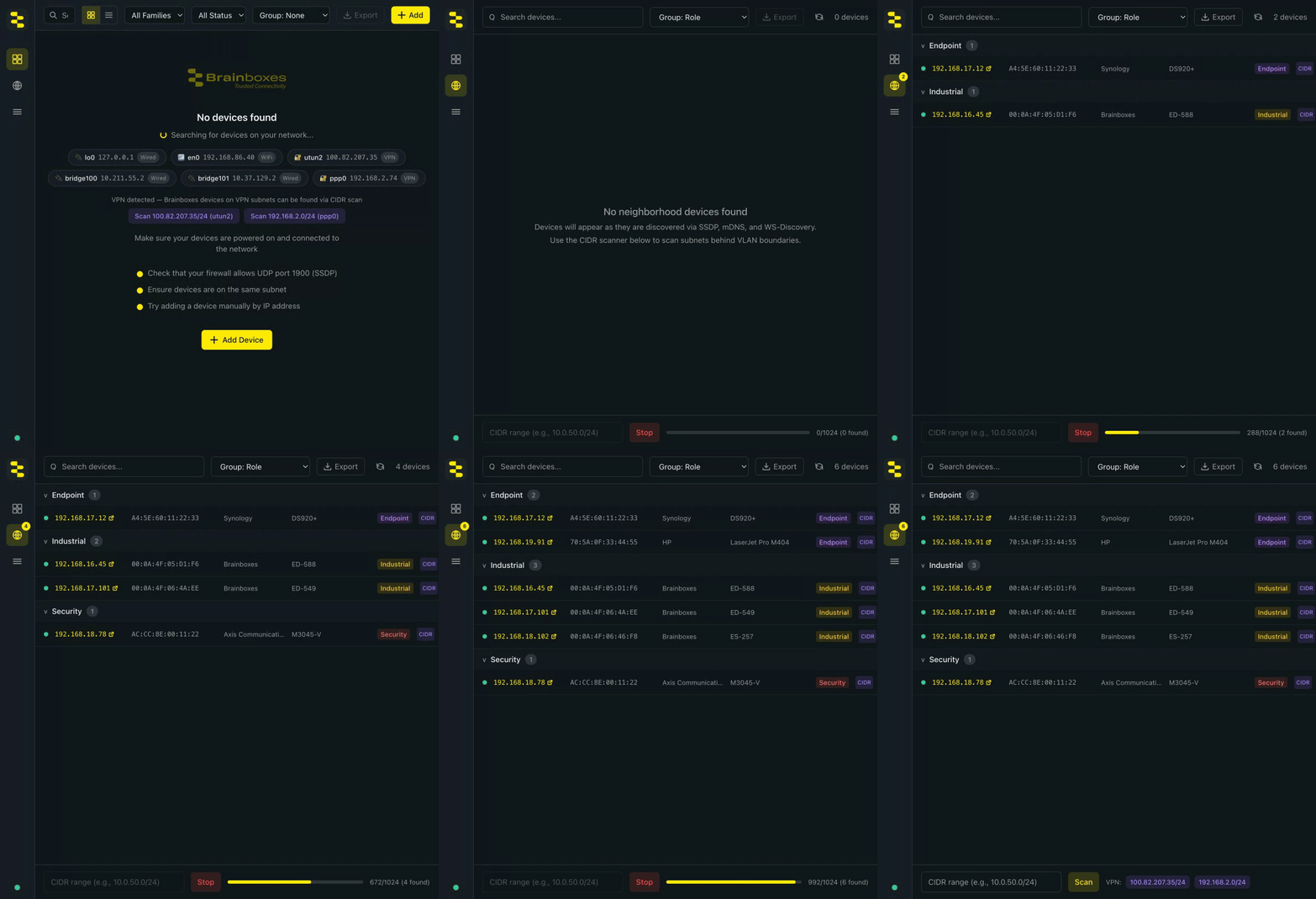
Passive listening only finds devices that announce themselves. To probe a subnet for everything that responds — including devices that don't announce — use the CIDR scan at the bottom of the Neighborhood tab:
- Enter a CIDR range (e.g.
192.168.16.0/22or10.0.50.0/24), or click an auto-detected VPN suggestion if you have an active tunnel. - Click Scan.
- BB-Eco TCP-probes every host in the range on common HTTP/HTTPS ports (80, 443, 8080, 9000) plus the ports where Brainboxes devices publish their UPnP description away from port 80 (1901 for managed switches, 5001 for the BB-400), and enriches each responder with the device's HTTP
Serverheader and page title. A Brainboxes description found on any of those ports promotes the host to a full device card, with later probes going to that port.
Scan progress shows live from the instant you click Scan — the progress bar and Stop button appear immediately, results stream in as hosts respond, and each candidate port is probed concurrently so a dead host costs one timeout rather than several. Cancel any time. Results merge into the same list as the passive discoveries.
Exporting the inventory
The Export button in the toolbar saves the current device list as a CSV file. Useful for:
- Site survey reports — hand over to the customer or document for your own records
- Asset database imports — feed straight into your inventory tracker
- Vulnerability triage — cross-reference manufacturer / model with CVE databases
The CSV includes every column visible in the UI plus the discovery source list (semicolon-separated when a device announced on multiple protocols).
Network discovery from the CLI
The same passive multicast discovery and active CIDR probe are available headlessly:
Multicast discovery of Brainboxes devices (ten-second listen by default):
bb-eco discover --json | jq
TCP-probe a subnet for HTTP servers, with the same probe and page-title enrichment as the desktop's CIDR scan box:
bb-eco scan 192.168.1.0/24 --json > scan.json
The same scan as a CSV for a site-survey report:
bb-eco scan 10.50.0.0/22 --csv > $(date +%F)-site-survey.csv
The scan command takes the same TLS-permissive HTTP client the desktop uses (self-signed certs are accepted, since they're the norm on industrial HTTPS), and the JSON output mirrors the columns visible in the Neighborhood tab — IP, MAC OUI, manufacturer, role, source protocols, page title.
For pen-test reconnaissance or scheduled site audits, drop the bb-eco scan invocation into a cron / systemd timer and pipe the JSON into your asset tracker.
See the bb-eco scan CLI reference for every flag.
When to reach for it
- Site walkthroughs — five minutes after plugging in your laptop you have a complete picture of what's on the network.
- Asset inventory audits — periodic exports tracked in Git or a ticket system catch new devices as they appear.
- Troubleshooting connectivity — if a device is "missing" from the Brainboxes dashboard, check the Neighborhood tab. If it's there but not the main dashboard, you've narrowed the issue.
- Pen-test reconnaissance (with permission) — see what an attacker on the same subnet would see using nothing more than standard discovery queries.
Privacy note
By default BB-Eco's Network Neighborhood only speaks the discovery protocols themselves — it sends the standard SSDP, mDNS and WS-Discovery search queries to the multicast groups and listens for answers and announcements, exactly as a printer driver or media player does. No individual host is probed until you explicitly run a CIDR scan. If you're on a network where active scanning would be a problem (production OT, customer sites without authorisation), don't run the scan; the passive listener is fine.
More resources
- Discovery, the device cache, and VPN sessions — why a single CIDR scan is enough to give you a remembered fleet that "just shows up" every time you connect over VPN
- How BB-Eco works — the protocol stack behind the Neighborhood tab
- Discover your first device — the Brainboxes-only equivalent for the main dashboard
bb-eco scanCLI reference — the same CIDR scan, scriptable for CI / automation